AStudio Core Features
Source: Official AStudio documentation · Checked: 2026-10-27. Product behavior and availability may change; consult the current official page.
The screenshots below come from the official Chinese interface. English captions explain each step; click an image to enlarge it.
Daily and Projects
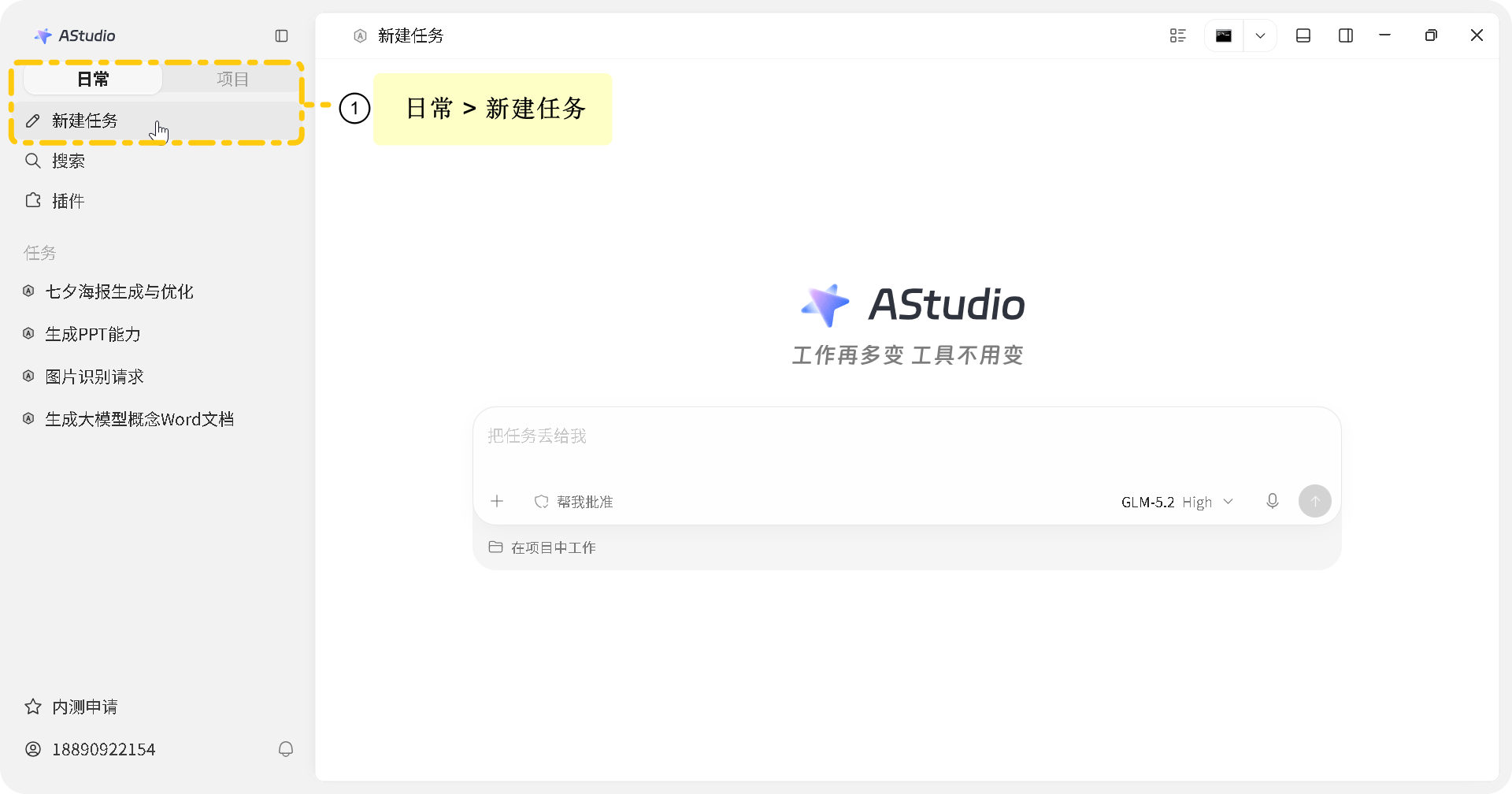
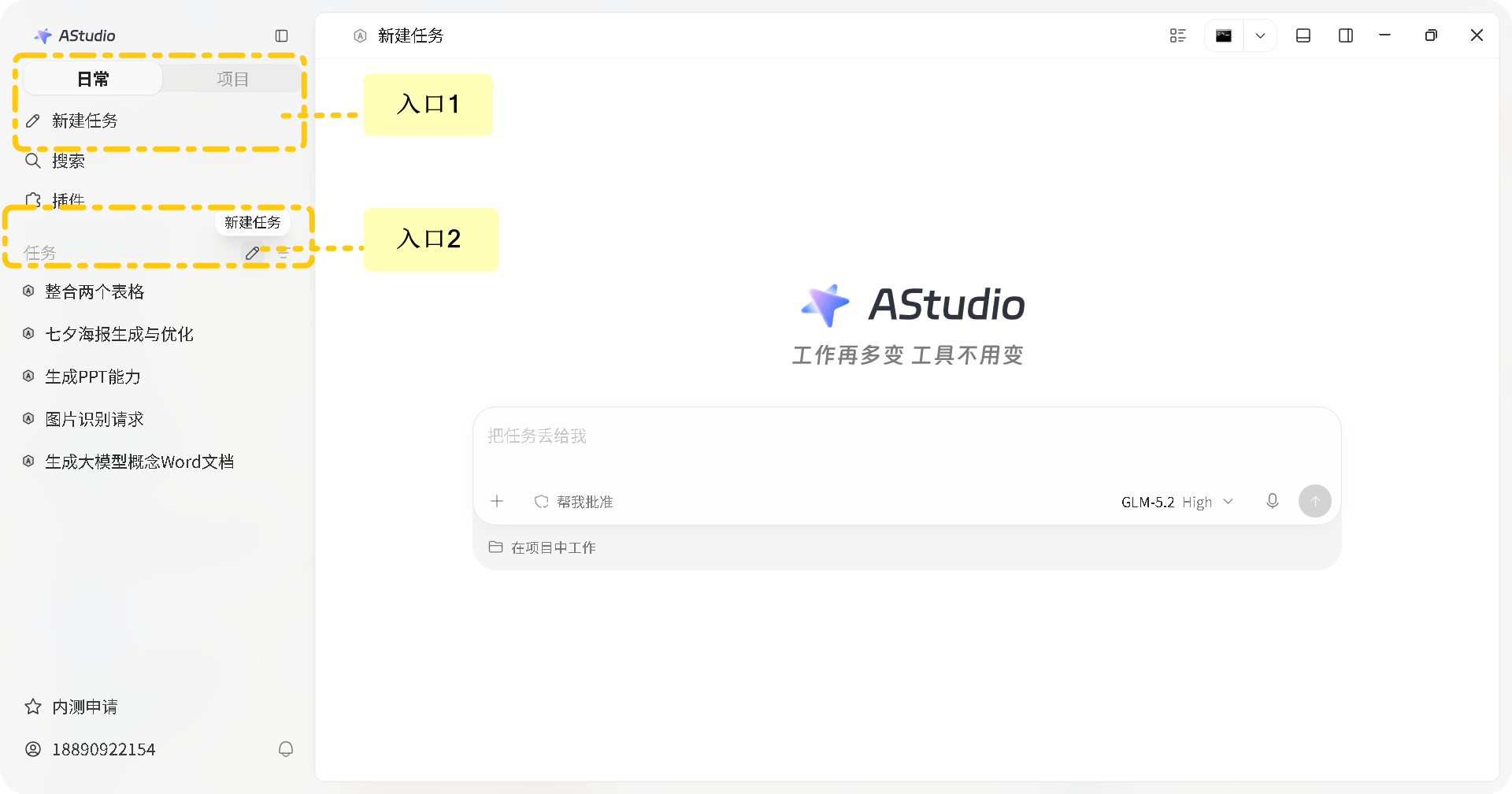
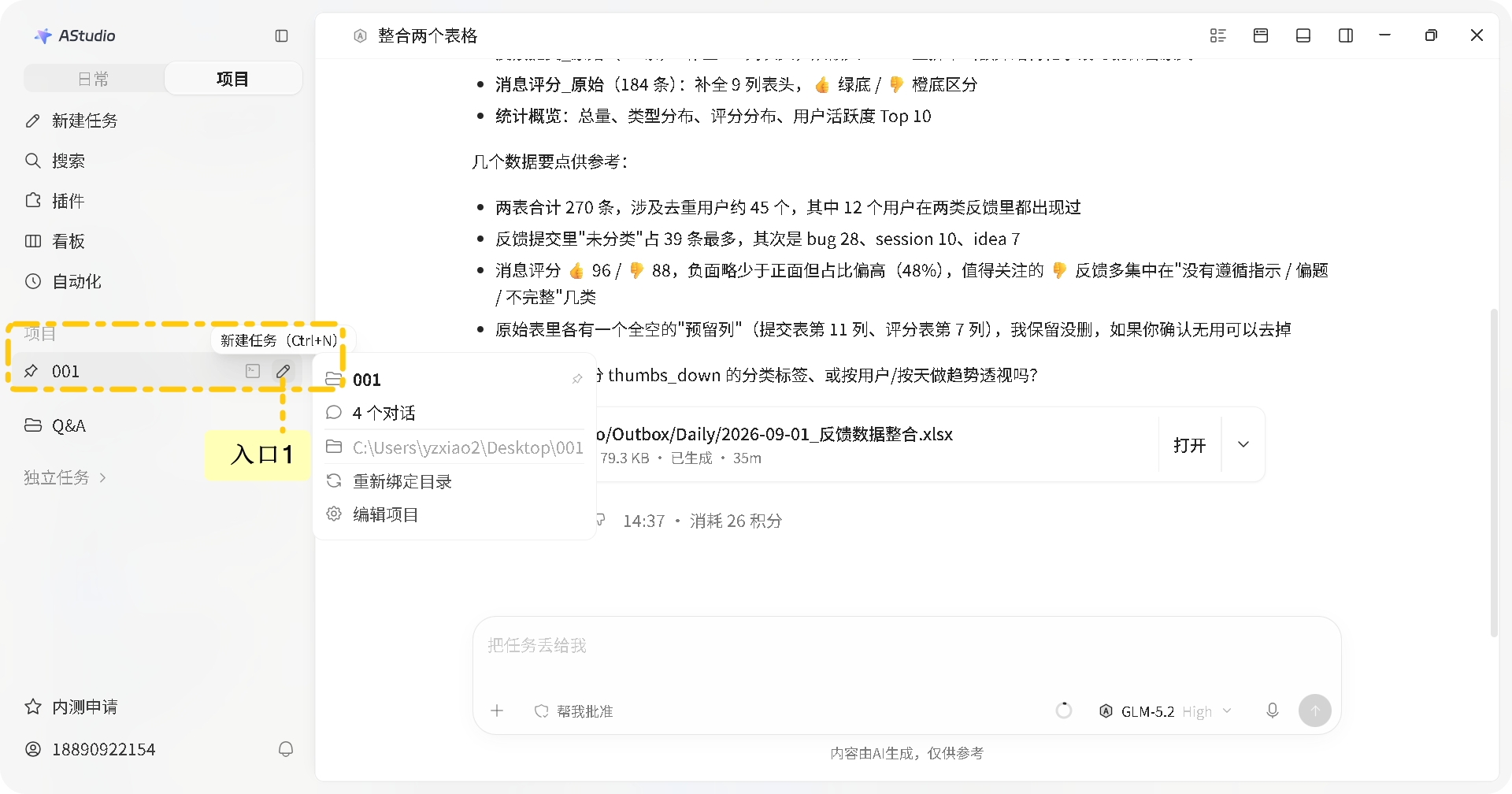
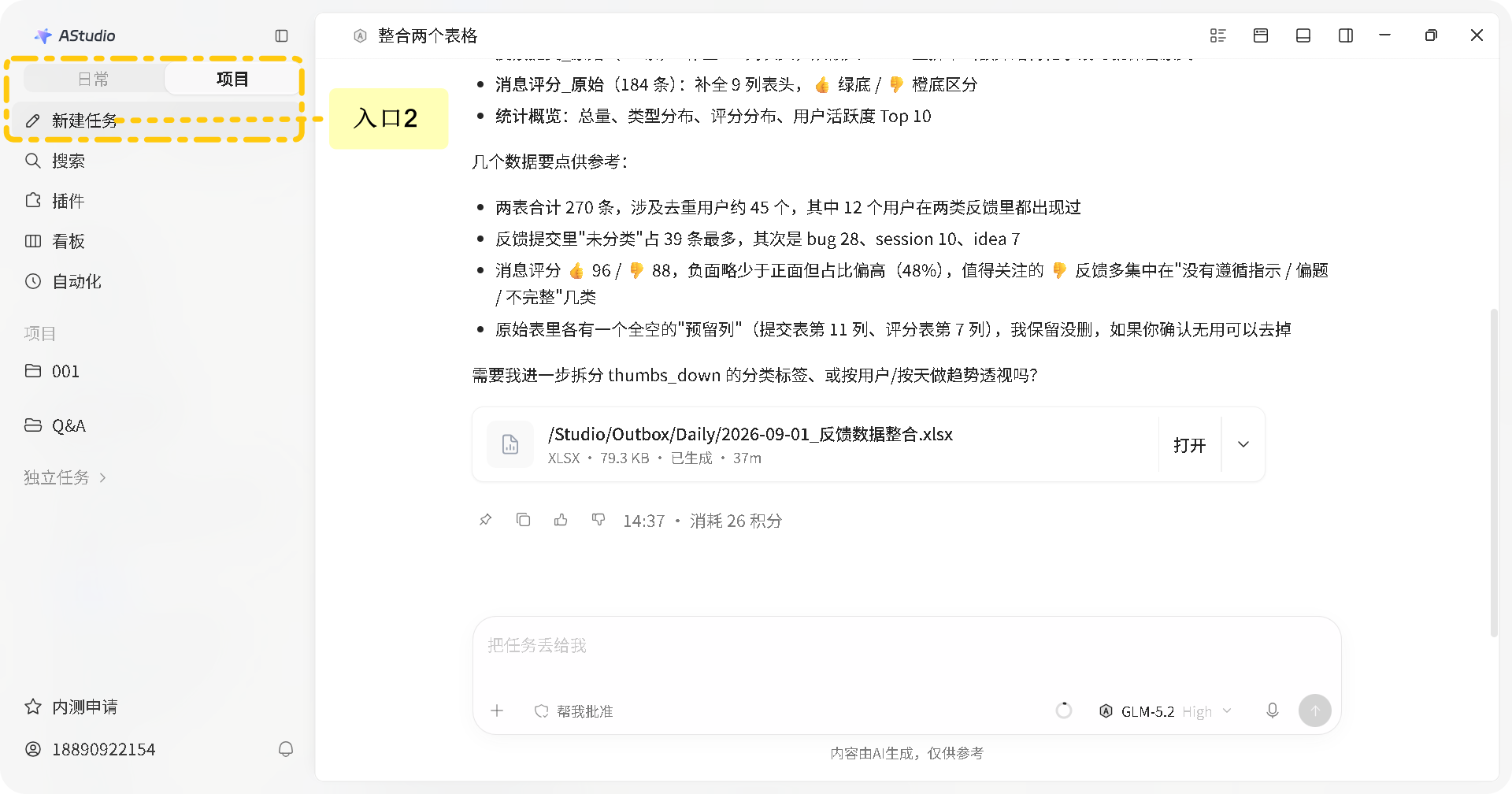
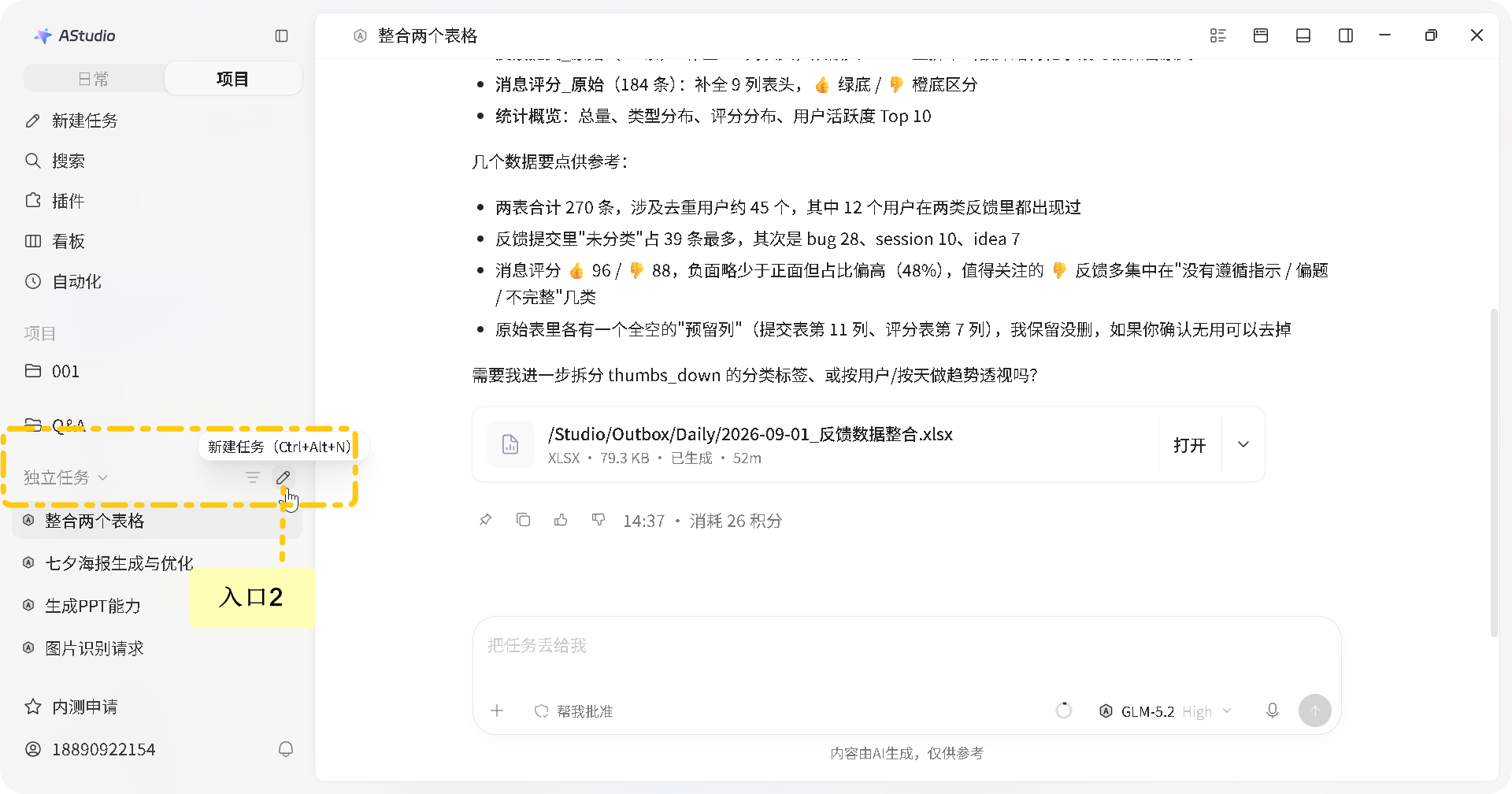
Start standalone work in Daily. Add a project before creating tasks that maintain the same local folder.
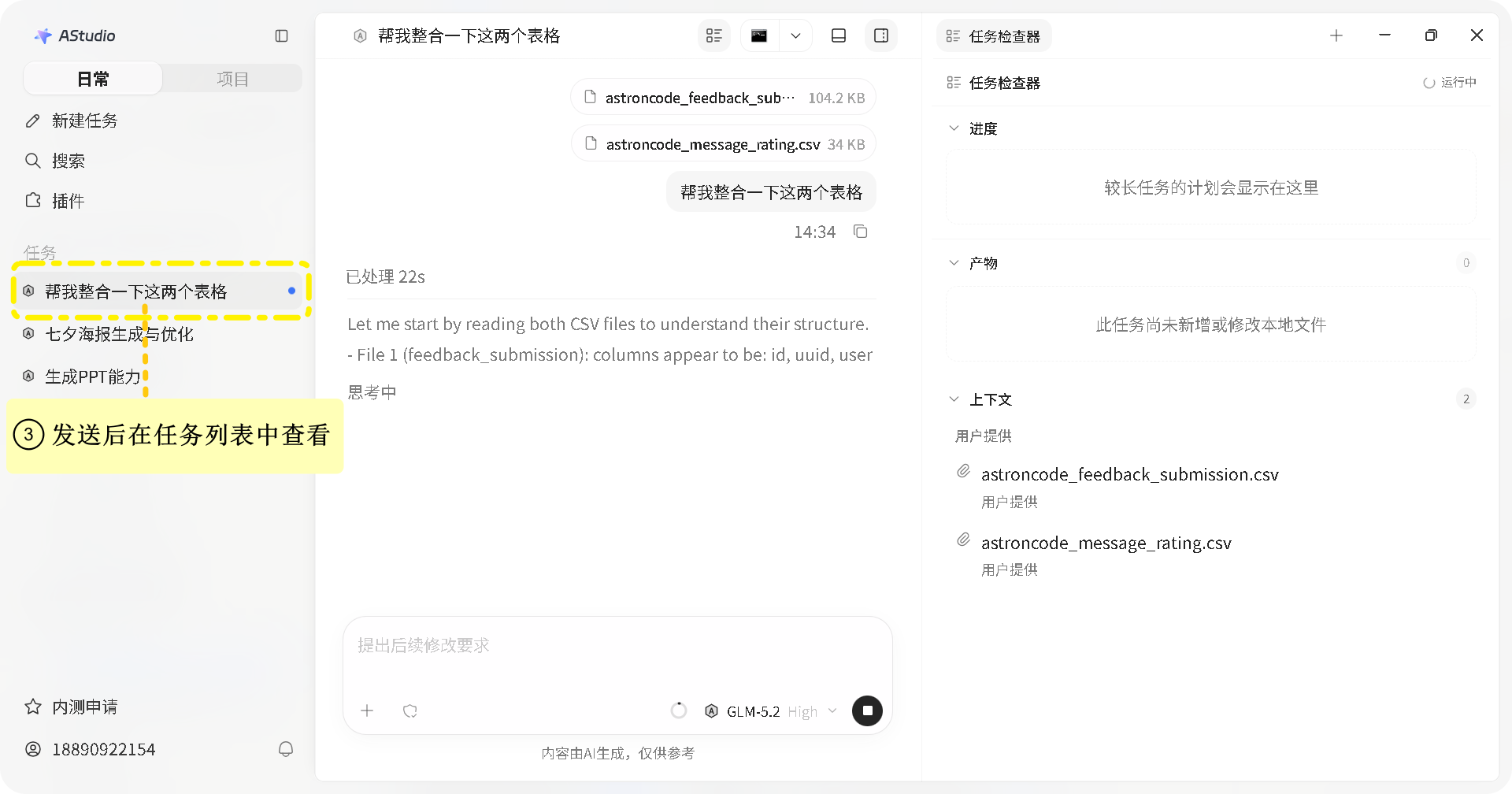
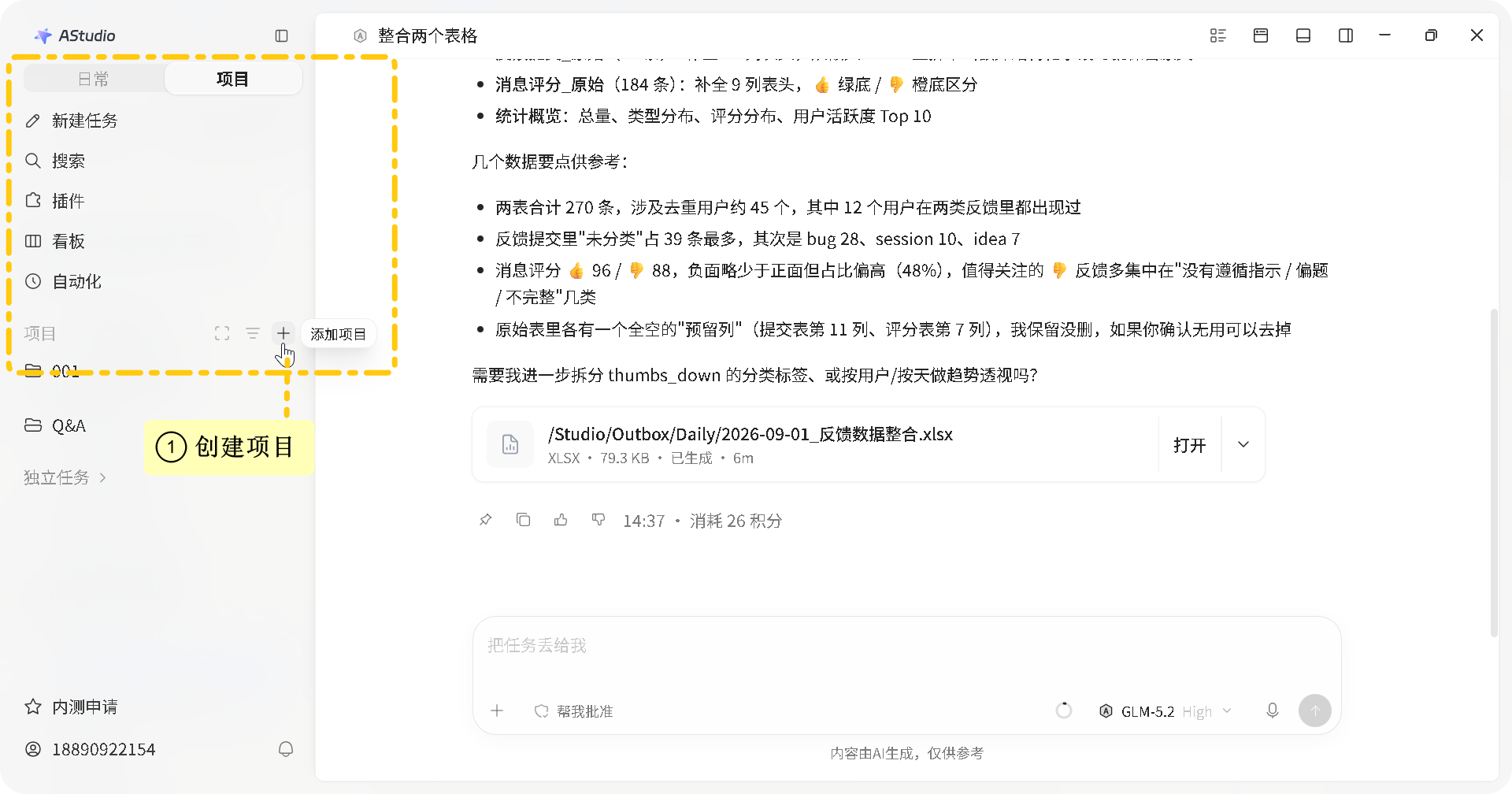
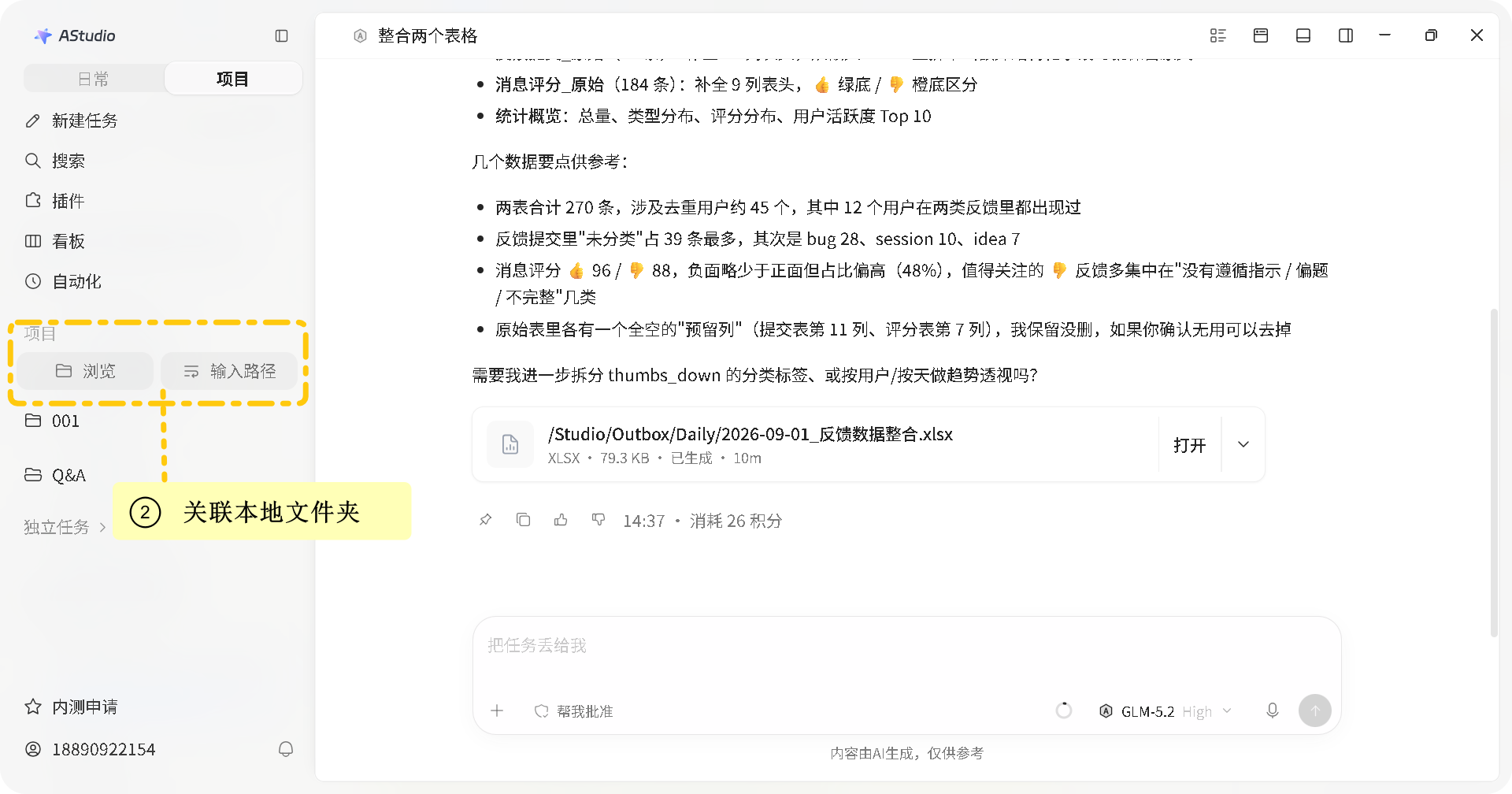
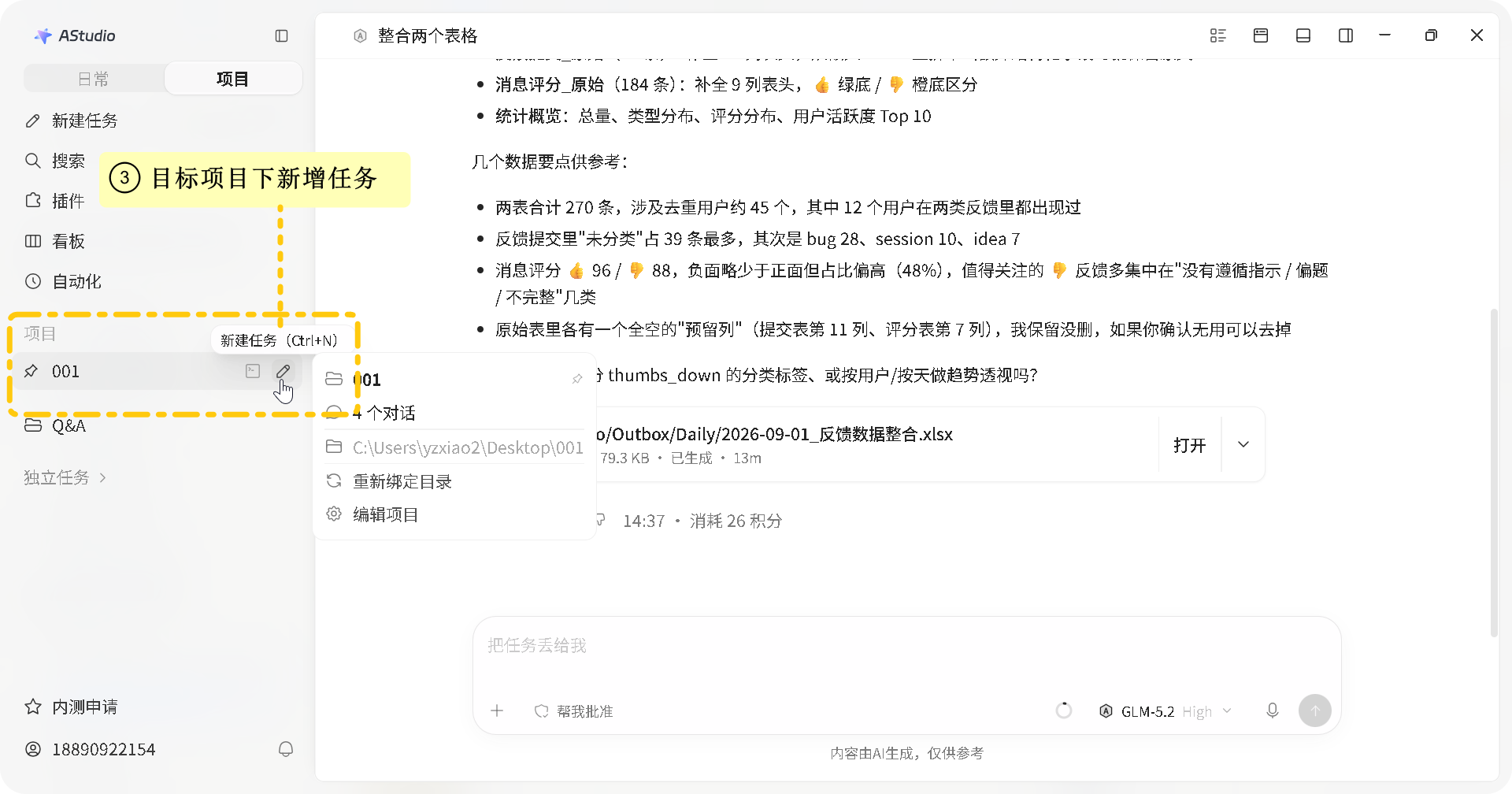
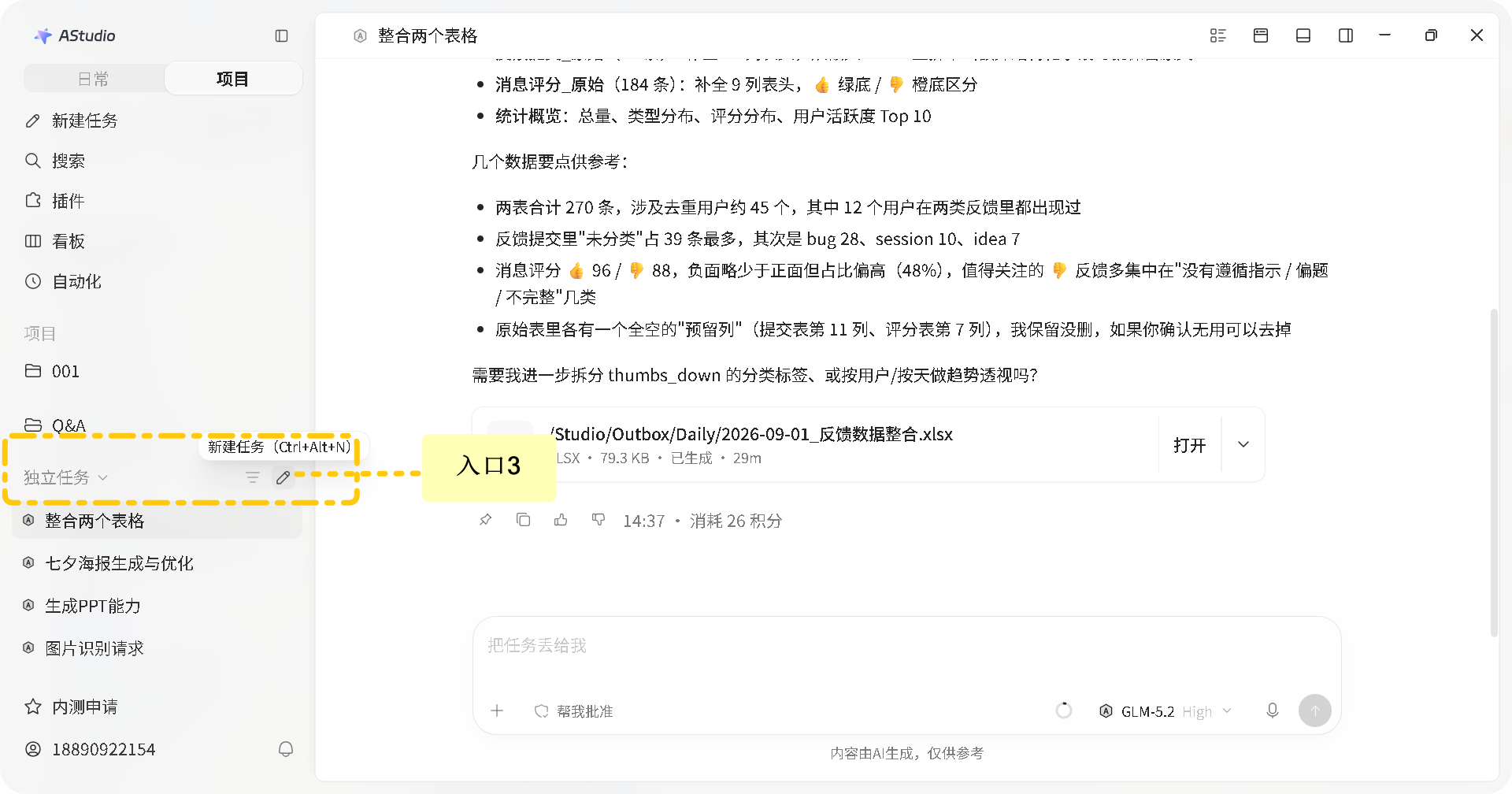
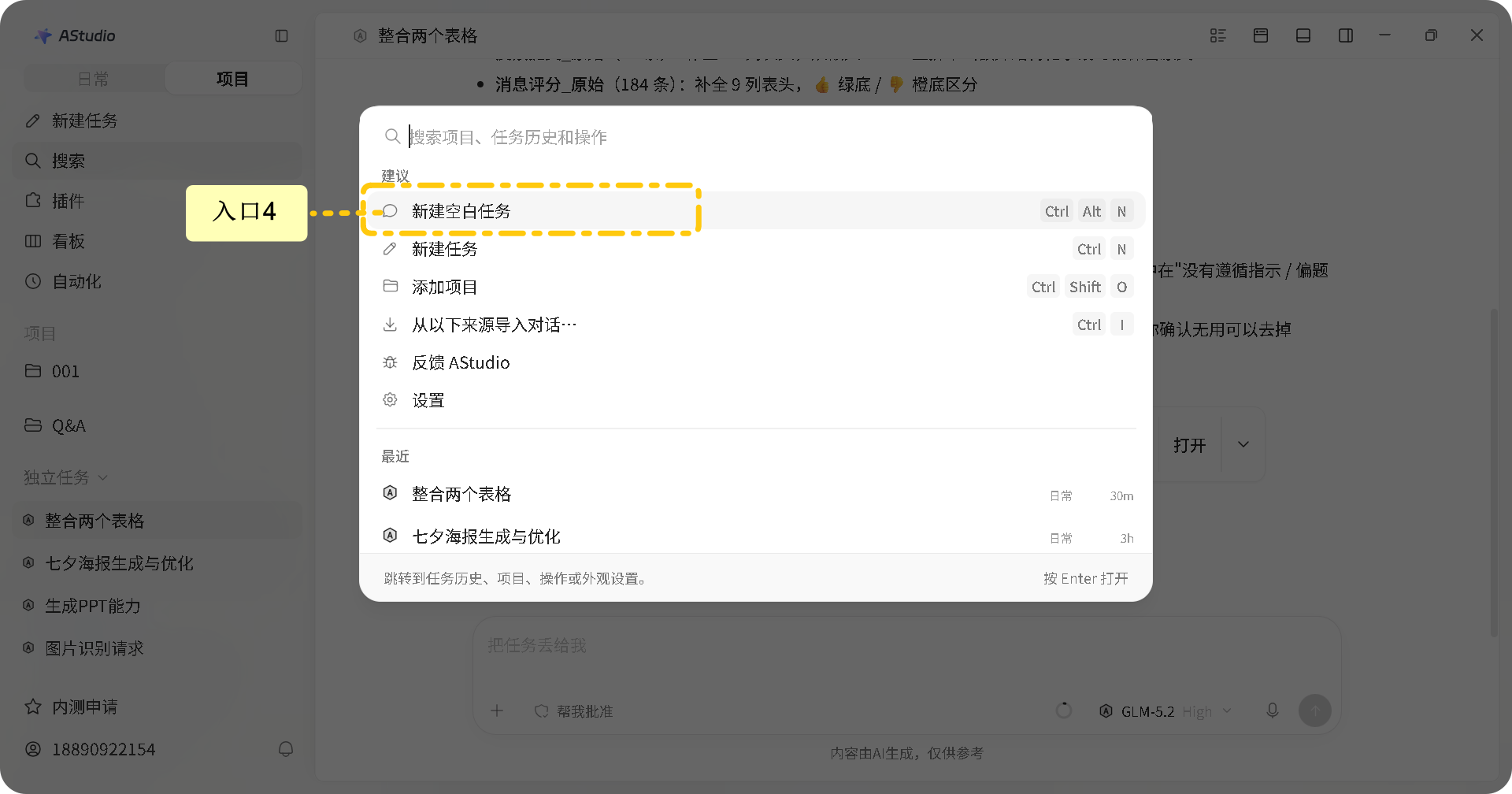
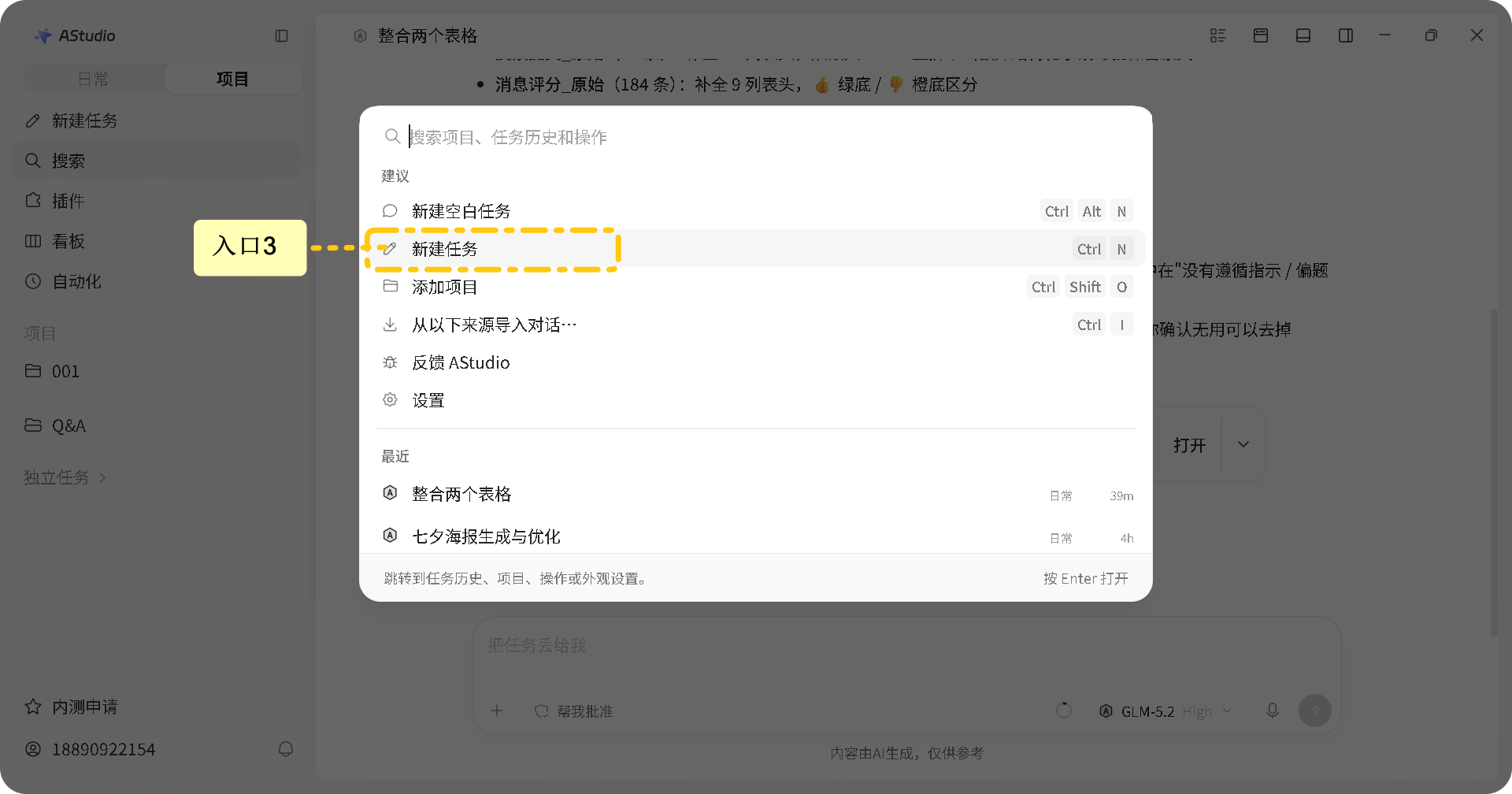
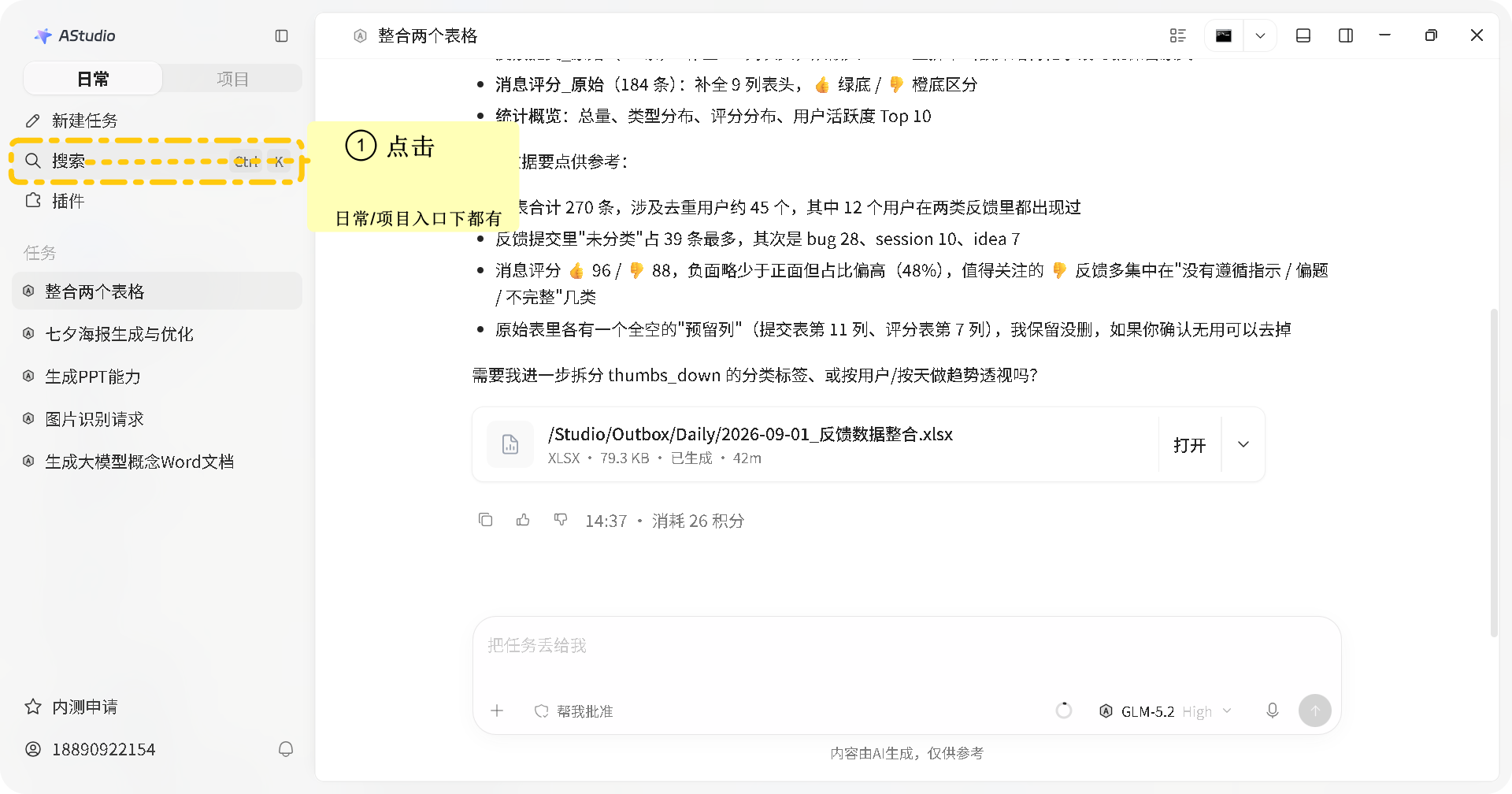
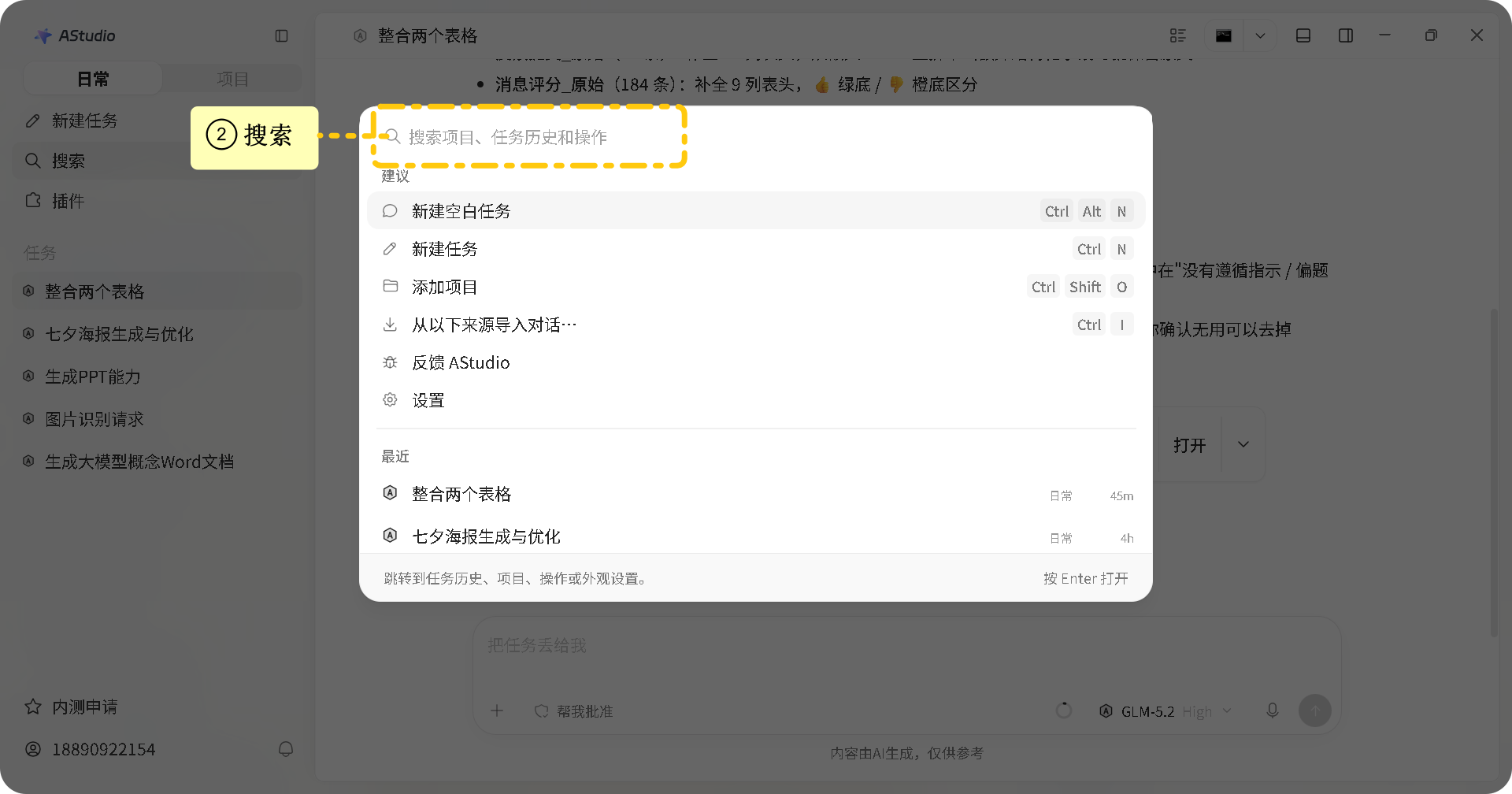
Create and Find Tasks
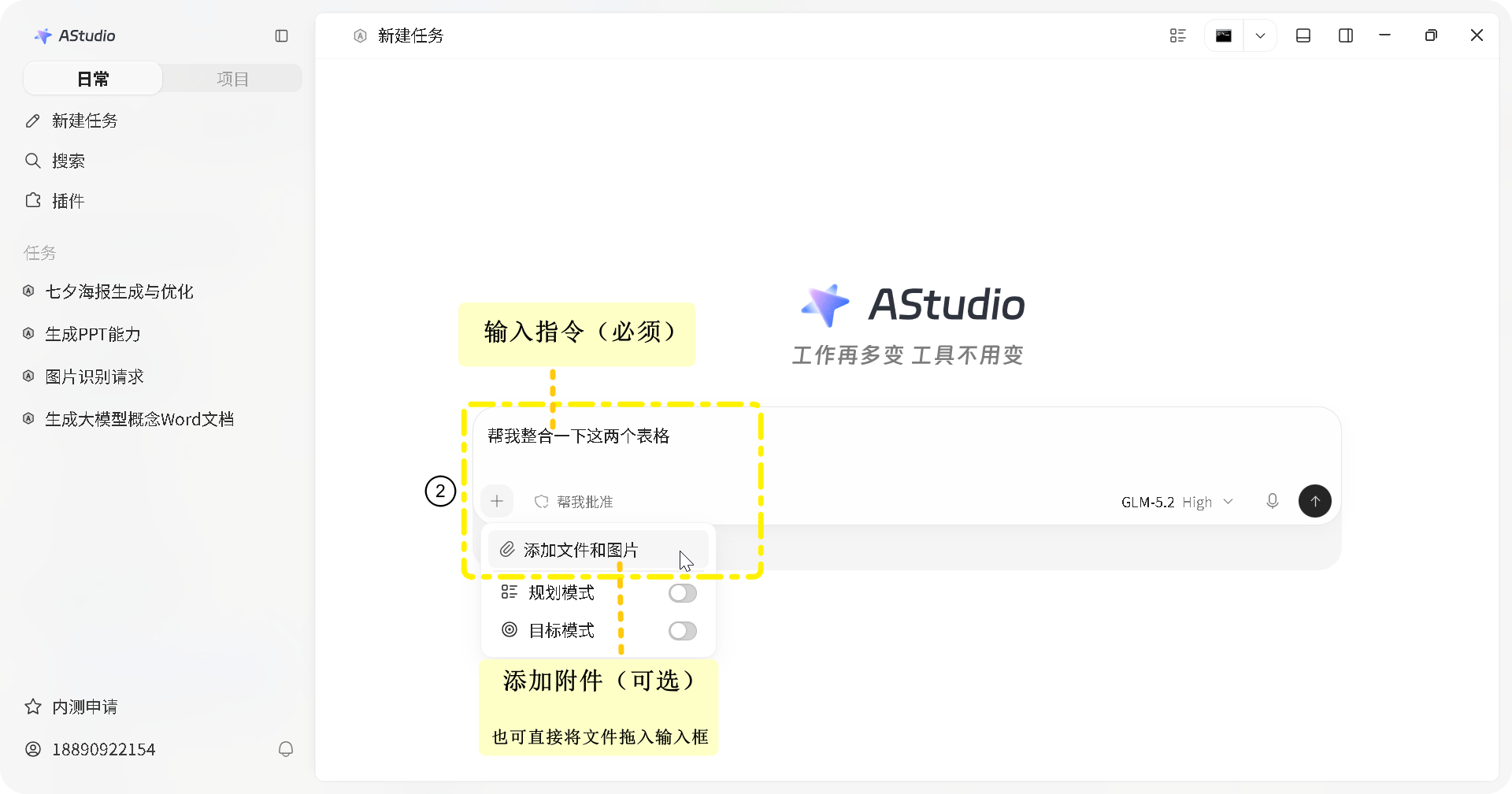
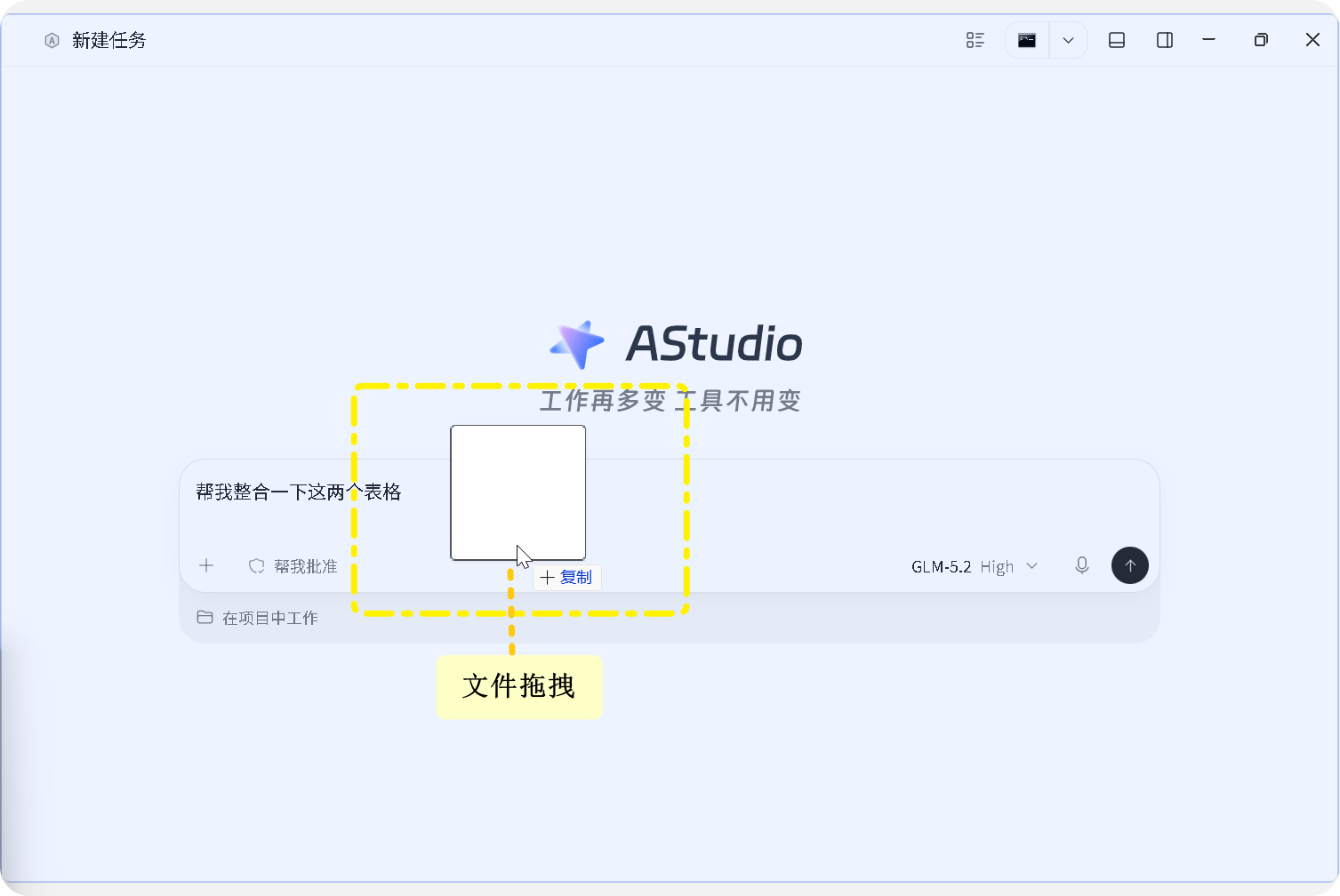
The entry point determines the workspace. Check the active project before sending, and use Search to find projects, tasks and actions.
Organize and Archive
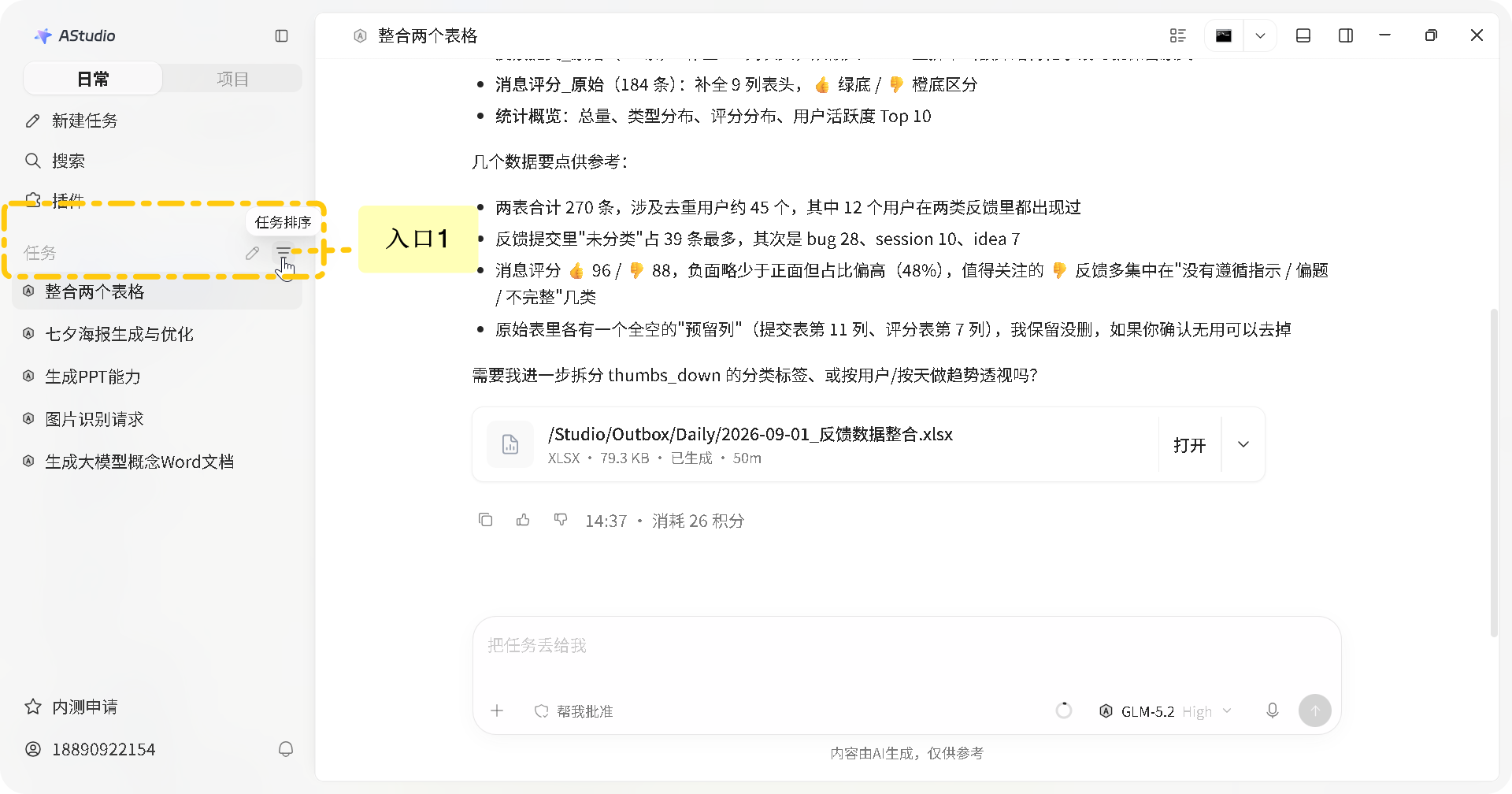
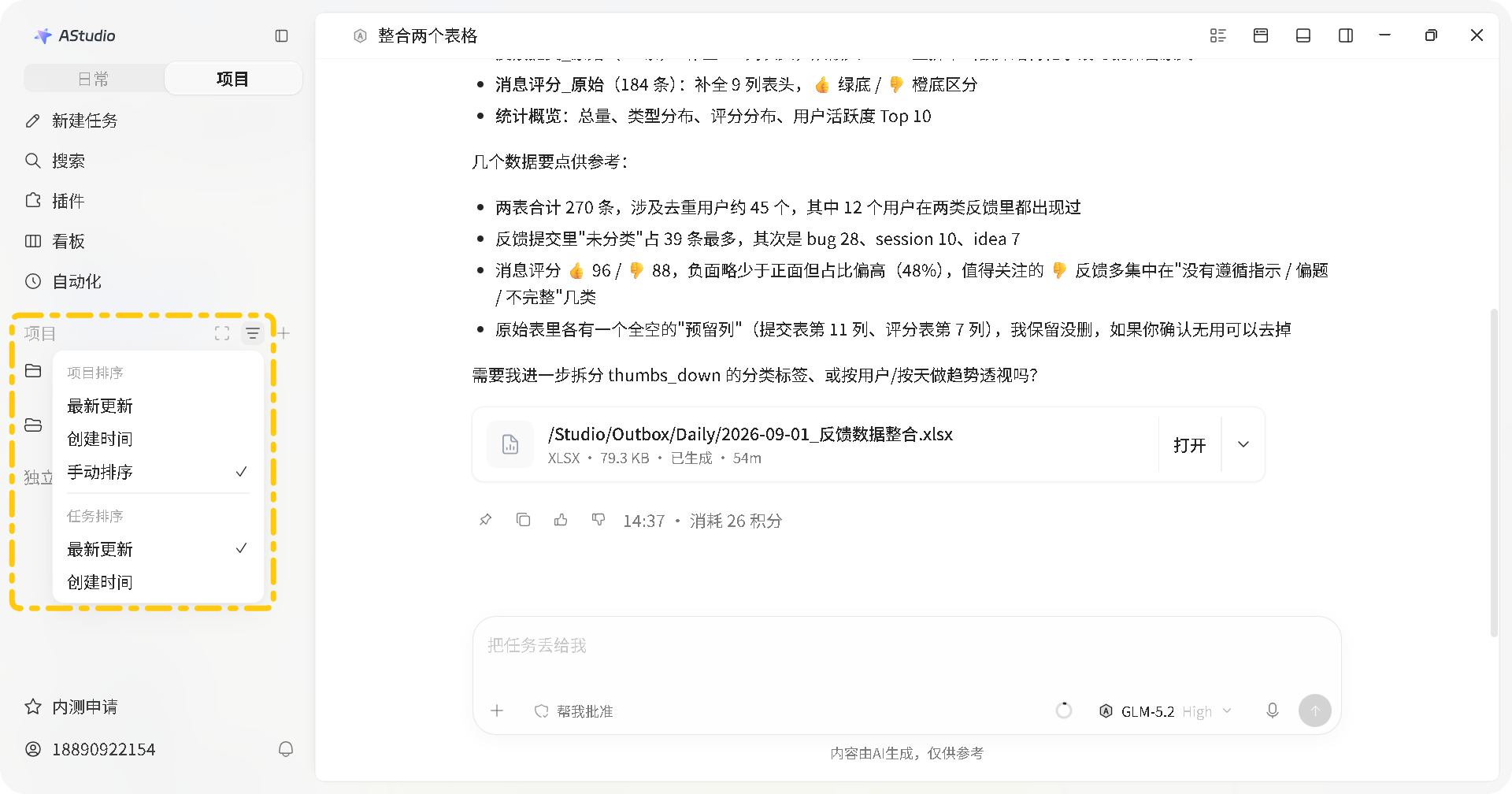
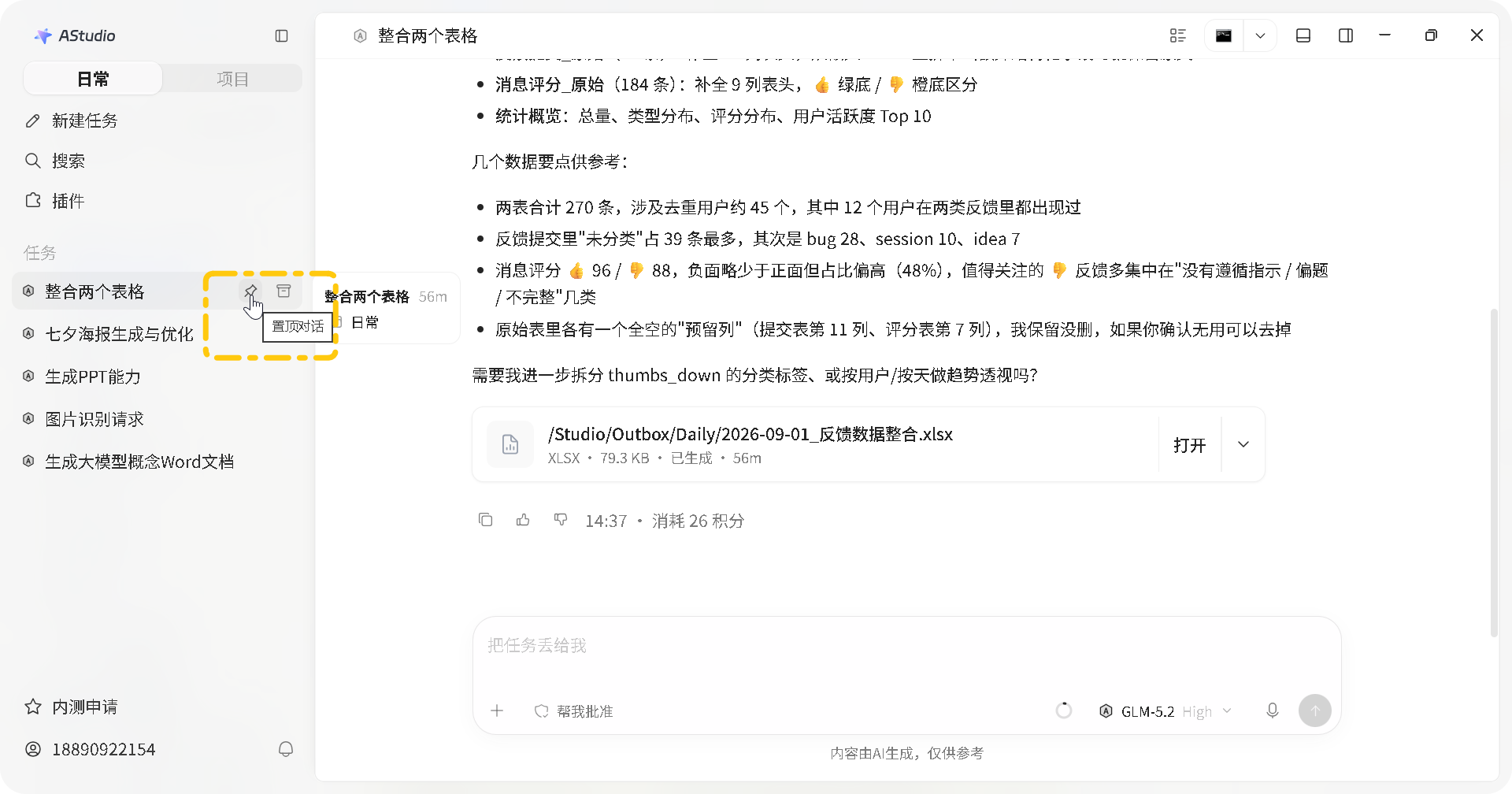
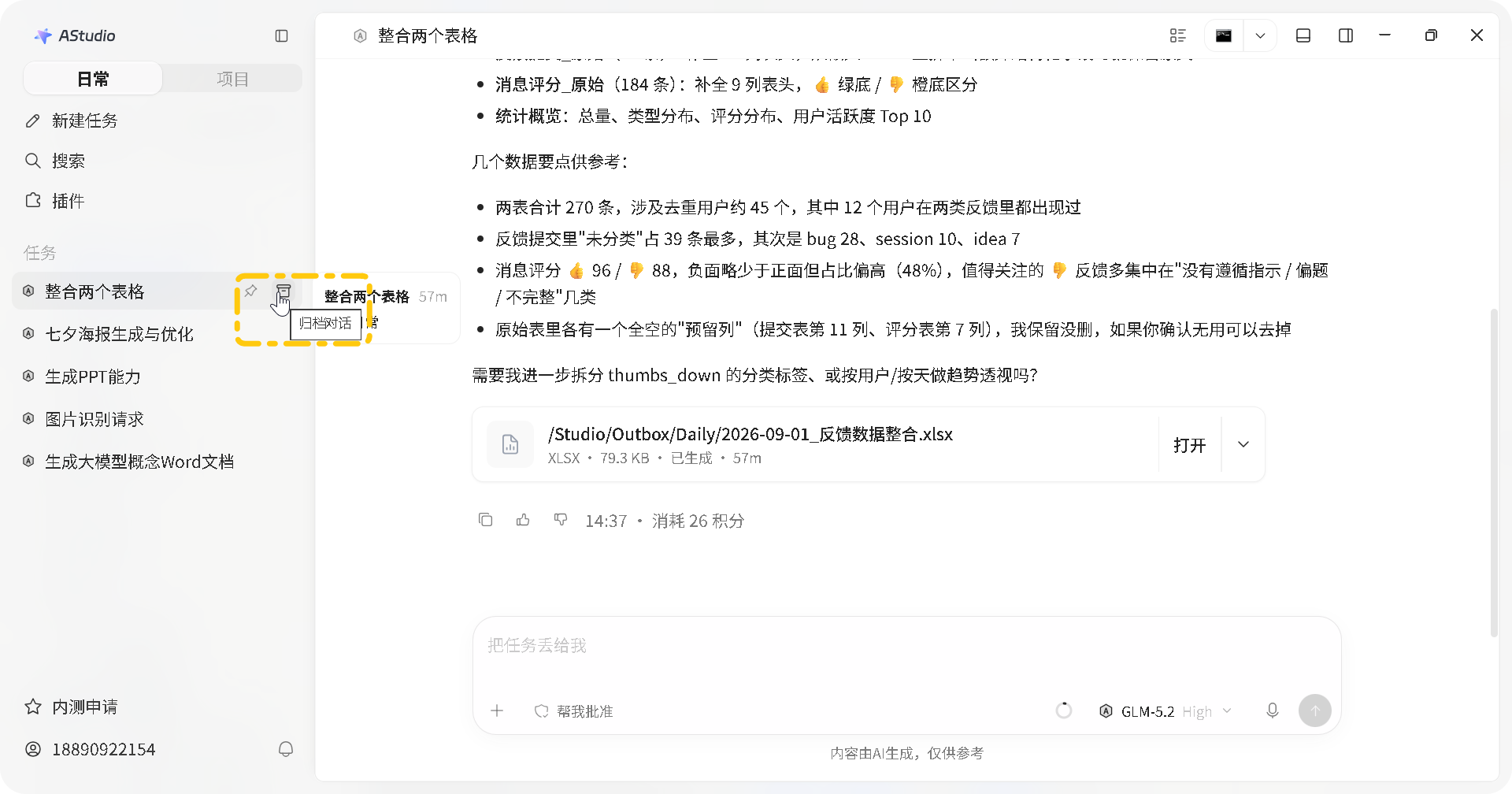
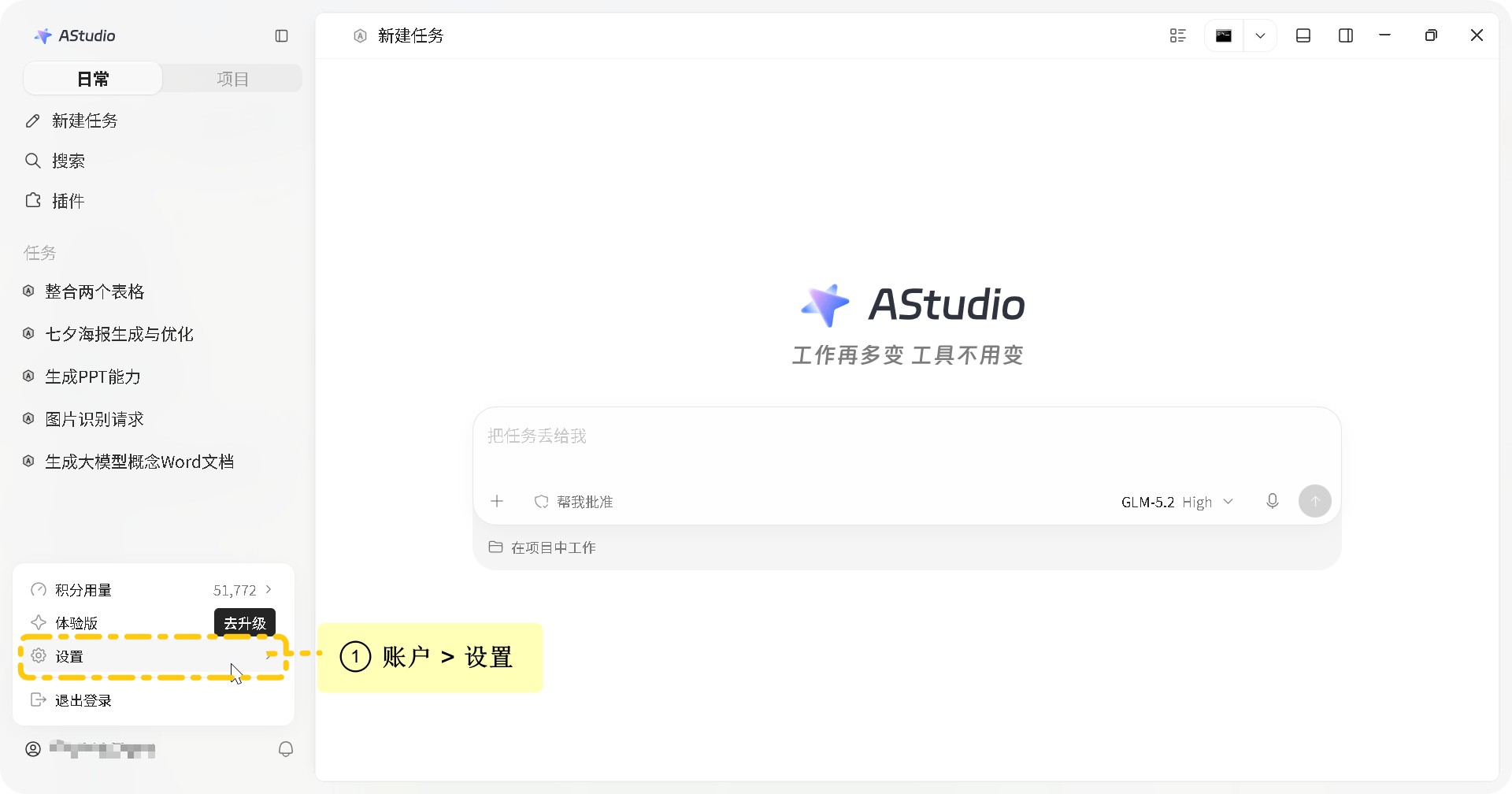
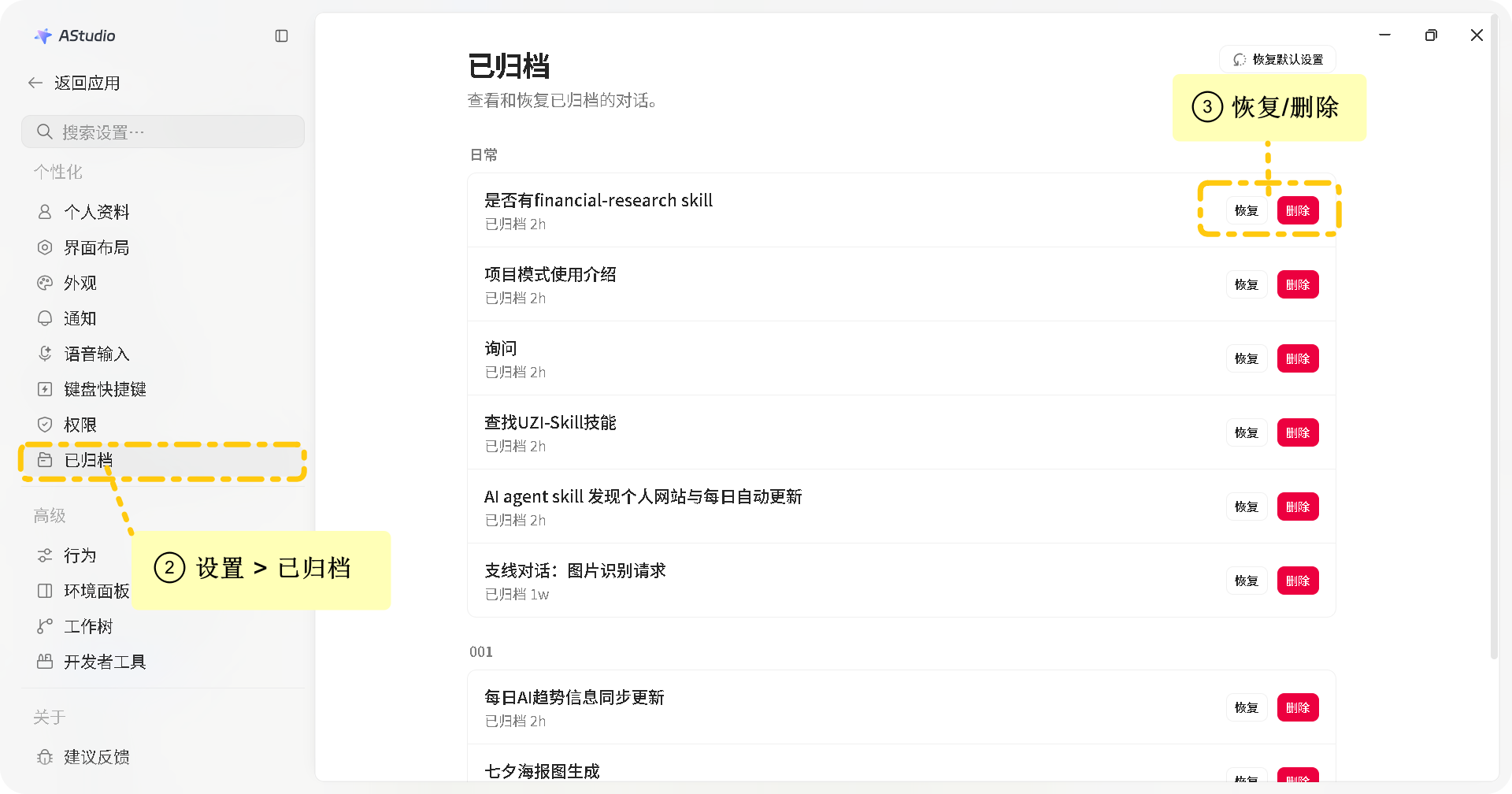
Sort, pin and archive tasks to organize your work. Open Settings > Archived to restore or delete an archived task.
Task Modes
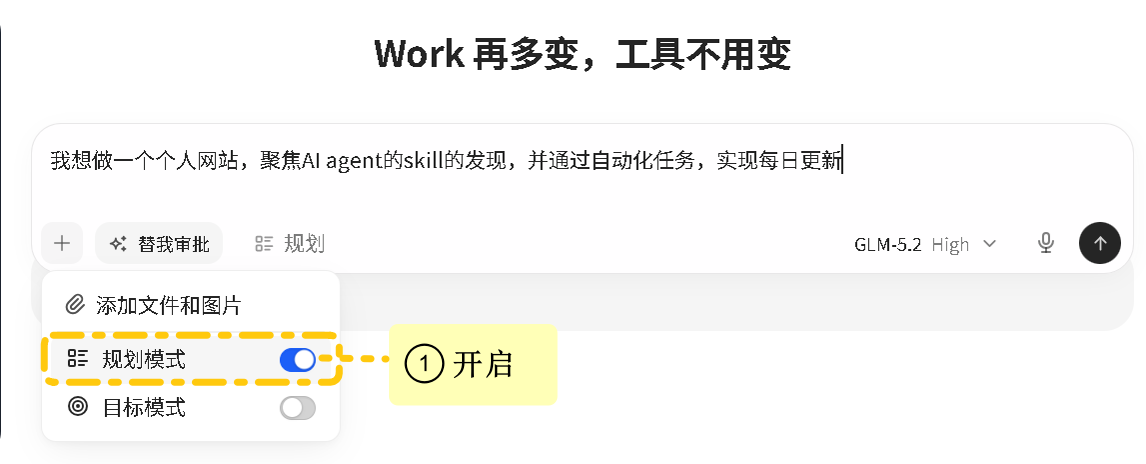
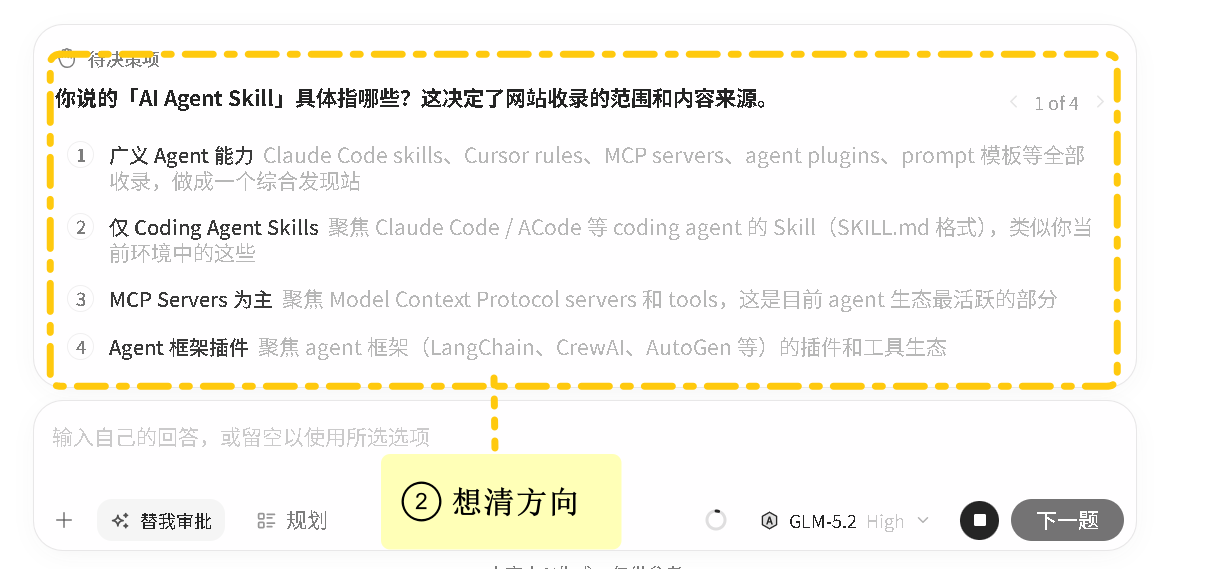
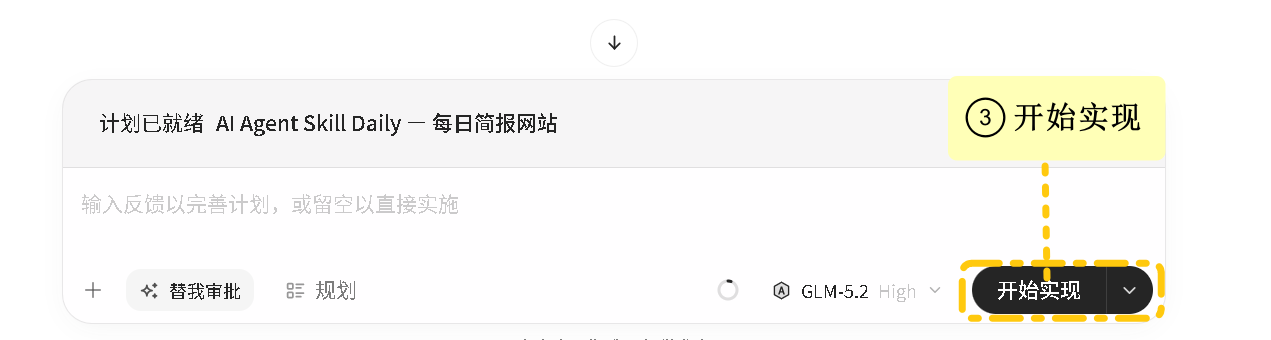
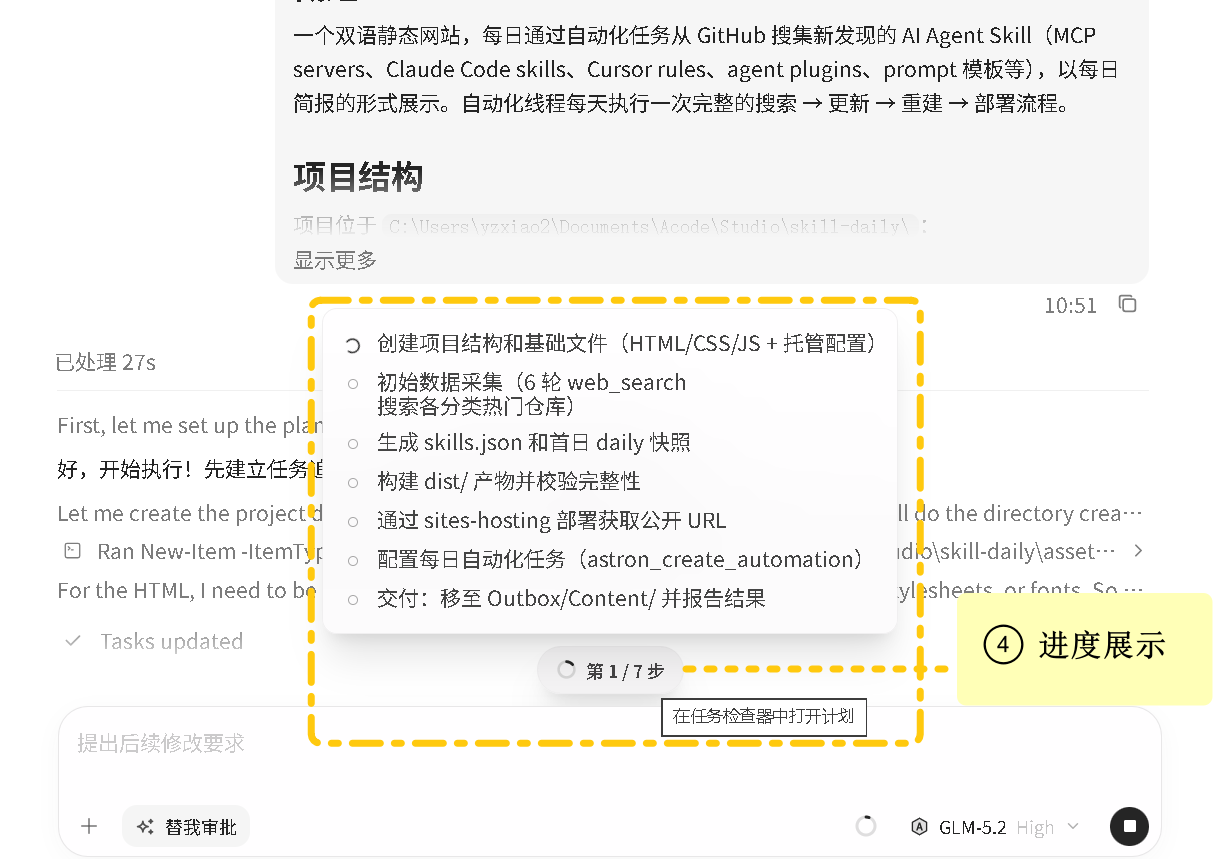
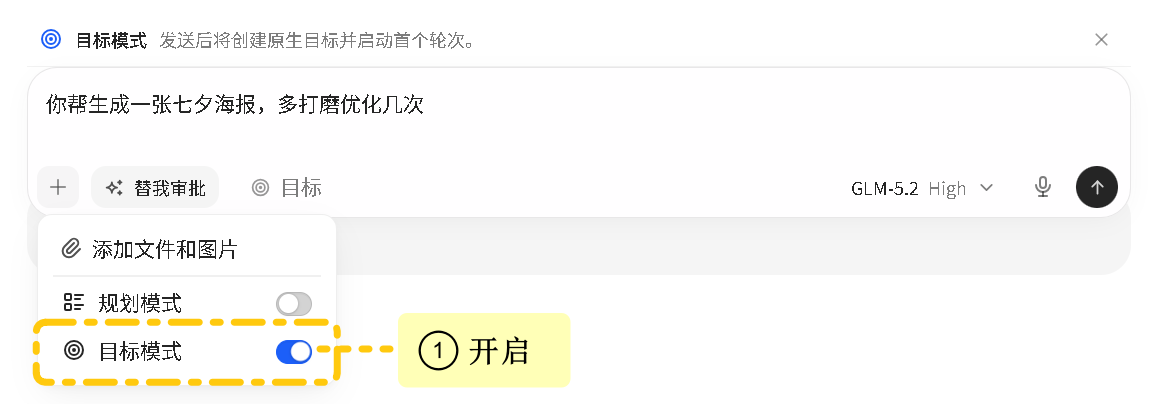
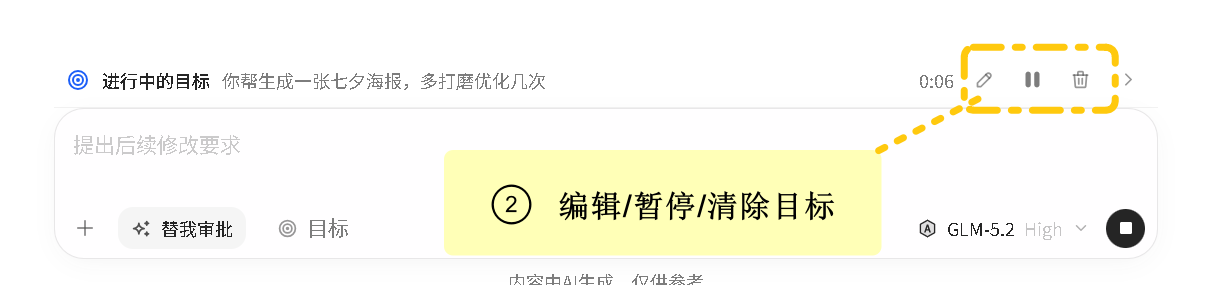
Send ordinary requests directly. Enable Plan mode under “+” to review before execution, or Goal mode for continued progress. Add requirements or pause while a goal is running.
Preview and Edit Results
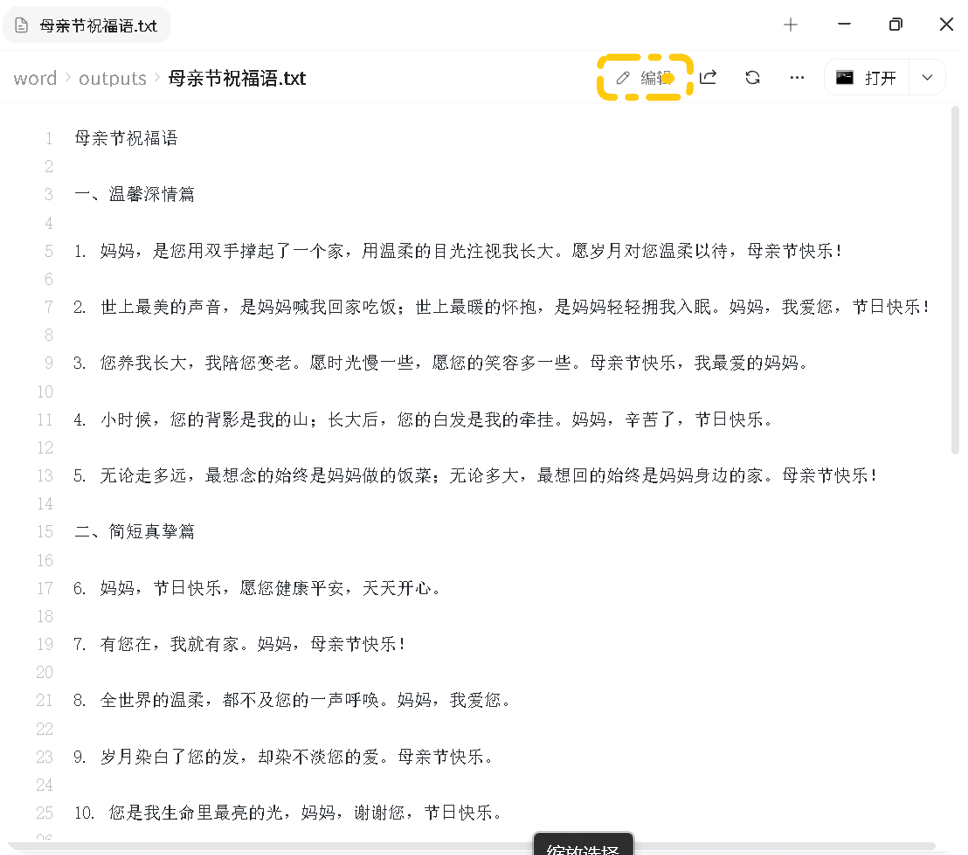
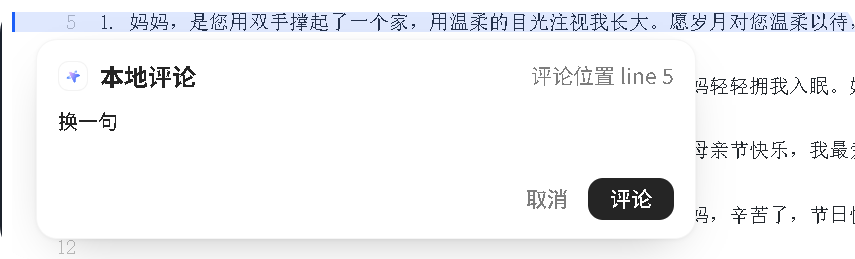
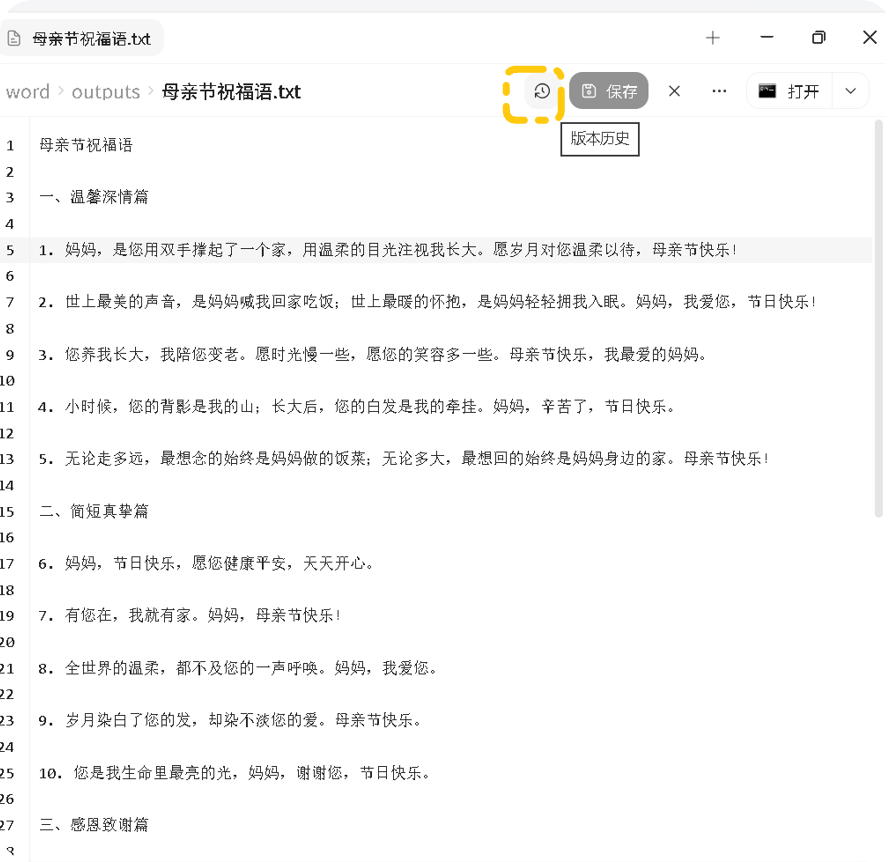
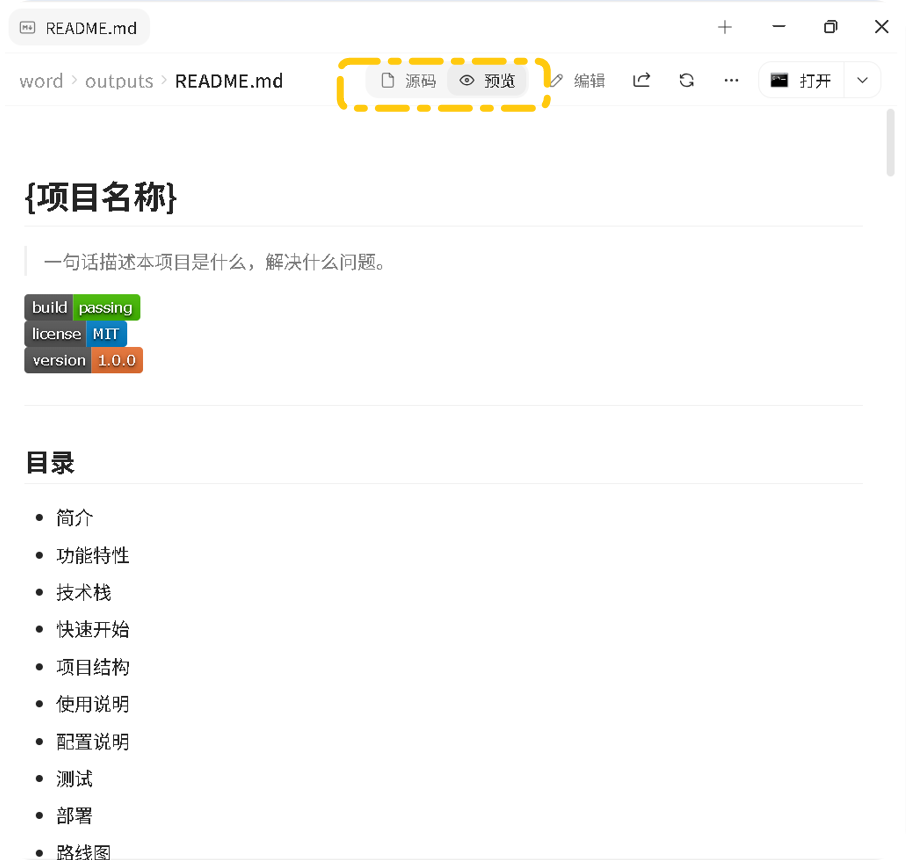
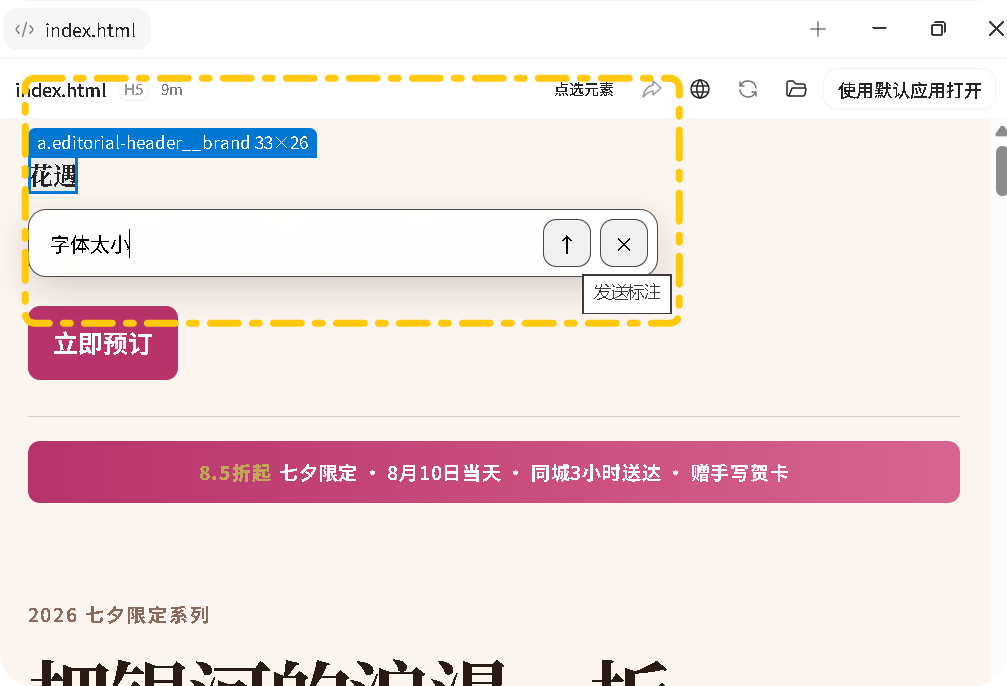
Edit text, add comments, quote excerpts and compare versions. Request spreadsheet, image and PDF changes in conversation, then refresh. For websites, select an element for feedback or switch to interaction mode.

Project Tools and Permissions
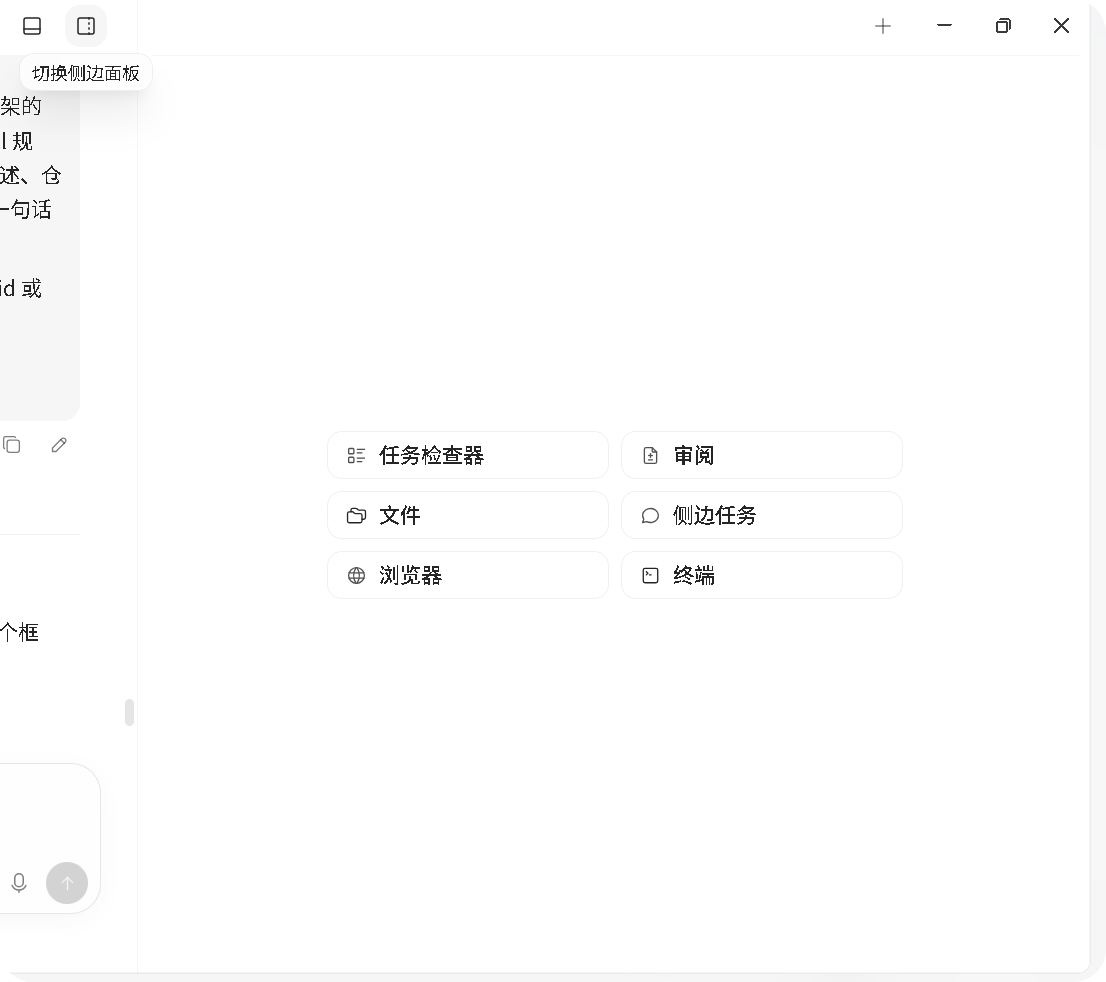
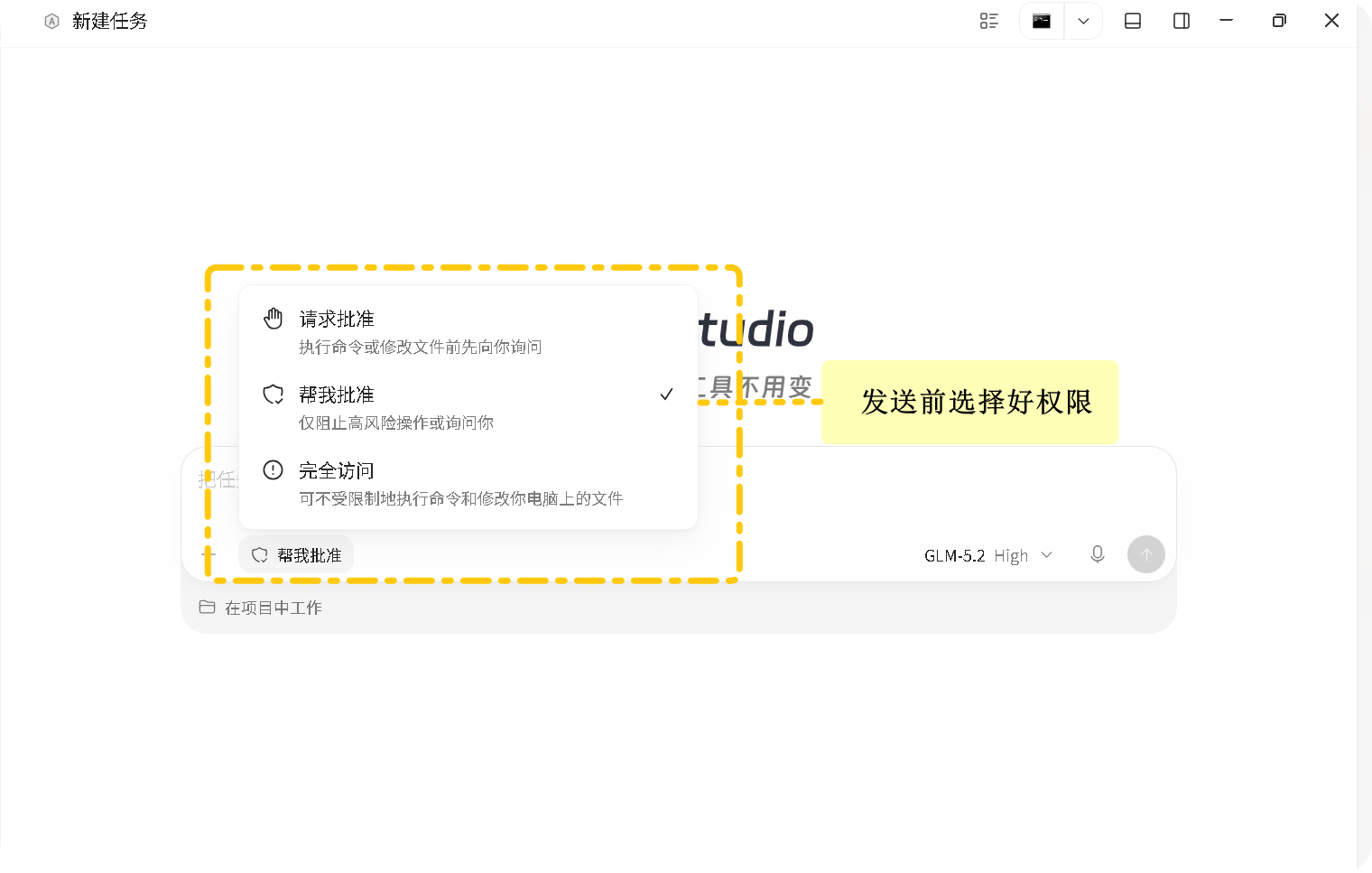
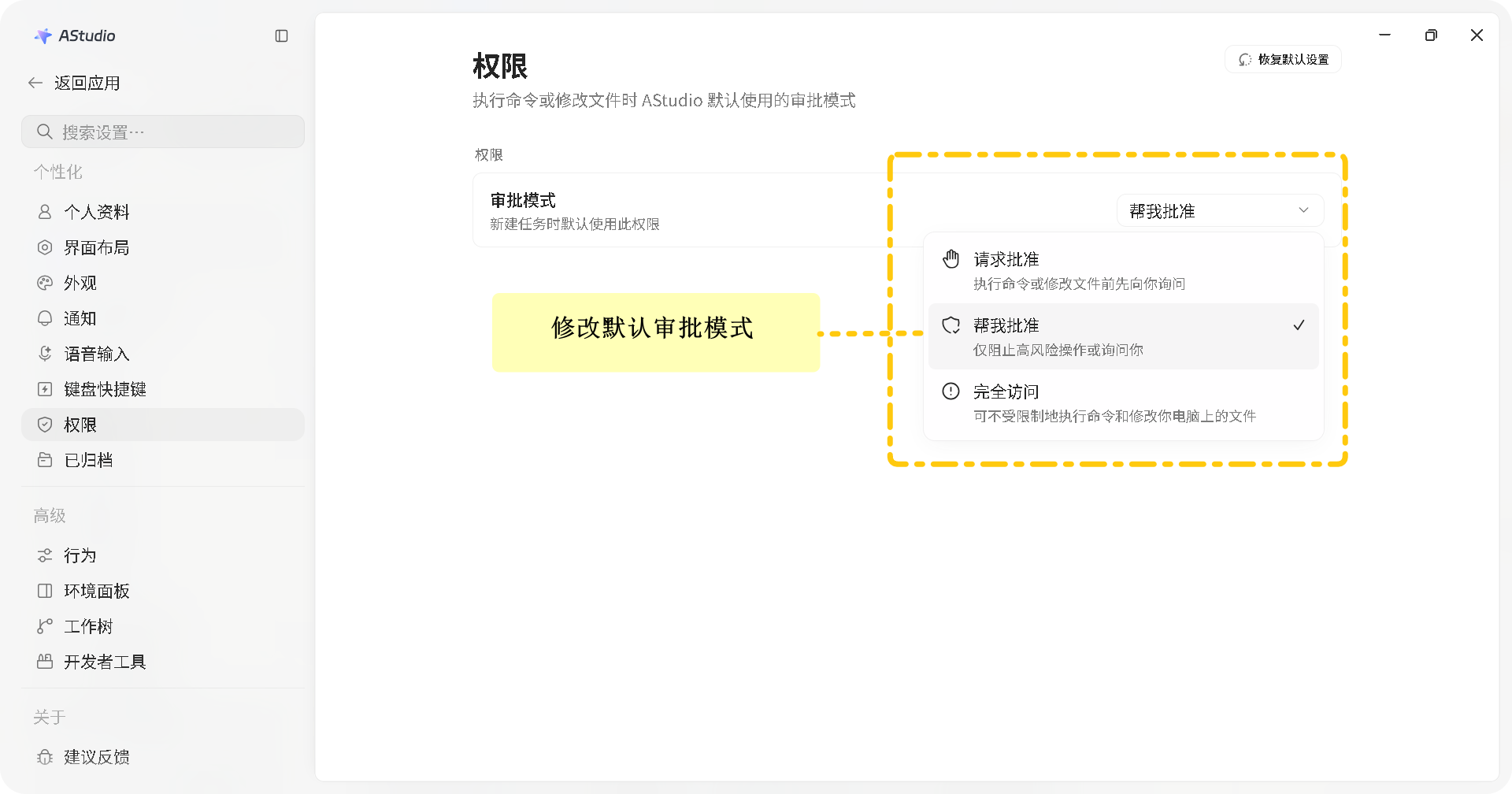
Use files, diffs, the terminal and Git to inspect project changes. Choose the approval policy appropriate to the task and review the authorized scope.
Automation
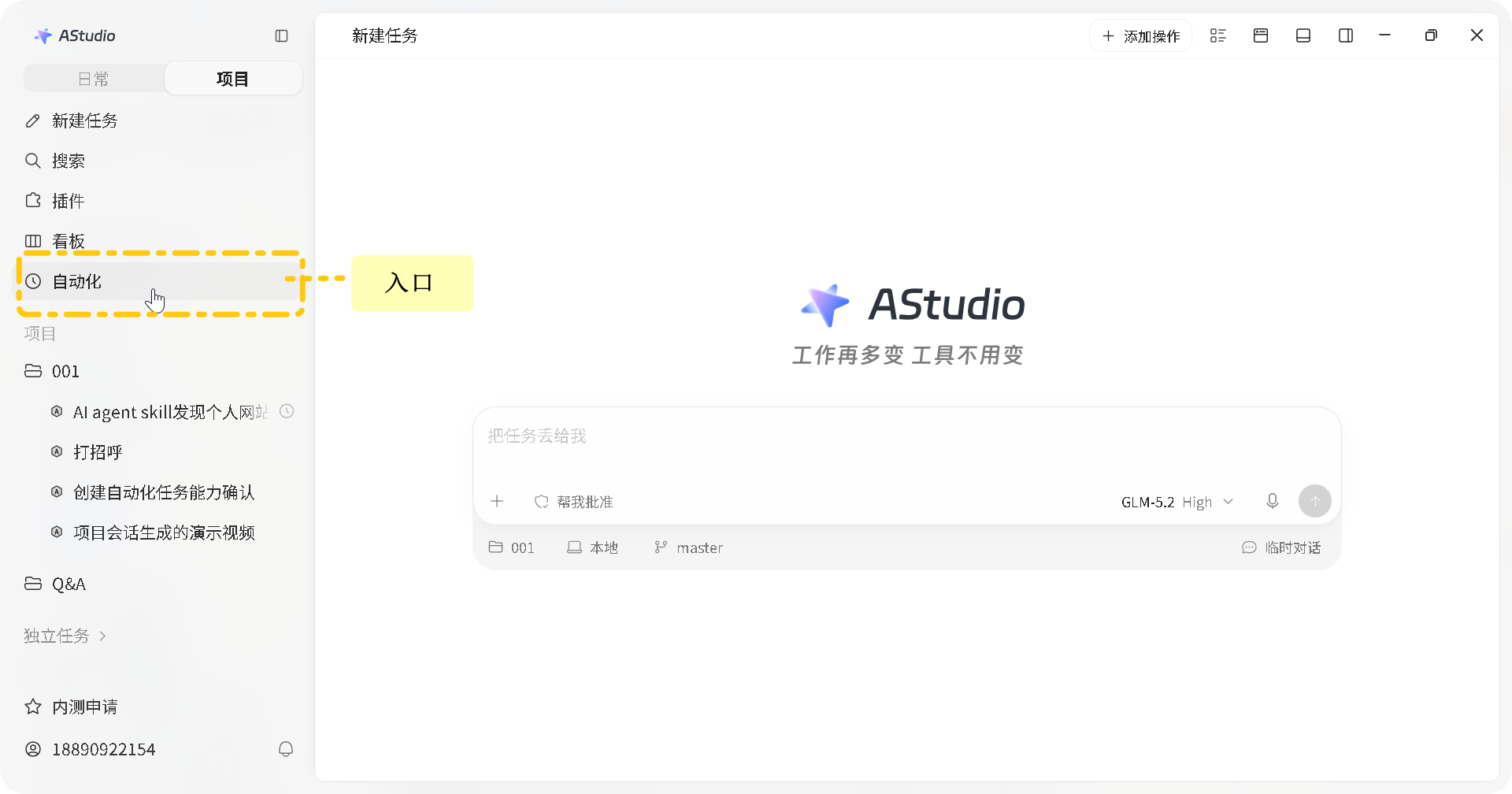
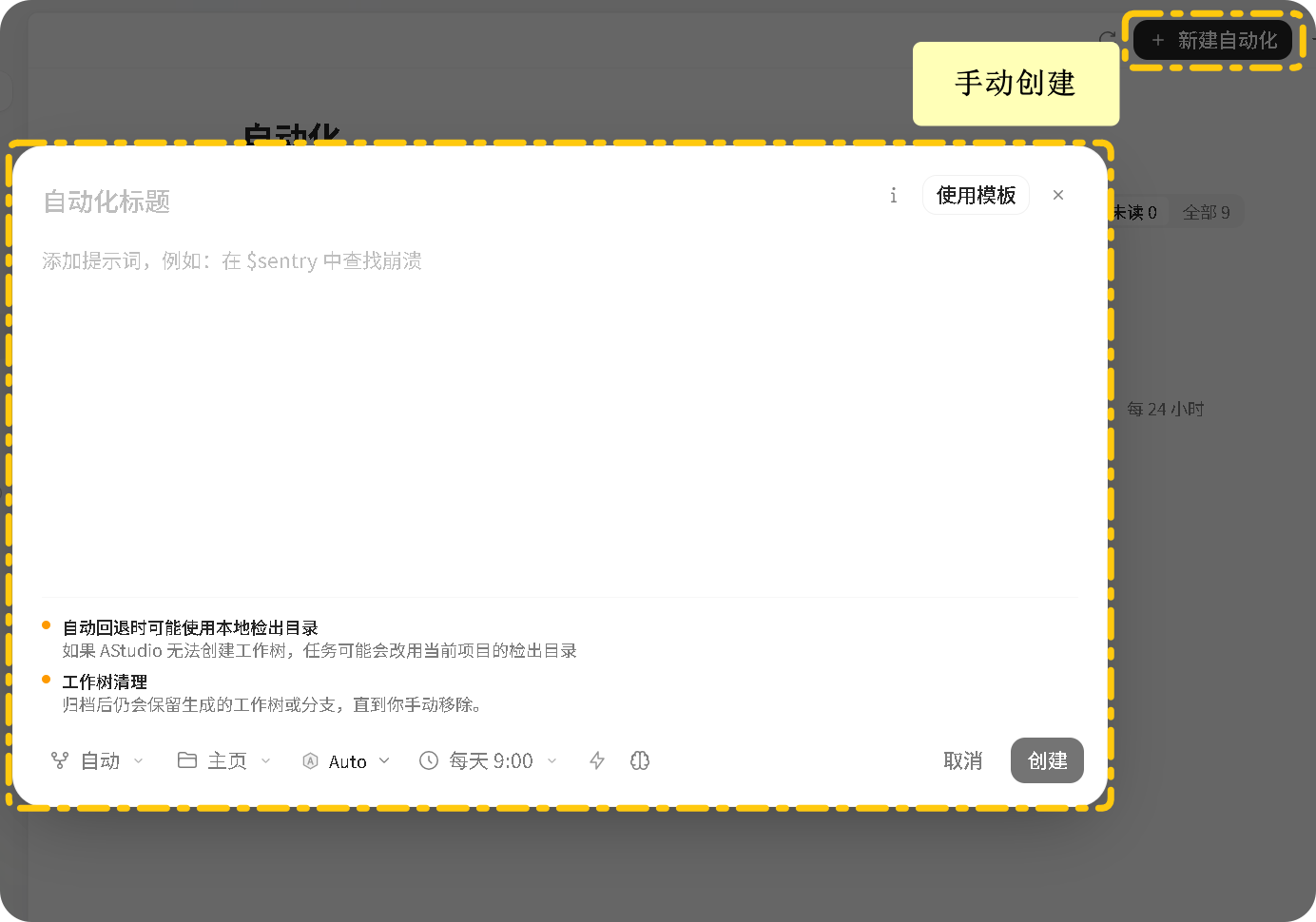
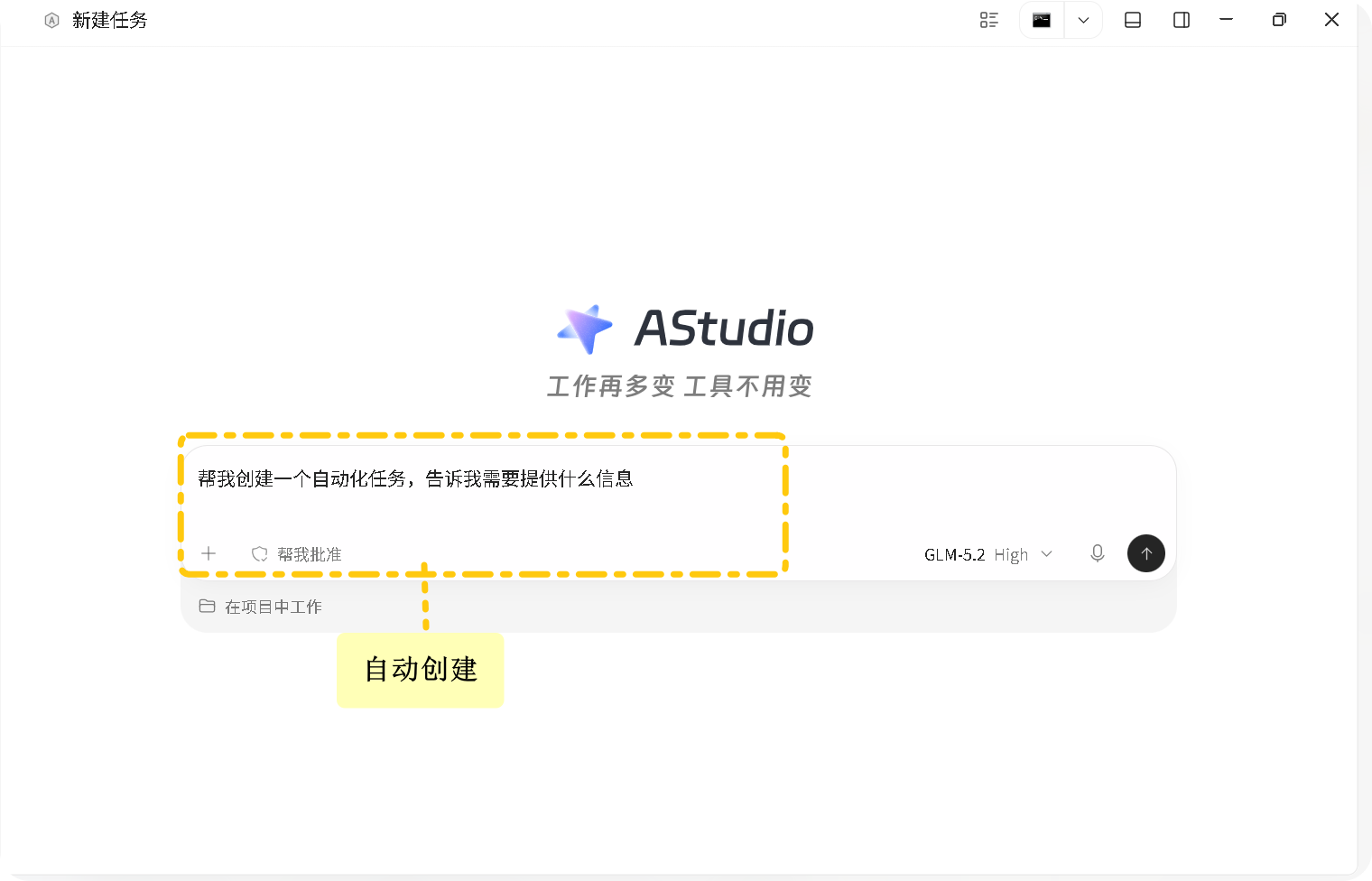
Create scheduled work from the automation page or a conversation. Confirm its schedule, project and permissions, then run it manually to check inputs, results and save location.
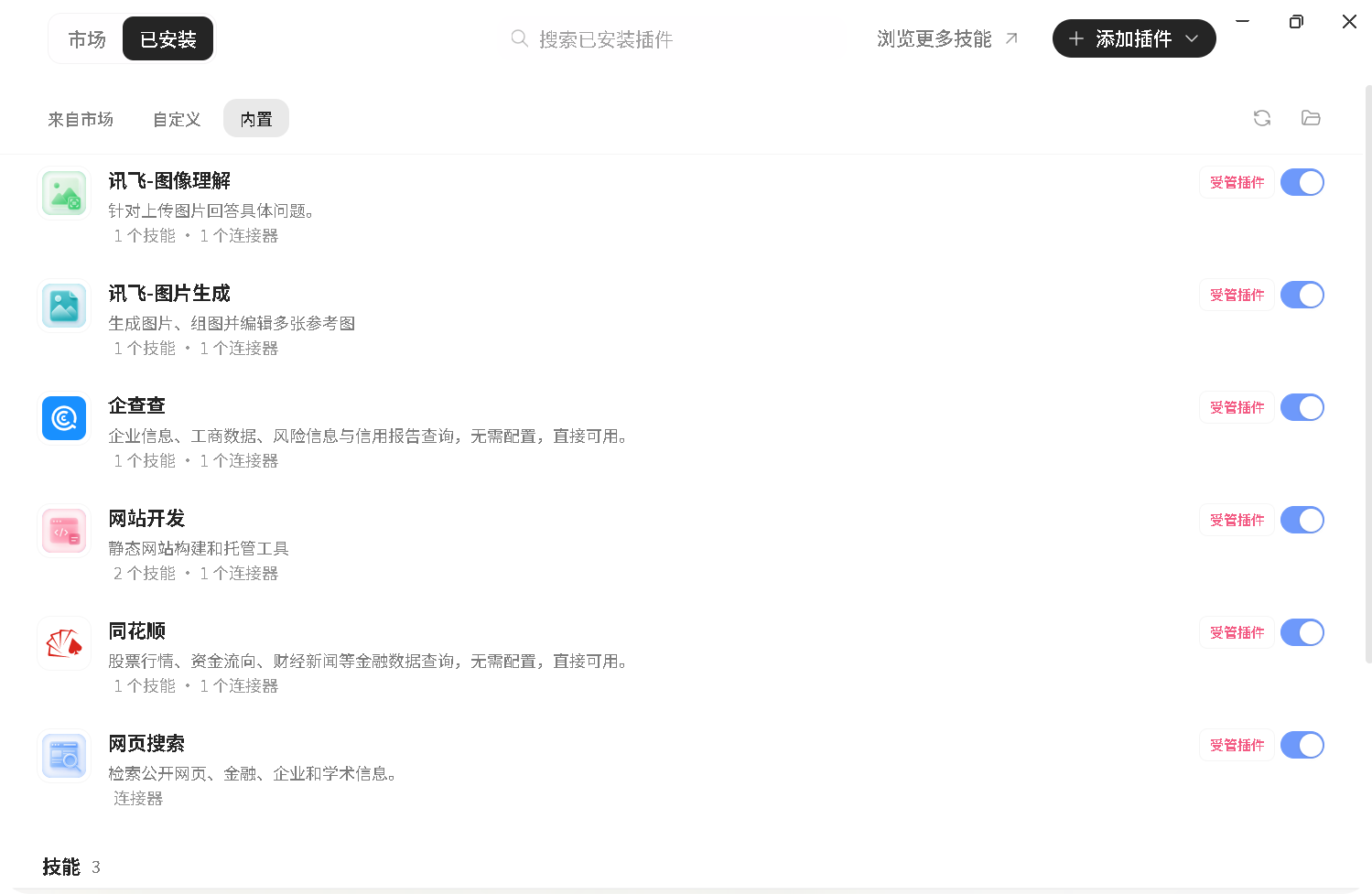
Plugin Center
Browse or search for plugins, configure required accounts after installation, and manage installed extensions for your tasks.