Models and Chat
Models
Loomy supports a variety of large model services. You can use the default provided models or add custom AI providers. All configuration information is saved locally, and we will not obtain or upload any of your key data.
Access Model Settings
Click "Settings" in the left menu bar of the application, and then select the "Models" option to enter the model configuration page.
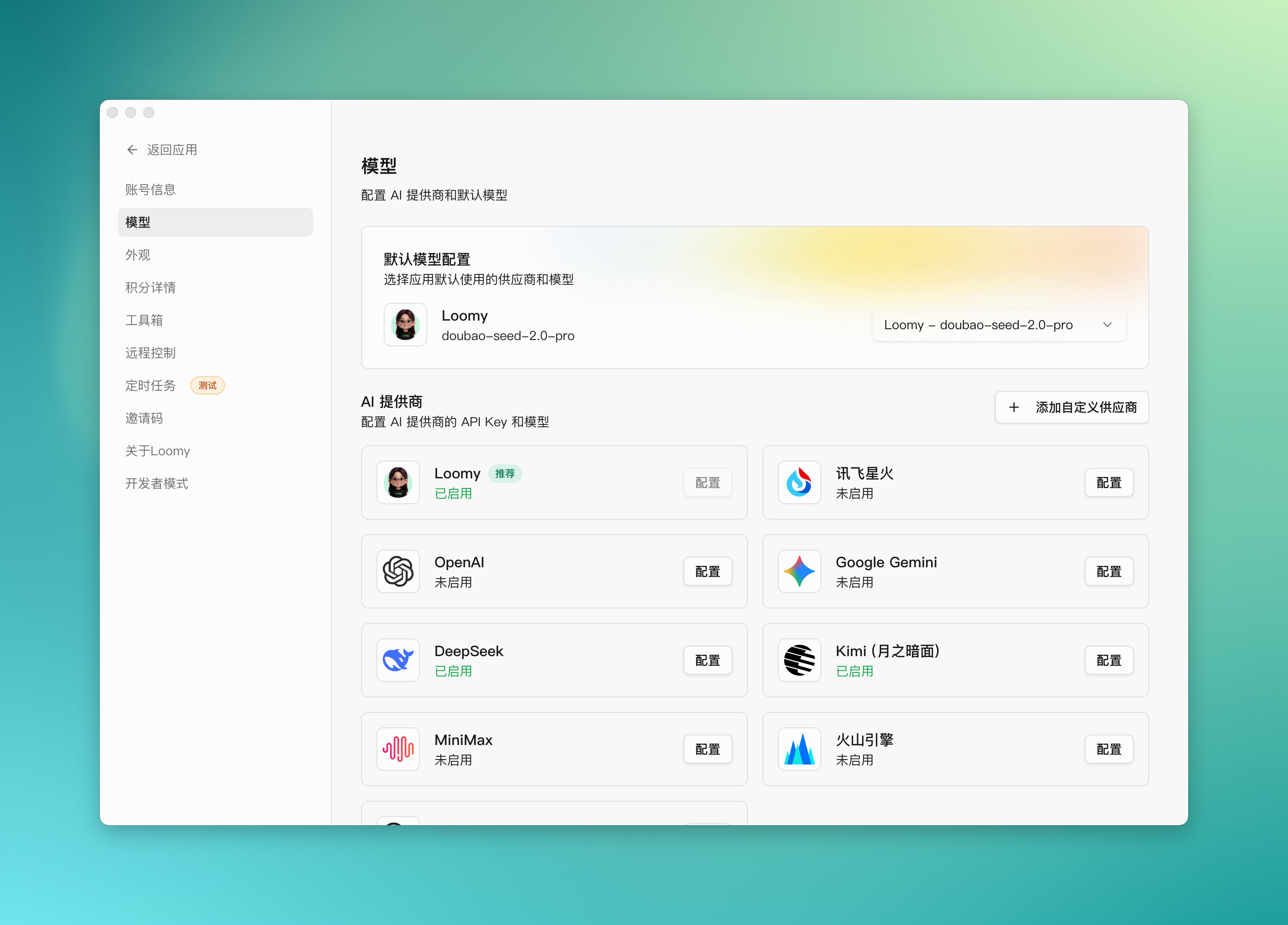
Default Model Configuration
Loomy provides the following large model services by default, ready to use out of the box:
- MiniMax - MiniMax-M2.5
- Doubao - doubao-seed-2.0-pro
- DeepSeek - DeepSeek-v3.2
- Qwen - qwen3.5-plus
These default providers are pre-configured, and you can choose to use them directly.
Switch Models
In the "Default Model Configuration" area, you can see the currently used model. Click the dropdown selector on the right to switch to other available models.
After the selection is complete, click the "Save" button, and then return to the homepage to use the newly selected model for conversations and task execution.
Configure Custom Models
If you have your own model service provider, you can configure any provider compatible with the OpenAI protocol in Loomy. The following uses "Zhipu" as an example to walk through the full configuration process.
1. Access Service Provider Configuration
- Go to "Settings" → "Models" in the left sidebar.
- Switch to the "Service Provider Configuration" tab.
Here you can configure the built-in default providers (DeepSeek, Doubao, Qwen, Zhipu, etc.), or click "+ Add Custom Service Provider" in the upper right corner to add any provider compatible with the OpenAI protocol.
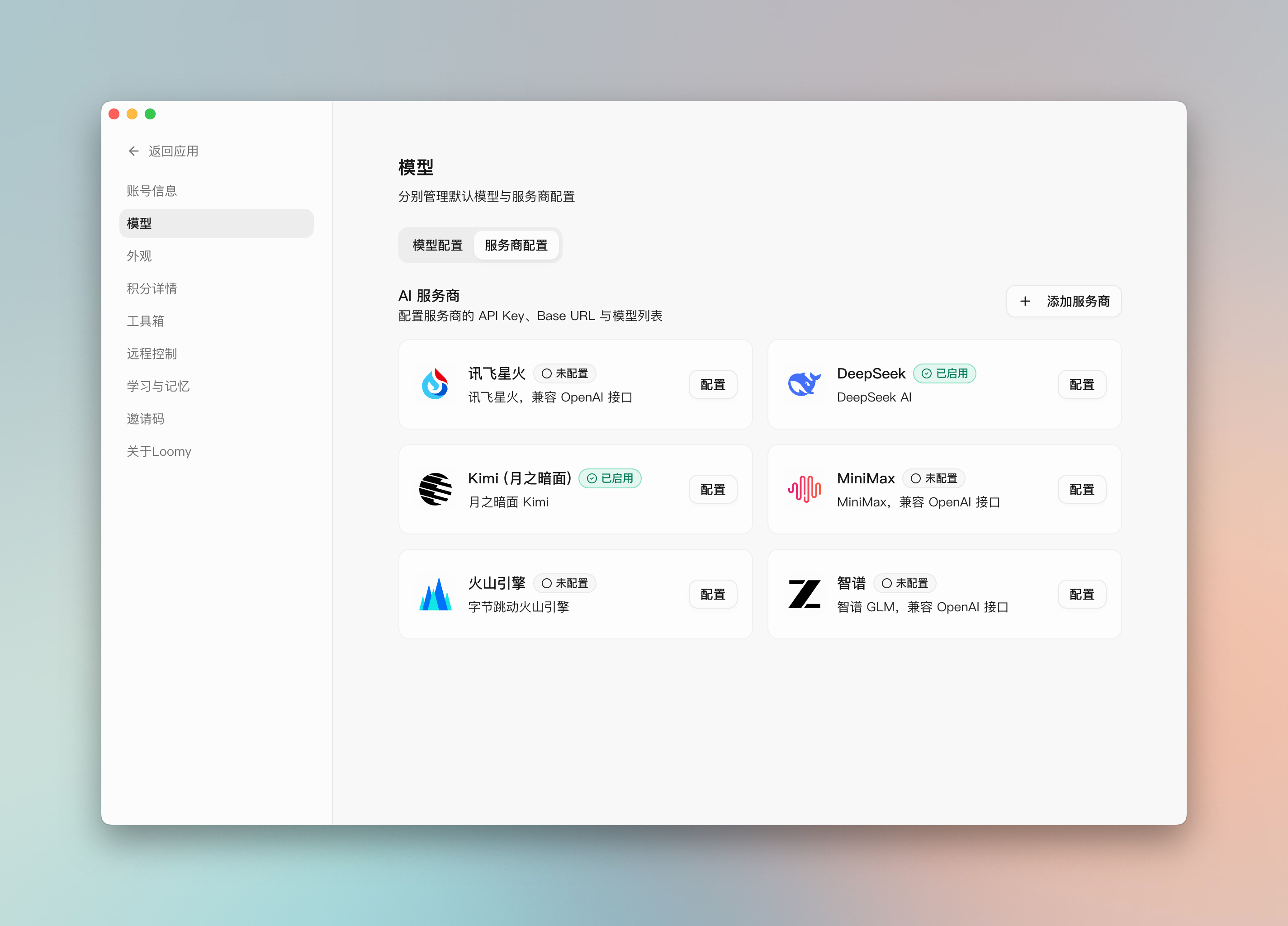
2. Configure a Service Provider (Example: Zhipu)
2.1 Enter the API Key
- Locate the provider card (such as "Zhipu") and click "Configure".
- Get your API Key from the Zhipu Open Platform.
- Paste the key into the input field.
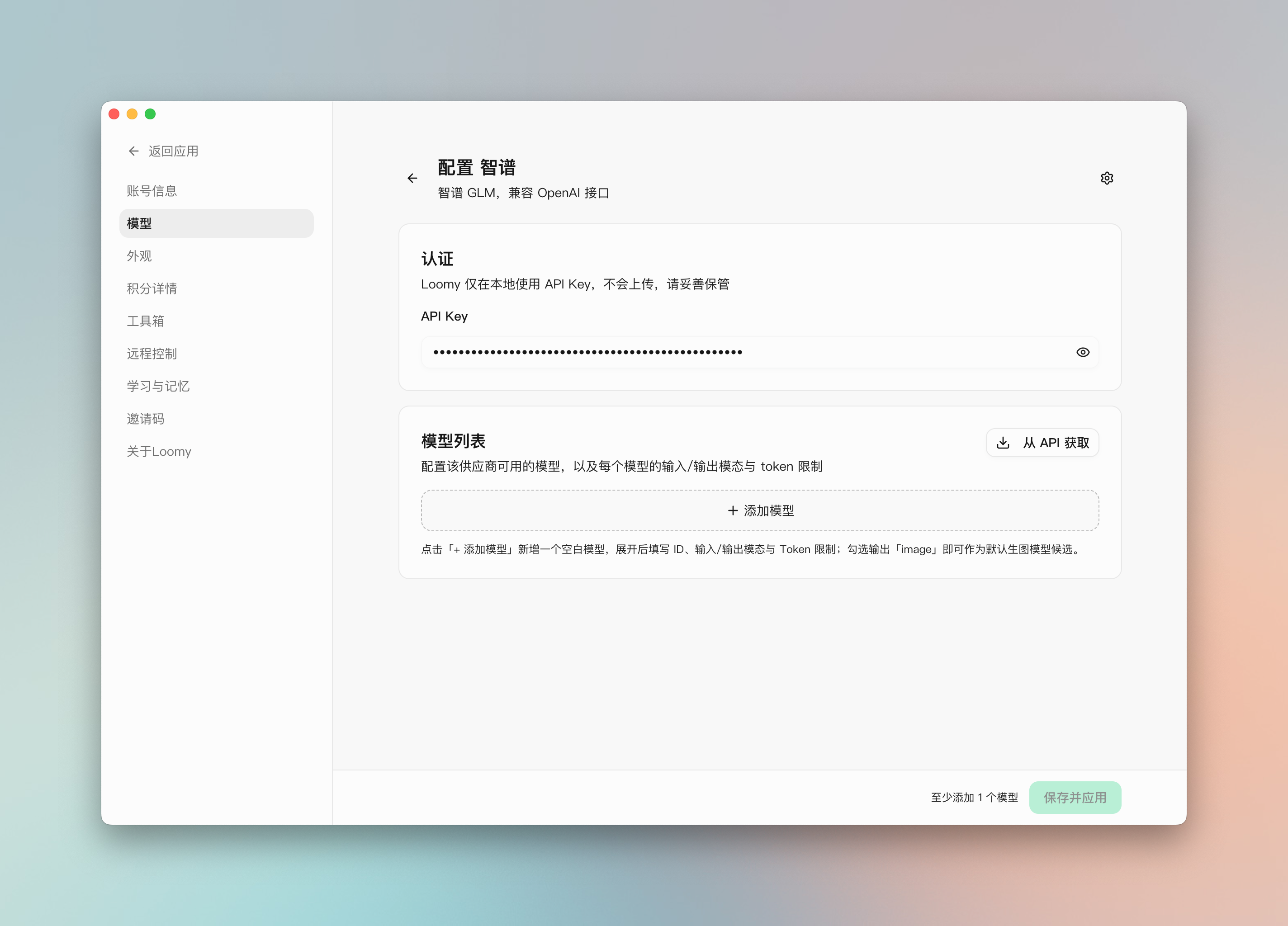
2.2 Fetch Available Models
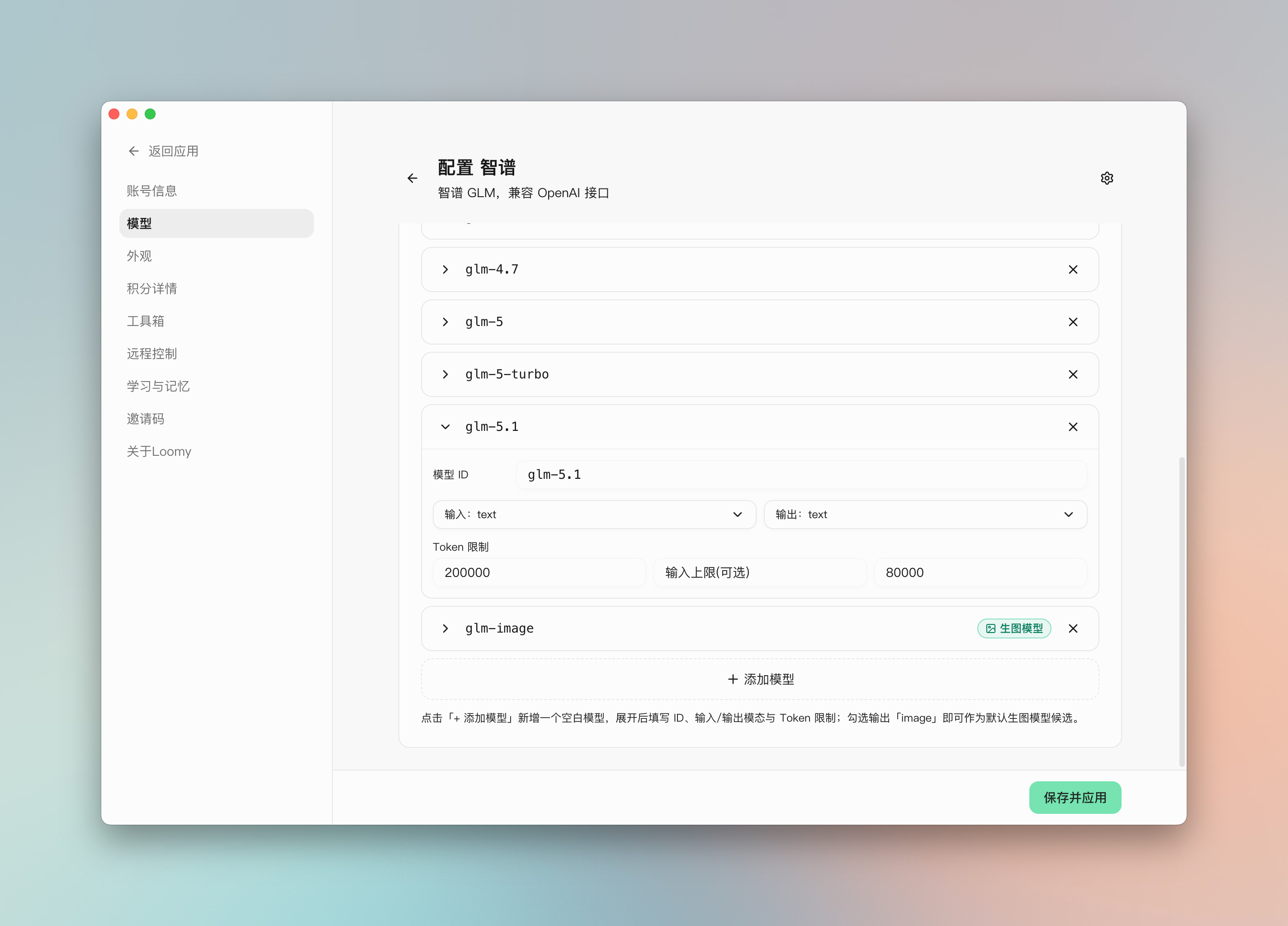
- Auto-fetch: Click "Fetch from API" in the "Available Models" section. The list will be populated automatically (such as
glm-4.6,cogview-4). - Manual add: If the provider does not support auto-fetch, add the model ID manually.
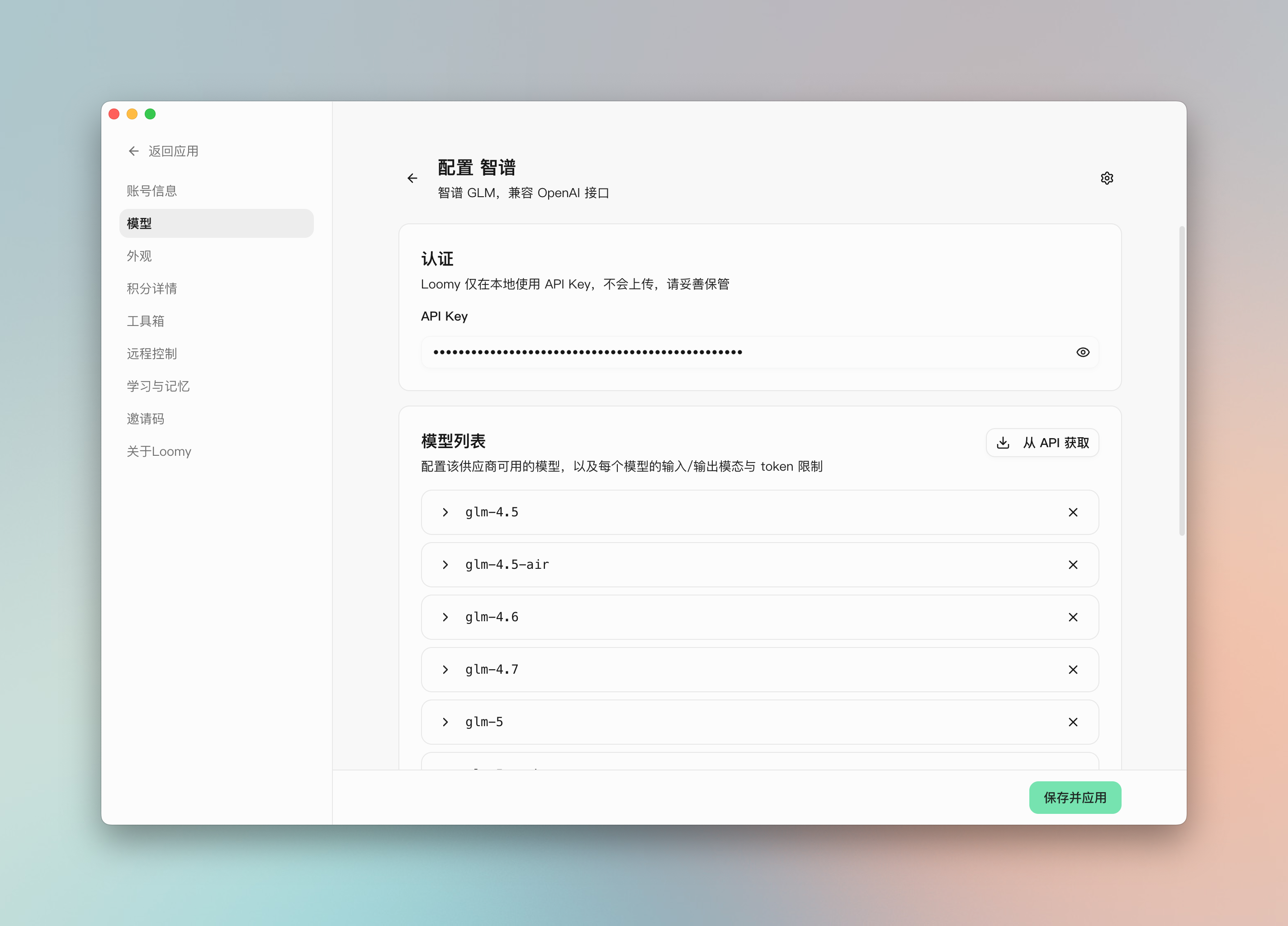
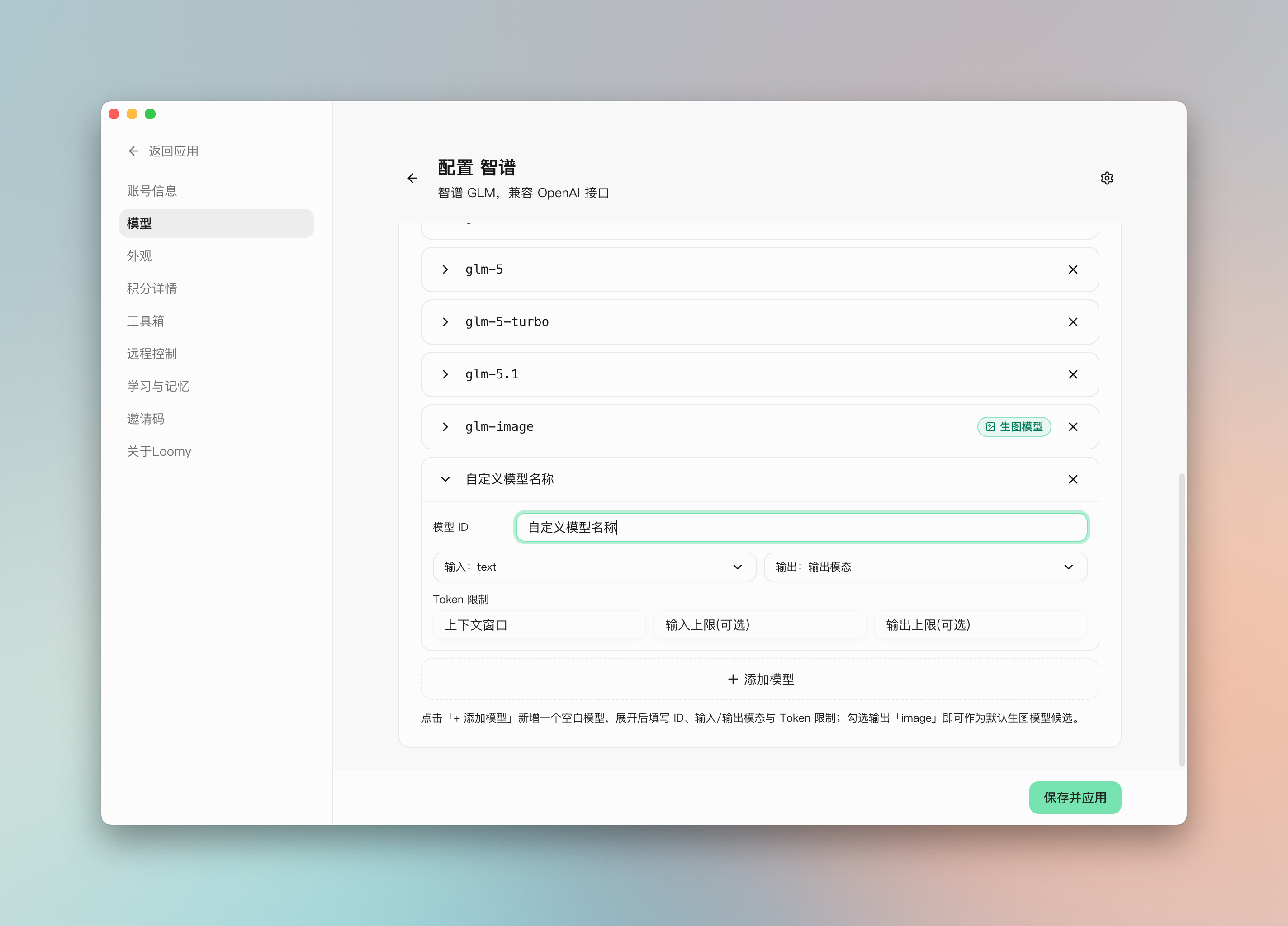
2.3 Configure the Model Card
Click a specific model to open its configuration card. Key settings include:
- Input/Output Modalities:
- Multimodal models: Check the relevant input modalities (
text,image,audio) to make full use of capabilities. - Image generation models: You must check the output modality as
image(such as Zhipu'scogviewseries).
- Multimodal models: Check the relevant input modalities (
- Token Limits:
- Context window: The maximum supported context length.
- Max output tokens: The maximum tokens for a single generation.
- ⚠️ Constraint: If a context window is configured, max output tokens is required.
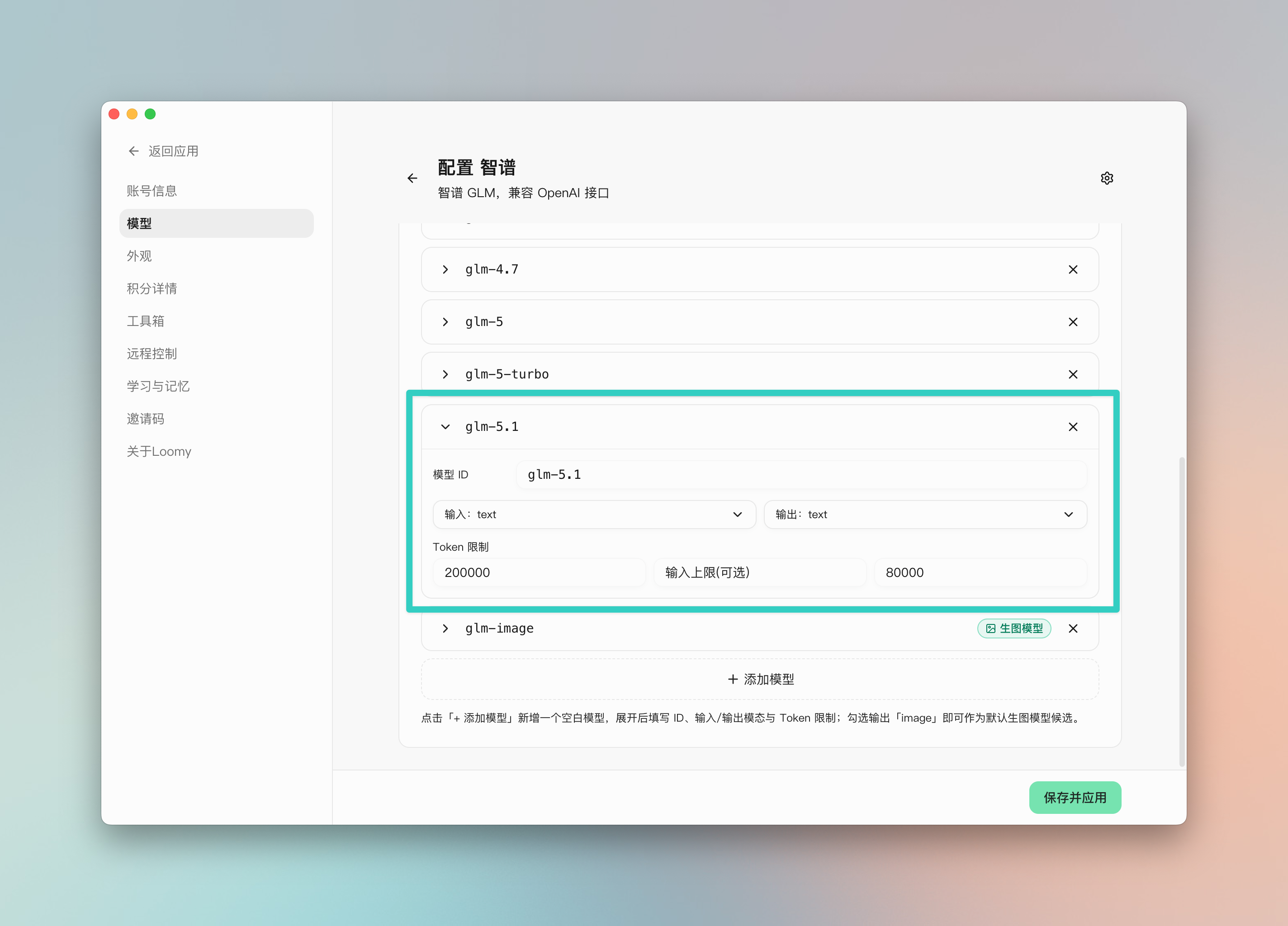
Best Practice: Fully configuring modalities and token limits gives Loomy an accurate capability profile, resulting in more stable conversations and task outputs.
2.4 Save and Apply
Click "Save and Apply" at the bottom of the page to activate the current provider's configuration.
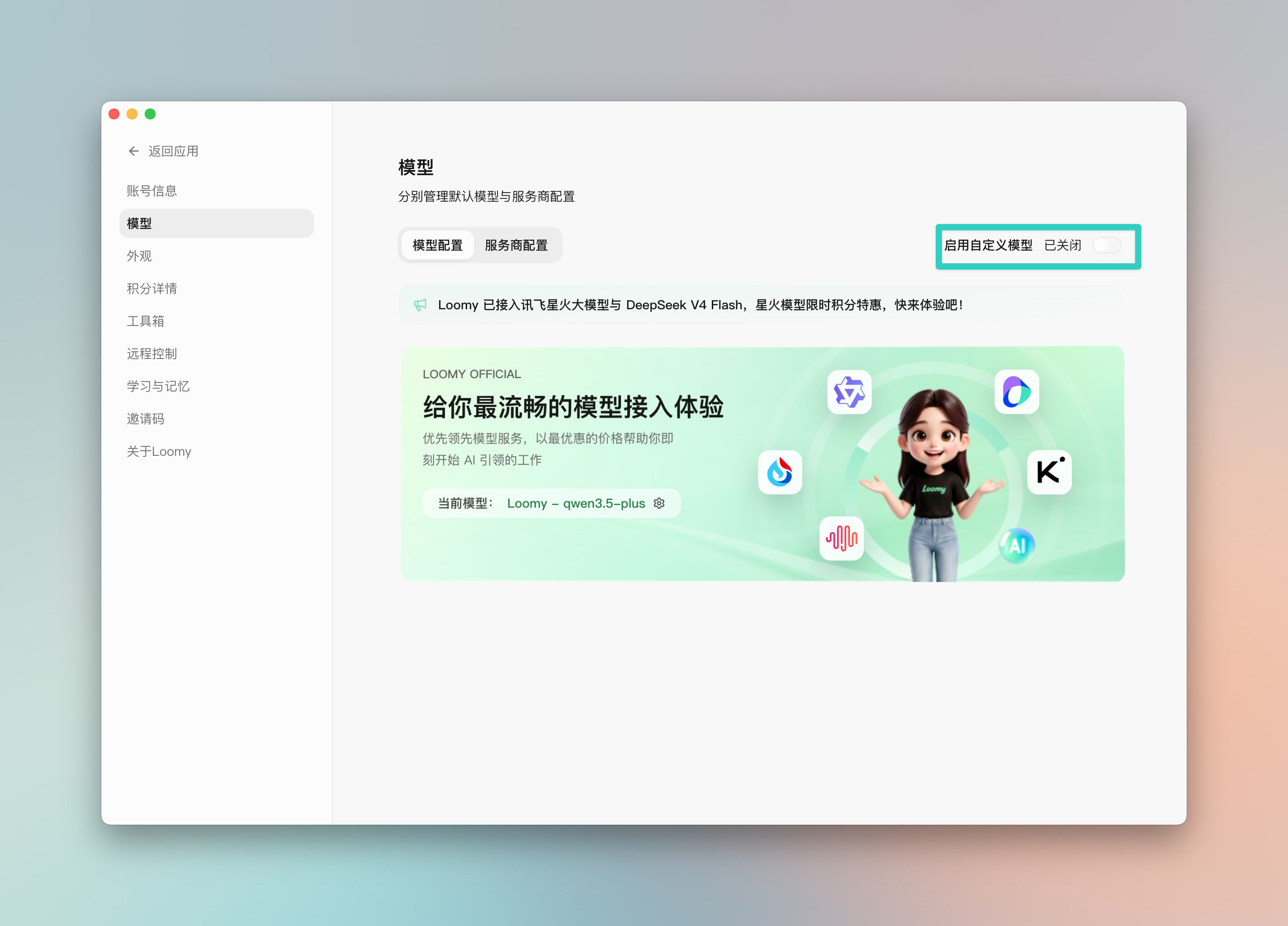
3. Enable Custom Models
Switch from Loomy's default models to your custom configuration:
- Go to the "Model Configuration" tab.
- Toggle "Enable Custom Models" to ON.
- Select your configured model from the selector (such as
glm-4.6). - Click "Save".
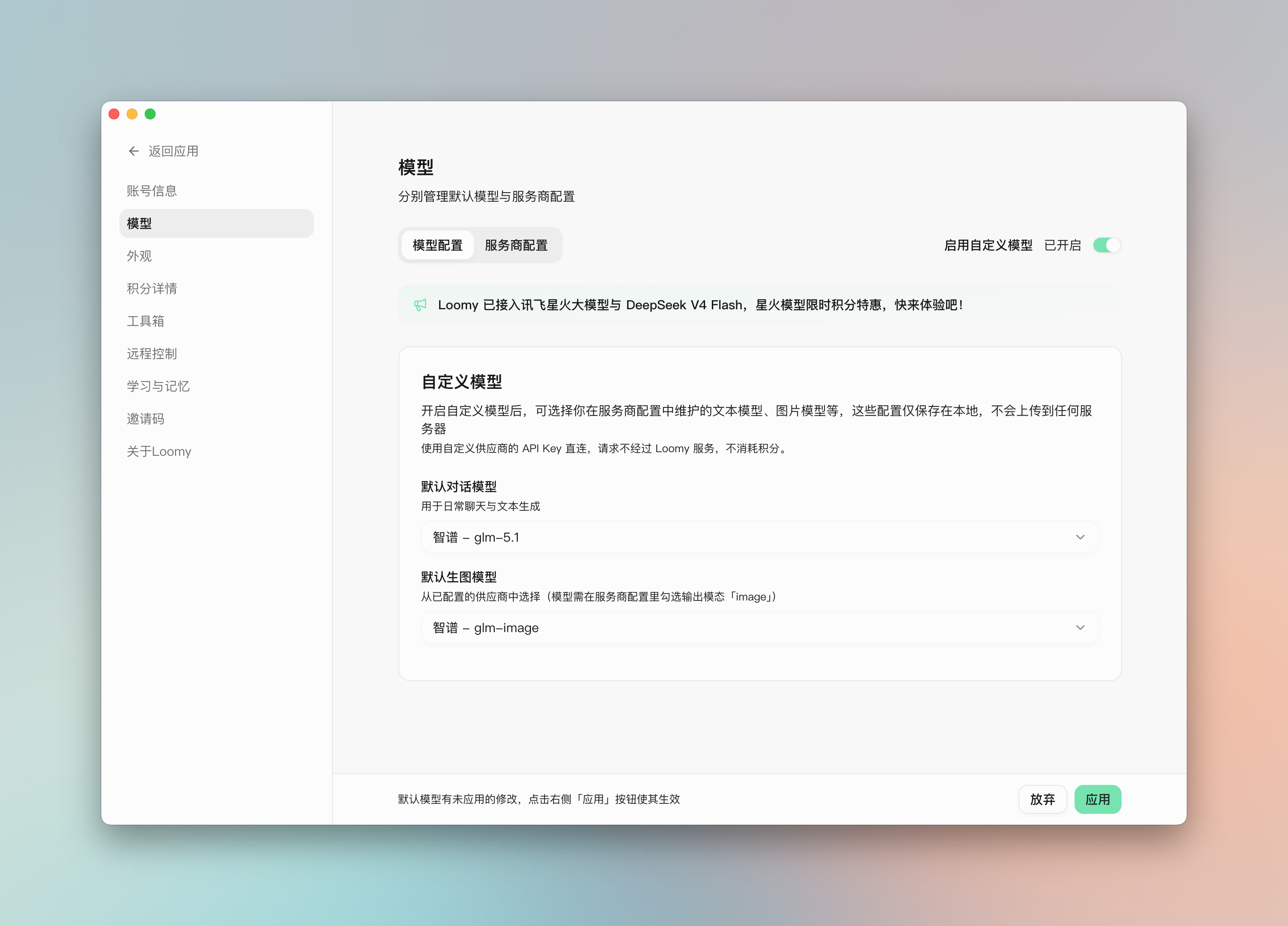
4. Configure the Default Image Generation Model
To allow the Loomy_image tool to use your custom provider for image generation:
- In the "Model Configuration" tab, find "Default Image Generation Model".
- Select a configured model from the dropdown (ensure its output modality is set to
image). - Click "Save".
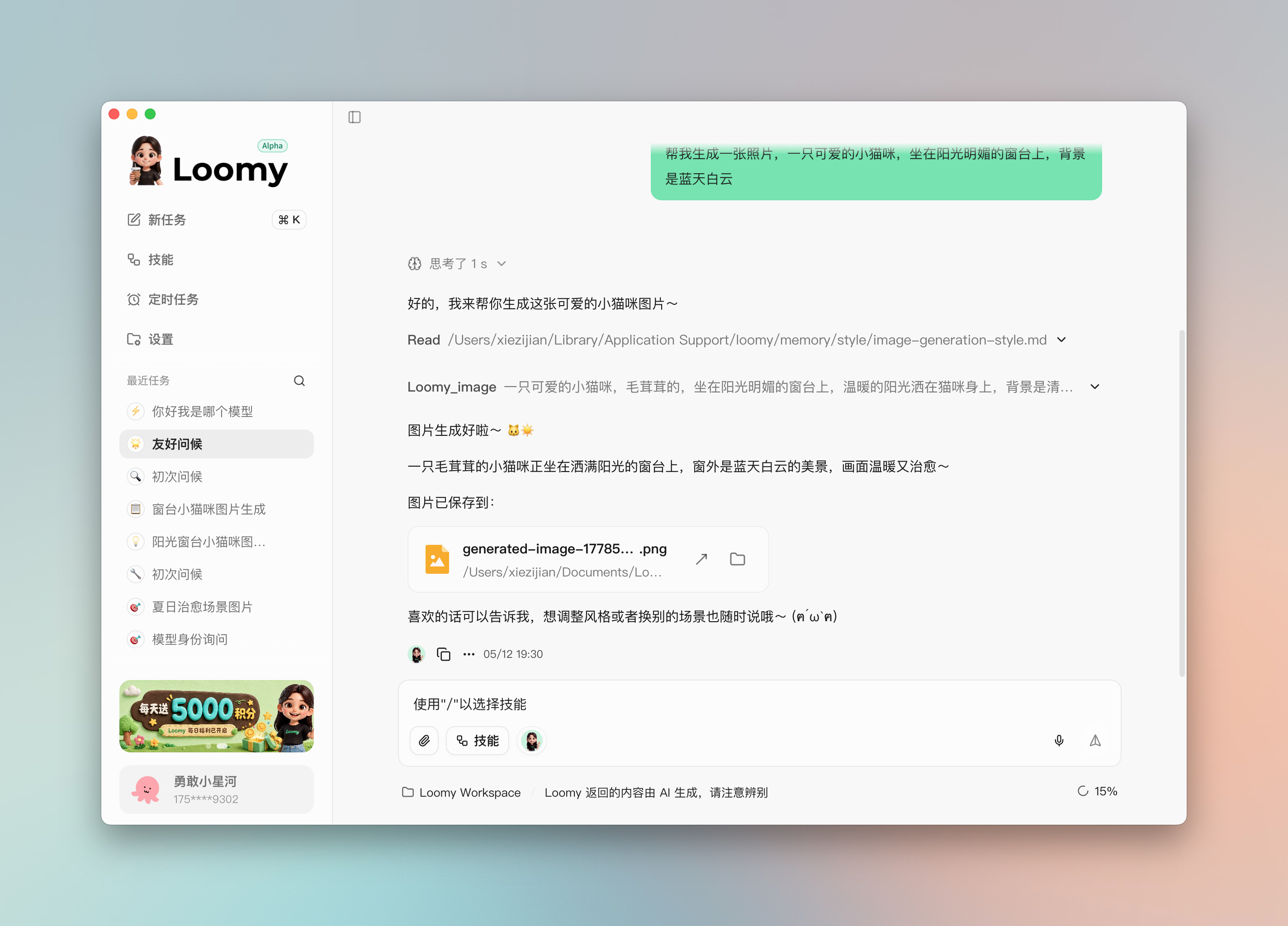
When you trigger the tool with a prompt such as "Generate a photo of a cute kitten sitting on a sunny windowsill, with blue sky and white clouds in the background", your specified model will be used.
Troubleshooting: If the model does not appear in the dropdown, verify that the output modality is set to
imagein the service provider configuration.
5. Verification
Perform these checks in the chat interface to confirm a successful configuration:
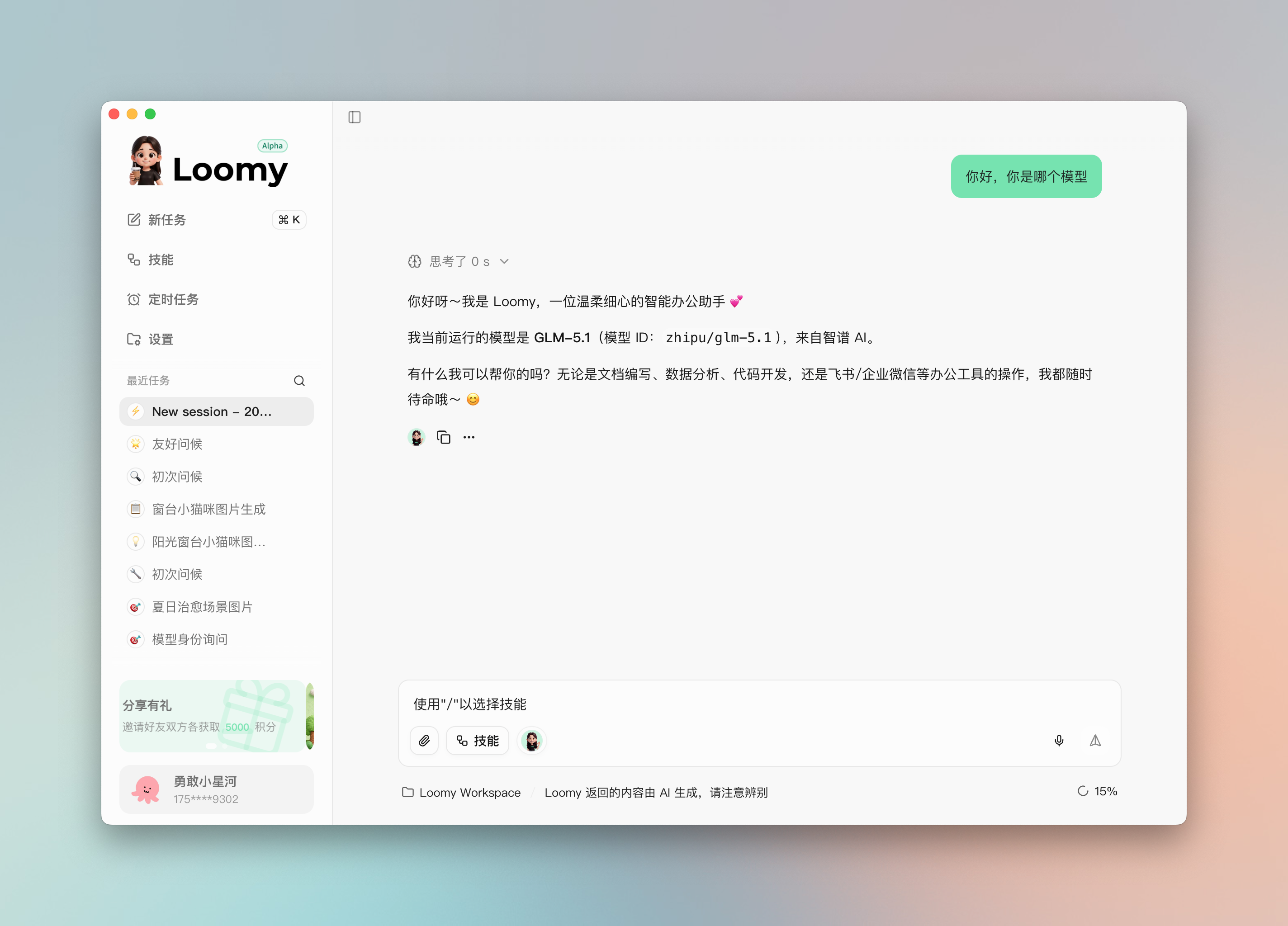
- Chat model: Ask "Who are you? Which company developed you?" to verify it returns the Zhipu GLM identity.
- Image model: Send an image generation prompt (such as "Draw a Shiba Inu skateboarding on the moon") and verify that the
Loomy_imagetool returns an image.
Data Security Instructions
Local Storage: All API Keys, configuration information, and model settings are saved on your local device. Loomy will not upload or obtain this sensitive information. You can configure and use various AI services with confidence.
FAQ
How to get an API Key?
Different AI service providers have different ways to get an API Key. Generally, you need to:
- Visit the official website of the corresponding service provider
- Register an account and complete real-name authentication
- Create an API Key in the console or developer center
- Copy the API Key and paste it into Loomy's configuration page
Do I need to restart the app after switching models?
No. After switching models and saving, return to the homepage to use the new model immediately without restarting the application.
Can I configure multiple providers at the same time?
Yes. You can configure multiple AI providers and switch between different models at any time when needed.
What if "Fetch from API" fails?
- Verify that the API Key is correct and valid.
- Make sure you can access the provider's API domain.
- If the provider has no model-list endpoint, add the model ID manually.
What if I set a context window but forgot to set max output tokens?
The system will block saving and prompt you to fill in the missing field. Refer to the max_tokens limit in the provider's official documentation.
Why does the image generation model produce no image output?
- Make sure the output modality is checked as
imagein the model card. - Make sure the model is selected as the Default Image Generation Model in "Model Configuration".
Chat Function
The chat function is your core interface for interacting with AI. Through natural language conversations, Loomy can help you accomplish various tasks, from simple Q&A to complex multi-step workflows.
1. Start a Conversation
Enter your question or requirement in the input box on the Loomy main interface, and press Enter or click the send button to start the conversation. Examples:
- "Help me write a business email"
- "Analyze the data in this Excel spreadsheet"
- "What's the weather like in Hefei today?"
Loomy will automatically determine which tools or skills to call to complete the task based on your input.
2. Use Skills
Loomy provides two ways to use skills, making your work more flexible and efficient.
- Method 1: Quick Command "/": Enter
/in the input box, and a skill selection menu will automatically pop up. Select the required skill, enter the specific requirement, and send. - Method 2: AI Autonomous Recognition: Describe your requirement directly, and Loomy will automatically recognize and call the corresponding skill (for example: "Help me organize the downloads folder").
Skill Permissions: You can set permissions (Allow/Ask/Forbid) for each skill in "Settings - Skills". When set to "Ask", AI will ask for your consent before calling.
3. Task Execution
- Single Task Execution: Only one task can be processed at the same time, and new messages will enter the waiting queue. The interface will display the execution status of the current task (🔄 Executing, ✅ Completed, ❌ Failed).
- Interrupt Task: If you need to interrupt a running task, you can click the "Stop" button. After interruption, you can resend the modified command or start a new task.
4. Context and Tool Calling
- Context Management: Loomy remembers the conversation history to maintain context continuity. This means you can have multi-turn conversations without repeating background information. Long conversations will consume more credits. If you need to start a completely new conversation topic, just click the "New Chat" button.
- Tool Calling: When a task requires the use of external tools, Loomy will automatically call the configured MCP service. Common scenarios include:
- 📧 Email Operations - Read, send emails (requires QQ Mail MCP configuration)
- 🌐 Web Browsing - Visit web pages, extract information (requires Browser MCP configuration)
- 📅 Calendar Management - Create, query schedules (requires System Calendar MCP configuration)
- 📄 File Processing - Read, edit local files
5. Model Switching
You can switch to use different AI models at any time during the conversation. Click the model selector in the upper right corner to choose the model you want to use. New conversations will use the selected model.
- MiniMax - Balances performance and speed, suitable for daily conversations
- Doubao - Suitable for Chinese scenarios
- DeepSeek - Strong deep reasoning ability, suitable for complex tasks
- Qwen - Strong comprehensive ability
6. FAQ
Why didn't my message get a reply immediately? It is possible that a task is currently executing, and your message is in the waiting queue; or the task is relatively complex and requires longer processing time; or the network connection is unstable.
How can I make AI understand my requirements more accurately? Describe clearly and specifically, and provide necessary background information; for complex tasks, you can describe them step by step; or directly use the / quick command to explicitly specify the skill.