
Knowledge Base
BETA
The Knowledge Base is currently in BETA. Features are continuously being improved.
The Knowledge Base allows Loomy to safely access documents, images, and apps on your computer. After you authorize a directory, Loomy will continuously scan and automatically categorize these resources—you can ask it to "help me find something" in the chat, or use the Search Popup to quickly locate files, apps, and commands from anywhere.
Authorize Access to Local Resources
The first time you enter the Knowledge Base, you'll be prompted to grant authorization. By default, Loomy does not access any of your local files; it only scans the directories you explicitly allow.
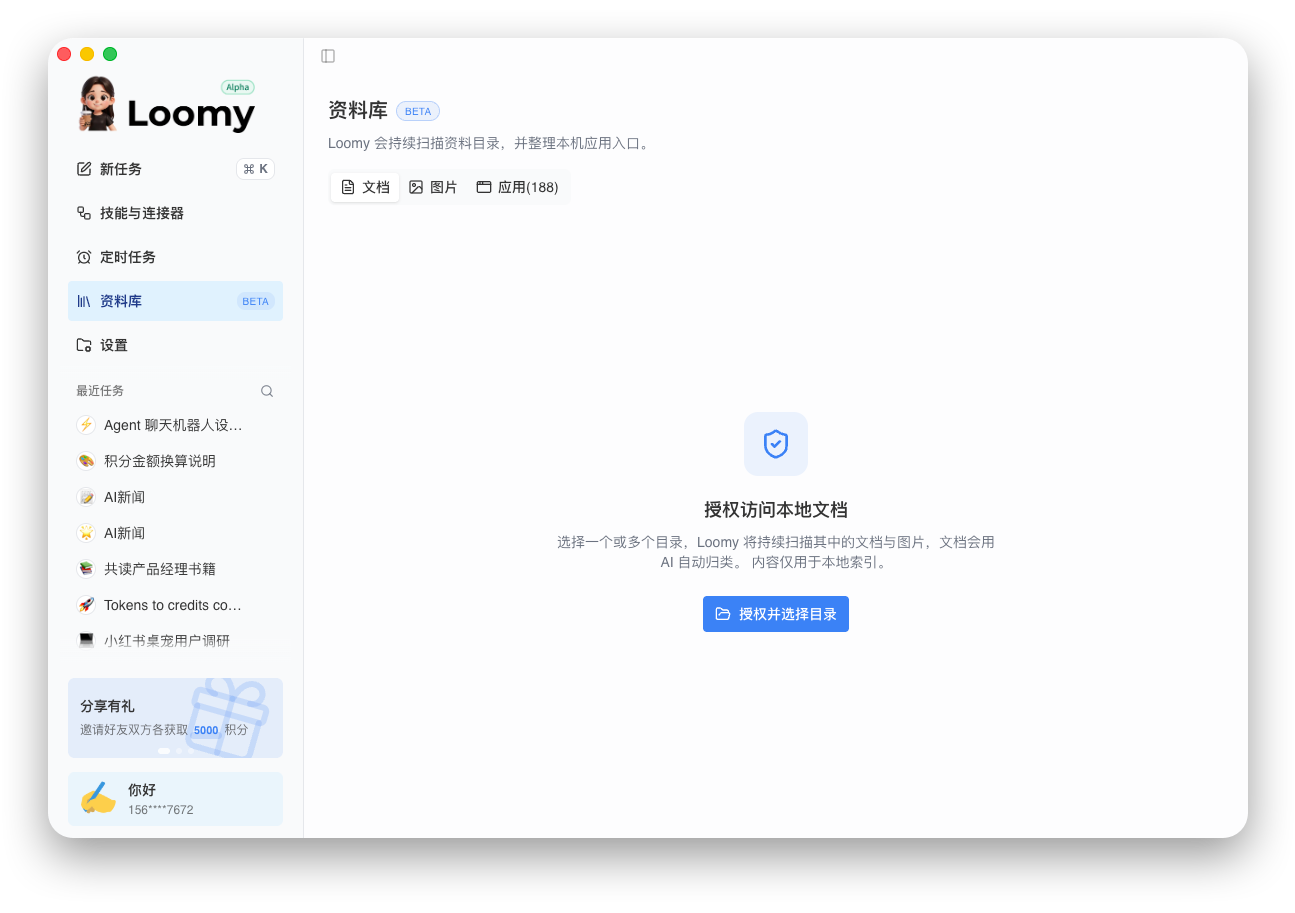
Click "Authorize and Select Directory" and choose one or more folders (such as Downloads, Documents, Pictures, etc.) in the system dialog.
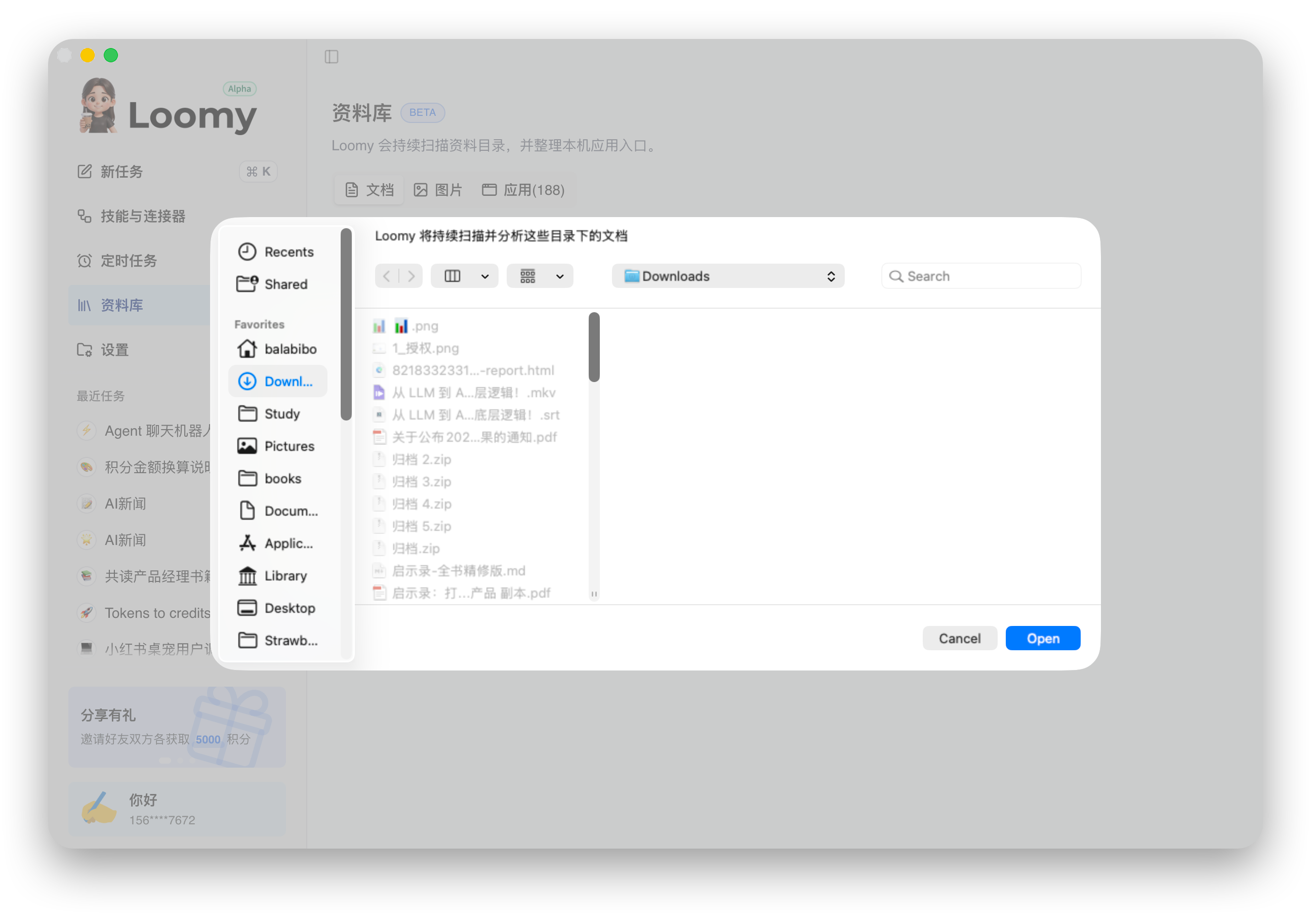
After confirmation, Loomy will continuously scan these directories for documents and images, automatically categorizing them with AI. The content is used for local indexing only and never uploaded.
Note
- You are granting "access permission" for directories. All scanning and indexing happens locally.
- You can add or remove authorized directories at any time. Loomy will only scan contents within the currently authorized scope.
Browse Your Files
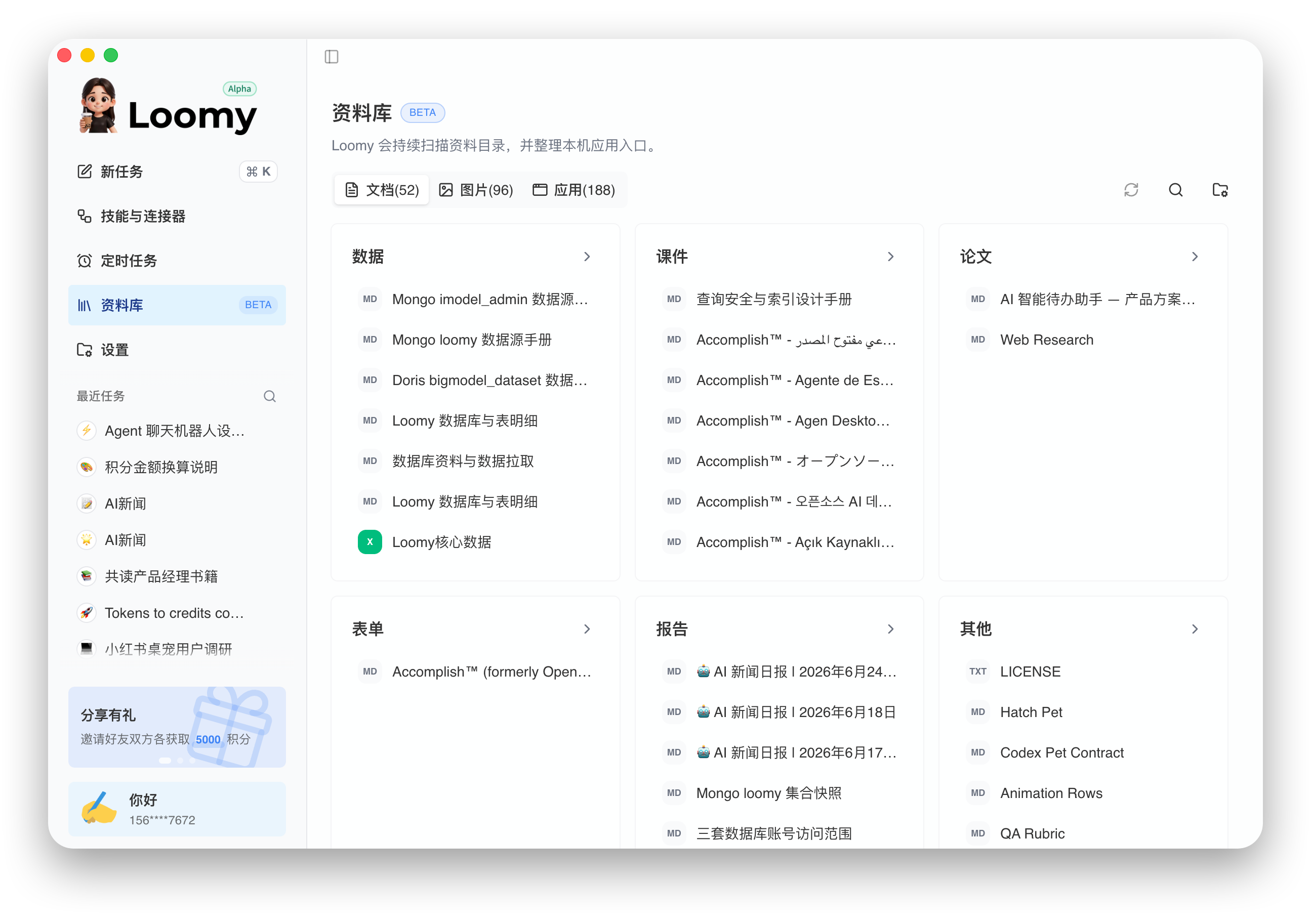
After authorization, the Knowledge Base is divided into three tabs: "Documents," "Images," and "Apps." The numbers in parentheses indicate the current number of items indexed.
Documents
The Documents tab automatically categorizes scanned files by content (such as "Data," "Courseware," "Papers," "Forms," "Reports"), making them easy to browse.
Images
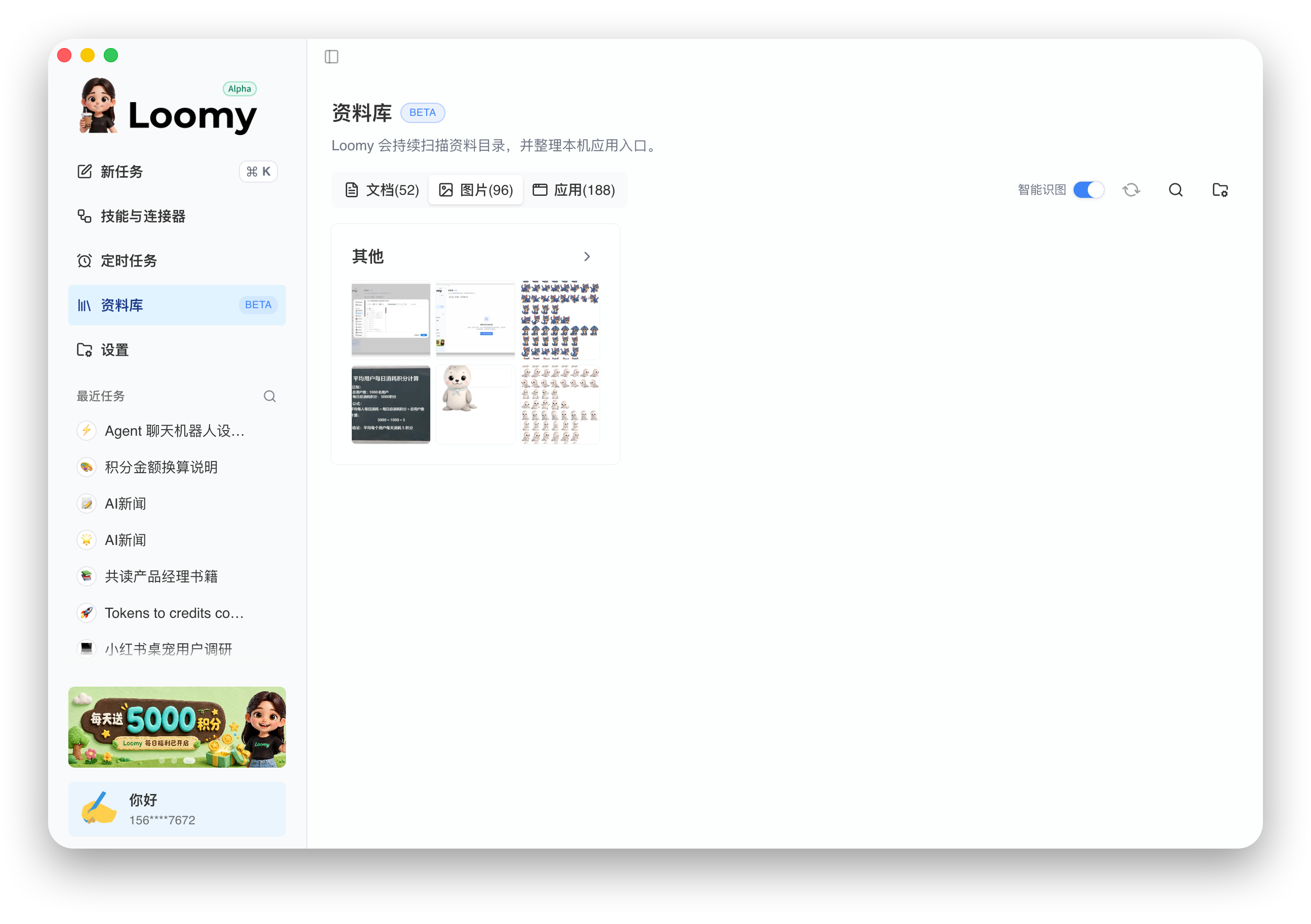
The Images tab displays your local images grouped by time and scenario (e.g., "Screenshots," "Others"). The Smart Vision toggle in the upper-right enables AI-powered image analysis.
Apps
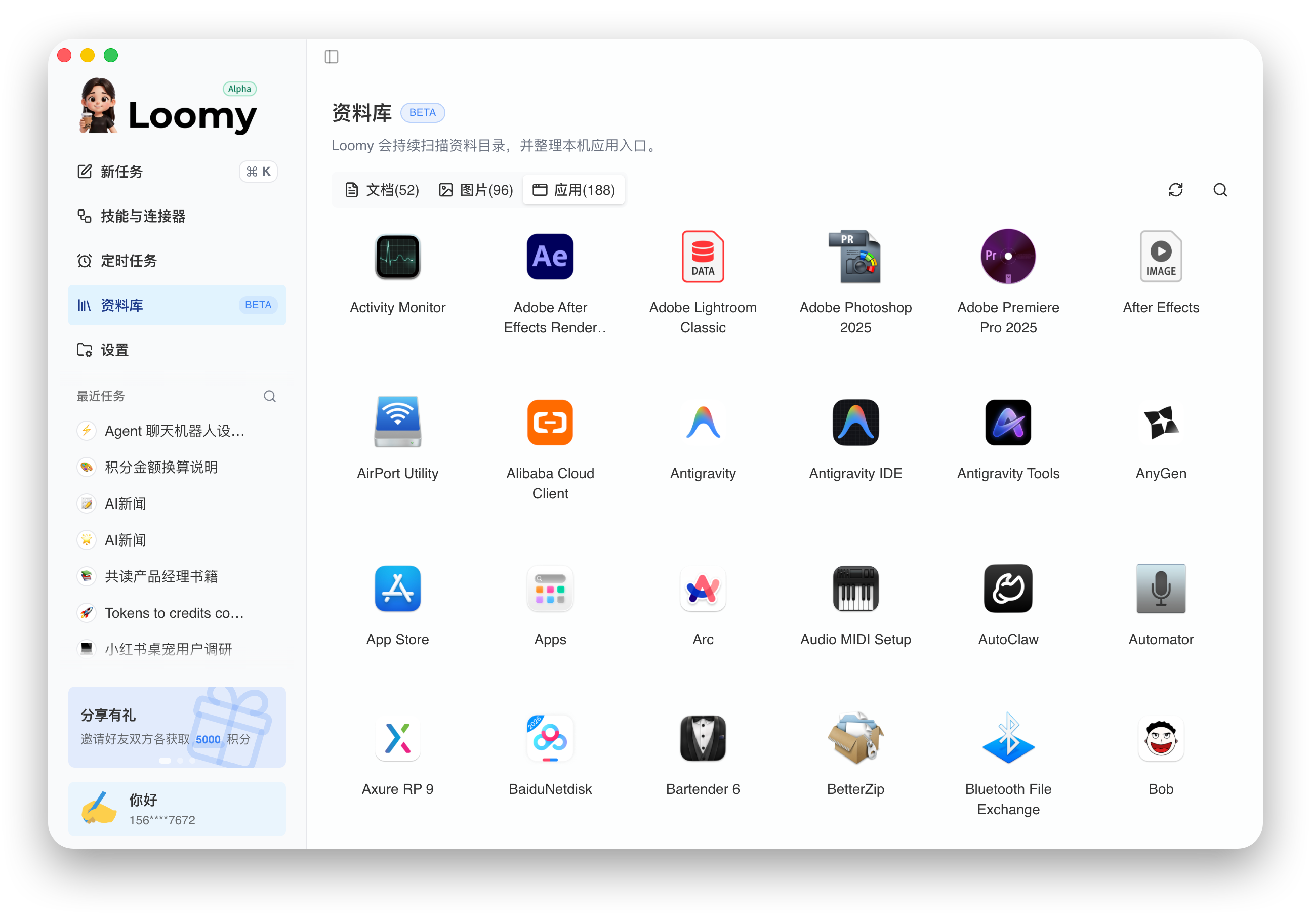
The Apps tab lists your locally installed applications—click to quickly launch any of them.
Smart Vision
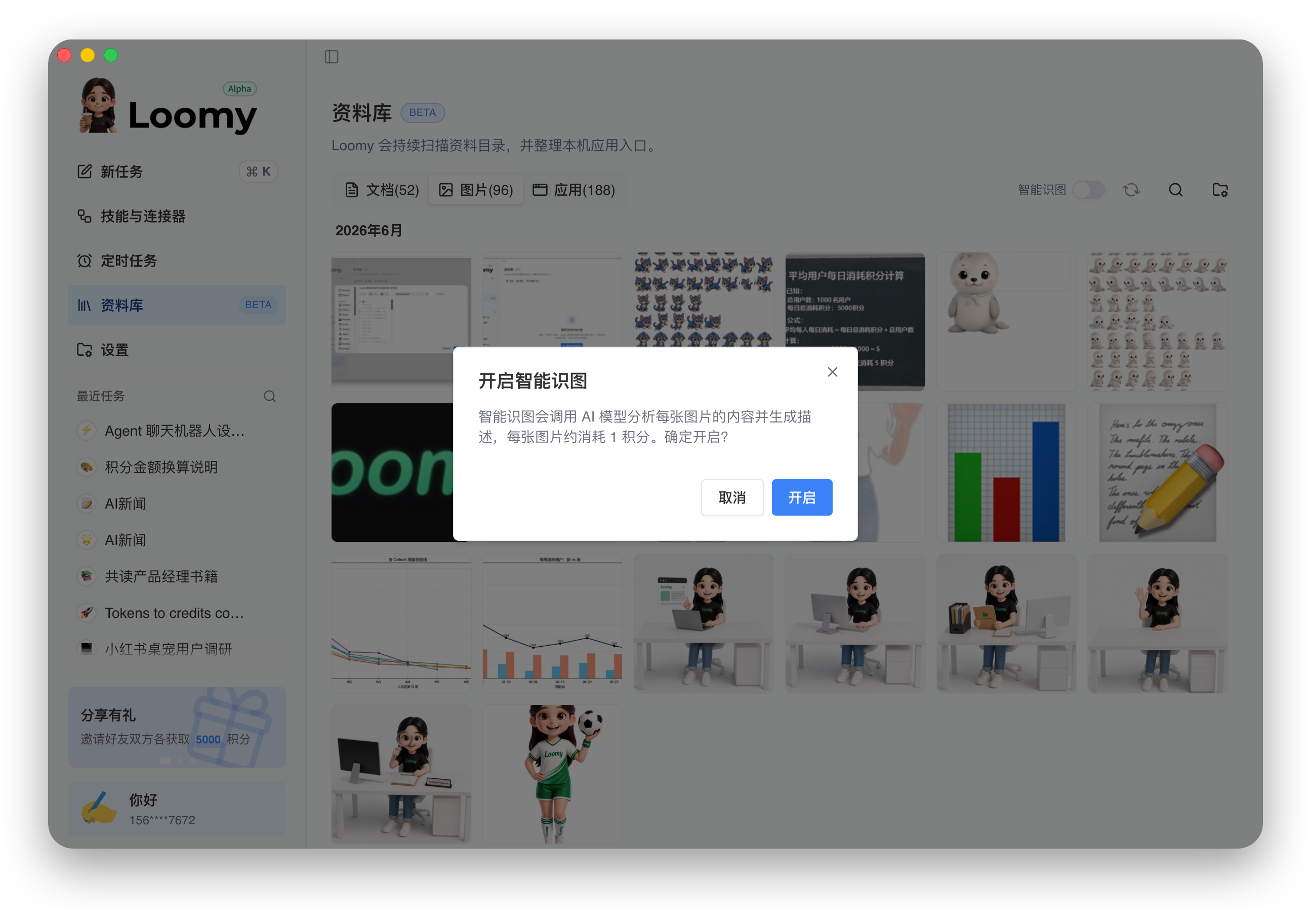
By default, Loomy can only identify images by file name and basic info. After enabling "Smart Vision," Loomy uses AI to analyze image contents and generate a description—allowing you to search by "what's in the image" instead of the file name.
In the Images tab, toggle "Smart Vision" in the upper-right. A confirmation dialog will appear:
Points Consumption
Smart Vision uses AI to analyze every image, consuming about 1 point per image. Once enabled, all indexed images will be analyzed one by one. Please monitor your points balance.
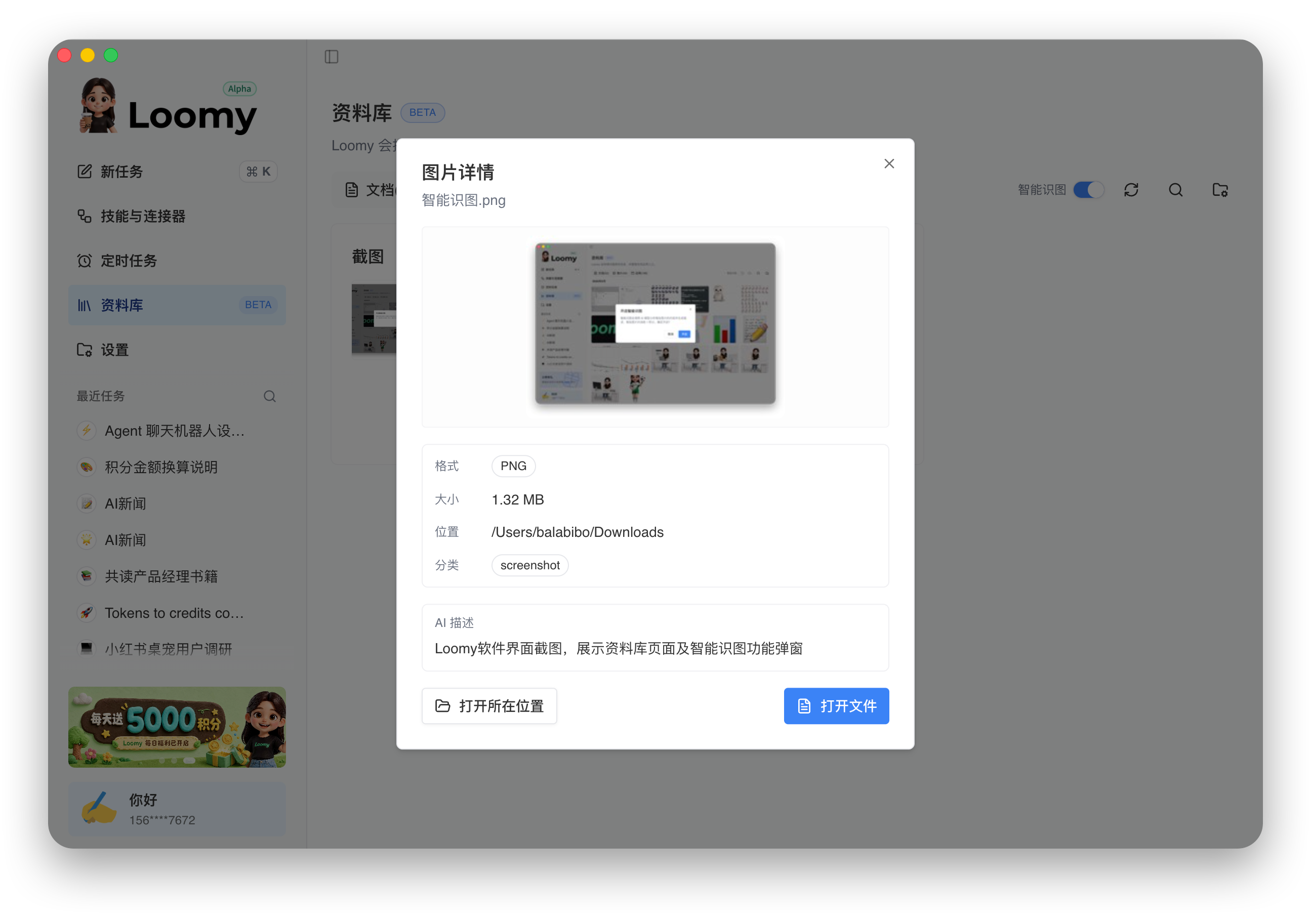
View Image Descriptions
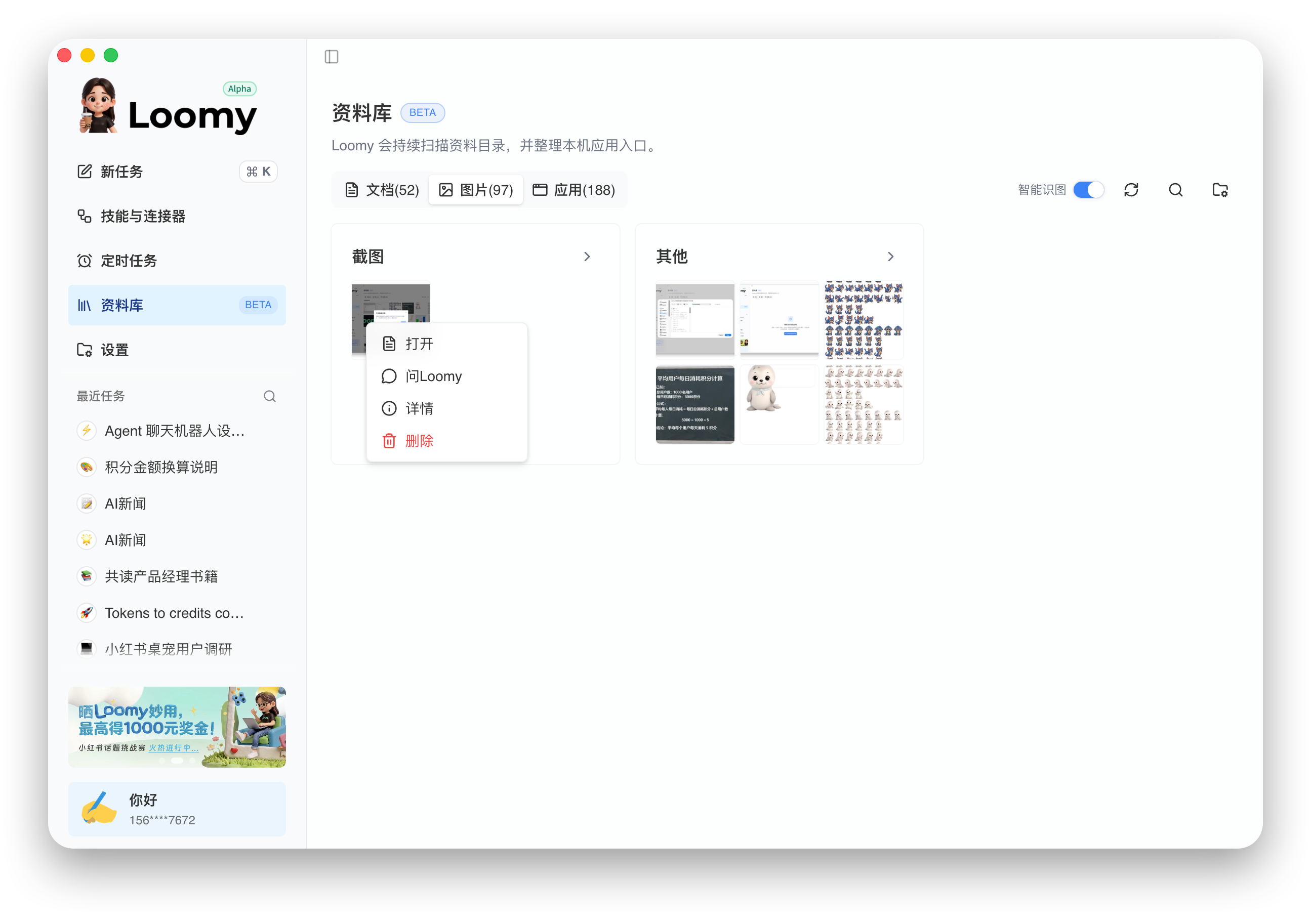
After analysis completes, right-click any image and select "Details."
The image detail view shows file format, size, location, category, and the AI-generated description.
Search Files via Chat
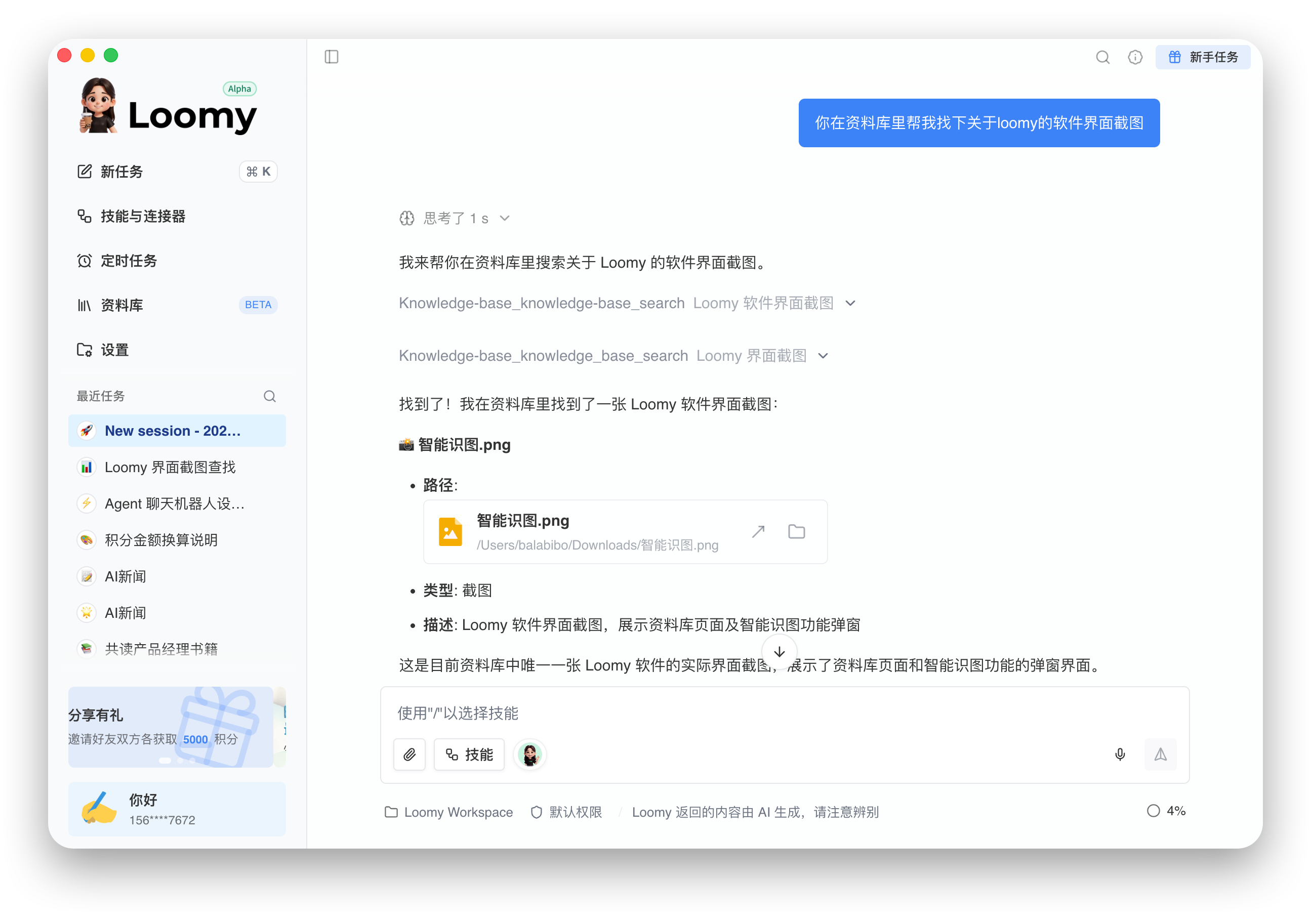
The most direct way to use the Knowledge Base is to have Loomy fetch what you need in a conversation. Create a new task and describe what you're looking for in plain language. For example:
Please find screenshots of Loomy's software interface in the Knowledge Base.
Loomy will search the Knowledge Base (including Smart Vision descriptions) and return matching files with their paths, types, and descriptions. You can open the files directly or locate their folders.
Search Popup
The Search Popup is another way to leverage the Knowledge Base: you can search your apps, files, and commands instantly anywhere via a shortcut key, without opening the main Loomy window. You can also hand tasks straight to Loomy with one click.
Enable and Set Shortcut Key
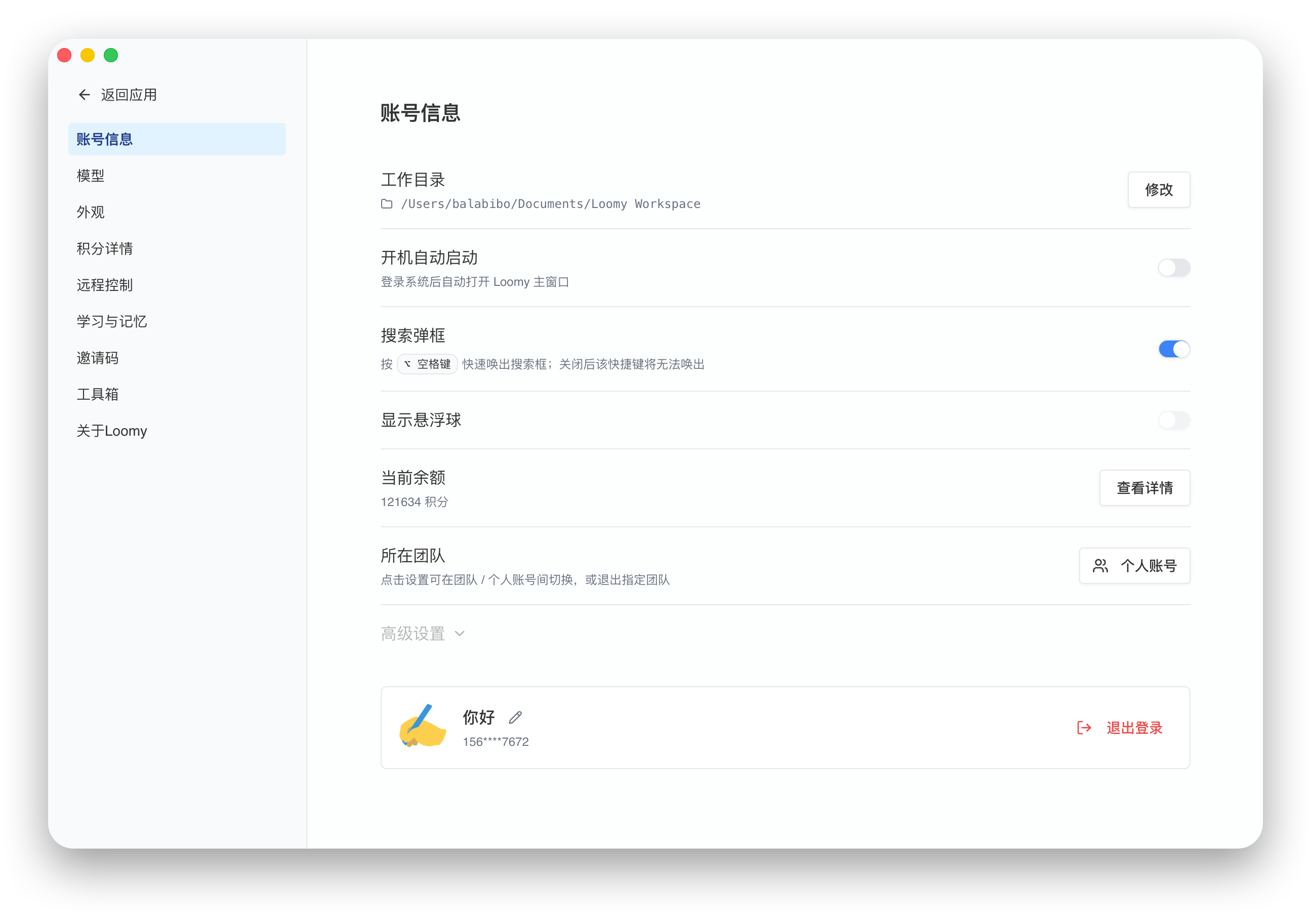
Go to "Settings → Account Info" and find the "Search Popup" toggle. The default shortcut is ⌥ Space; press it to open the search box. Disabling this toggle deactivates the shortcut.
Quickly Find Apps, Files, and Commands
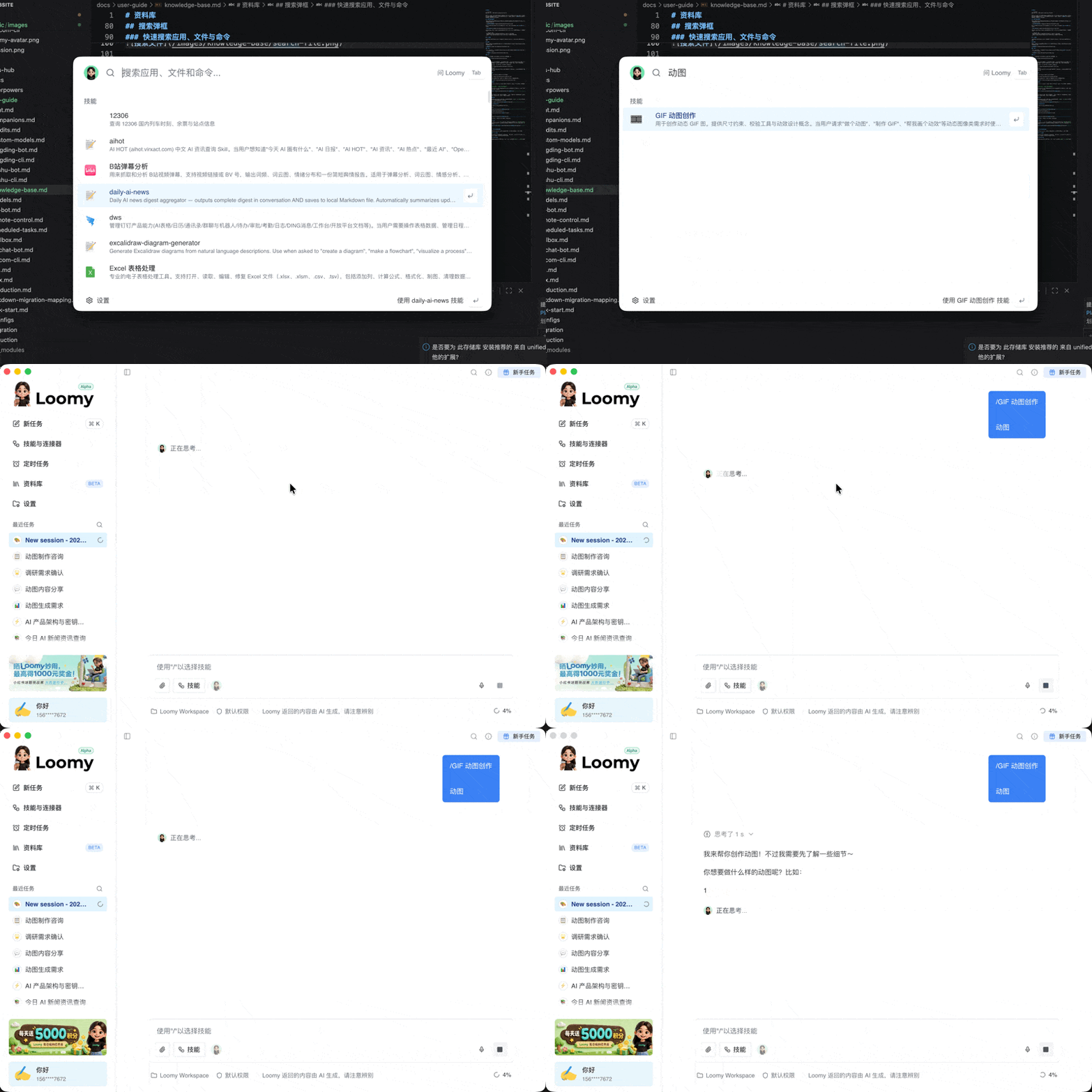
When you press the shortcut, the search box pops up and filters results in real time as you type.
Type a command or skill; the list will update instantly, and you can press Enter to execute that skill:
Type a file name keyword to search files (from your authorized directories) in the Knowledge Base and press Enter to open:
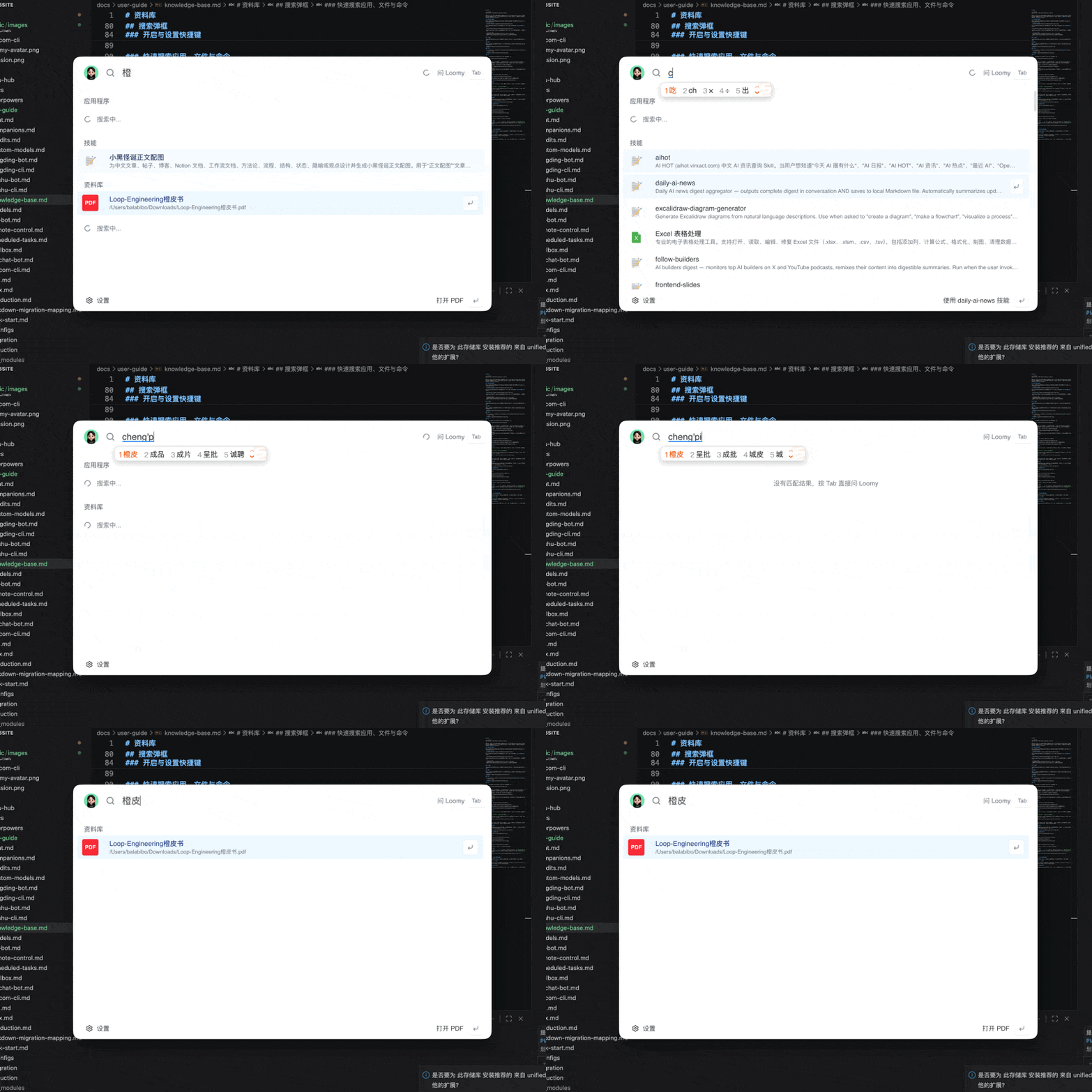
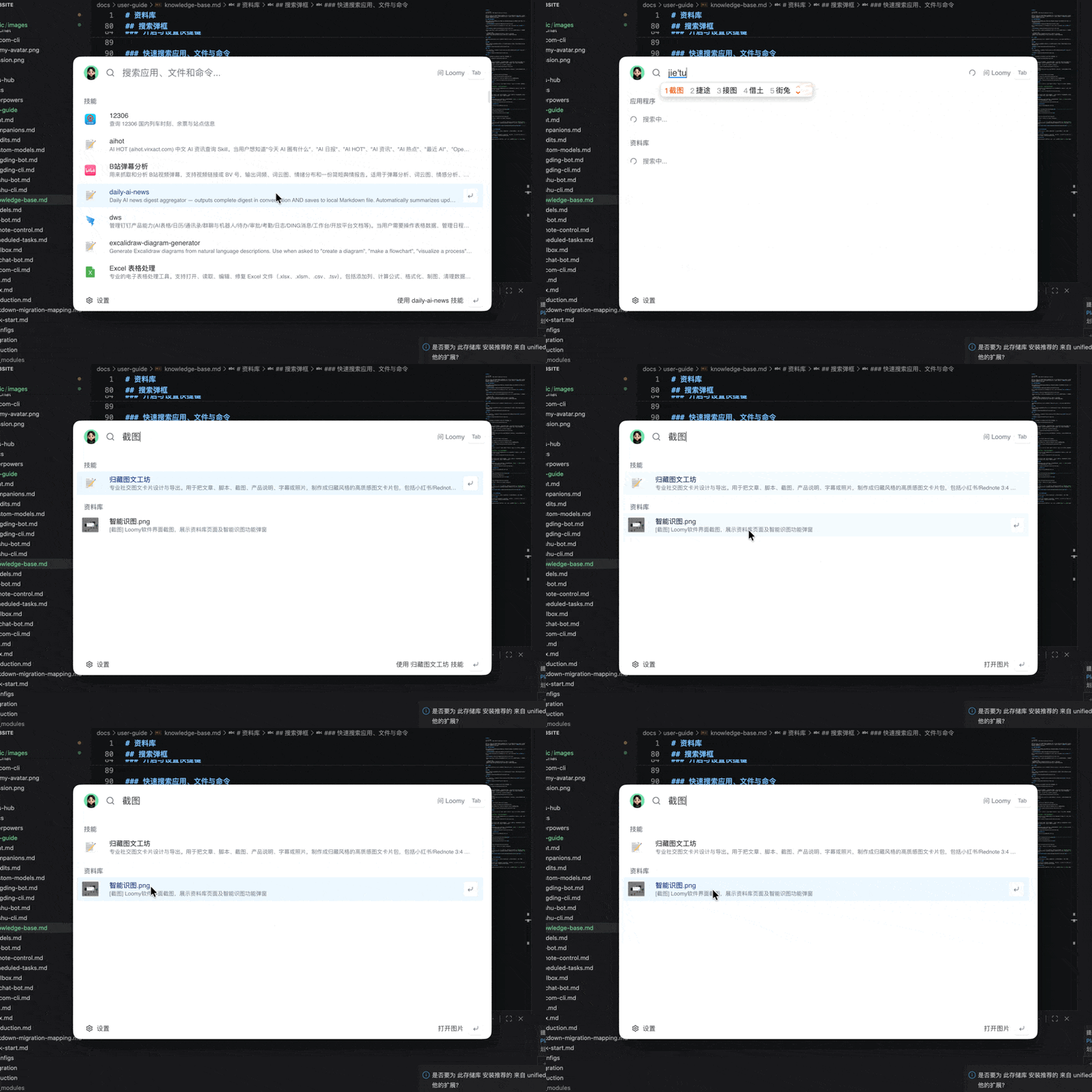
Enter keywords related to images (including Smart Vision descriptions) to find local photos:
Type an app name to quickly locate and launch an application:
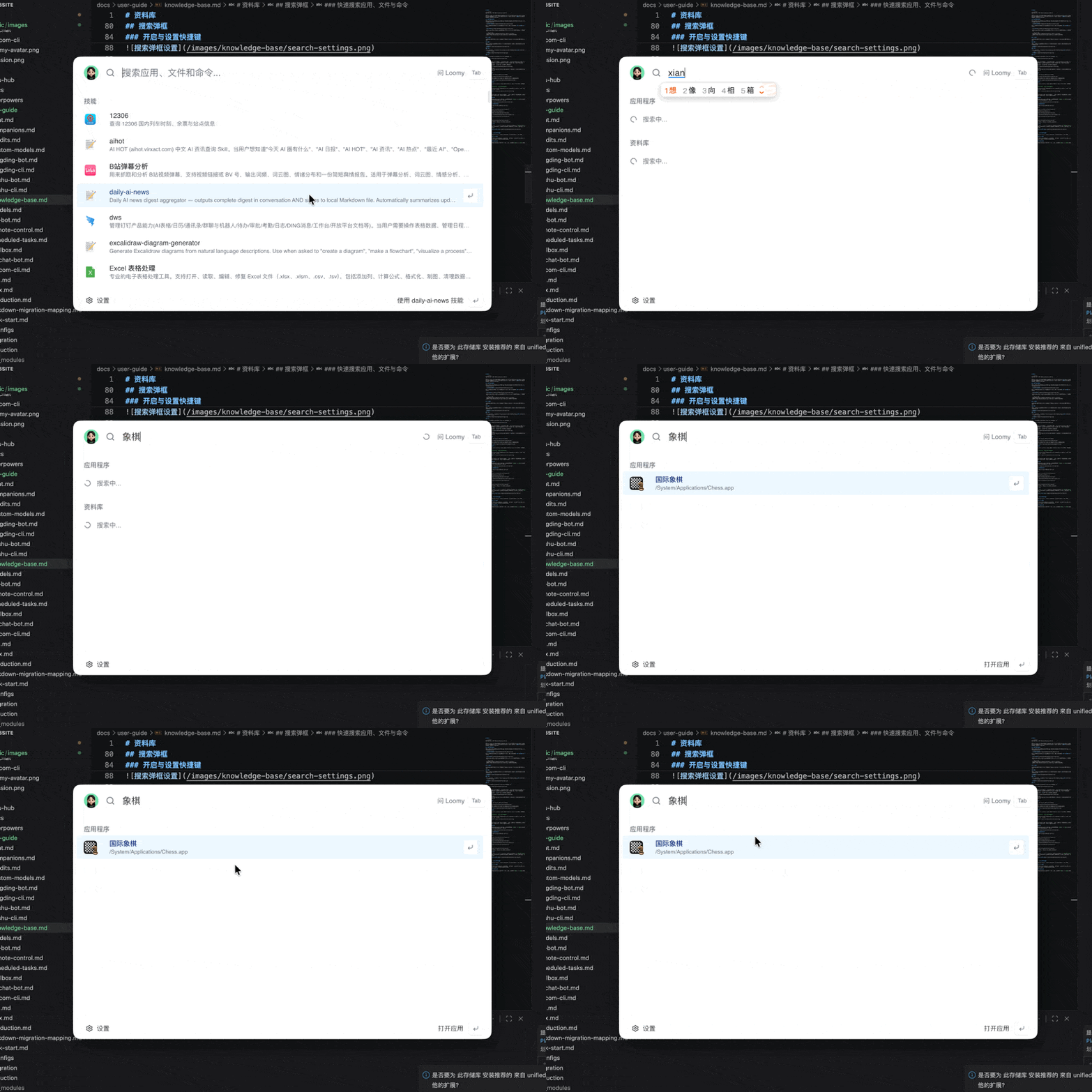
Select any result and press Enter to open the file, launch the app, or run the corresponding command.
Hand Tasks to Loomy
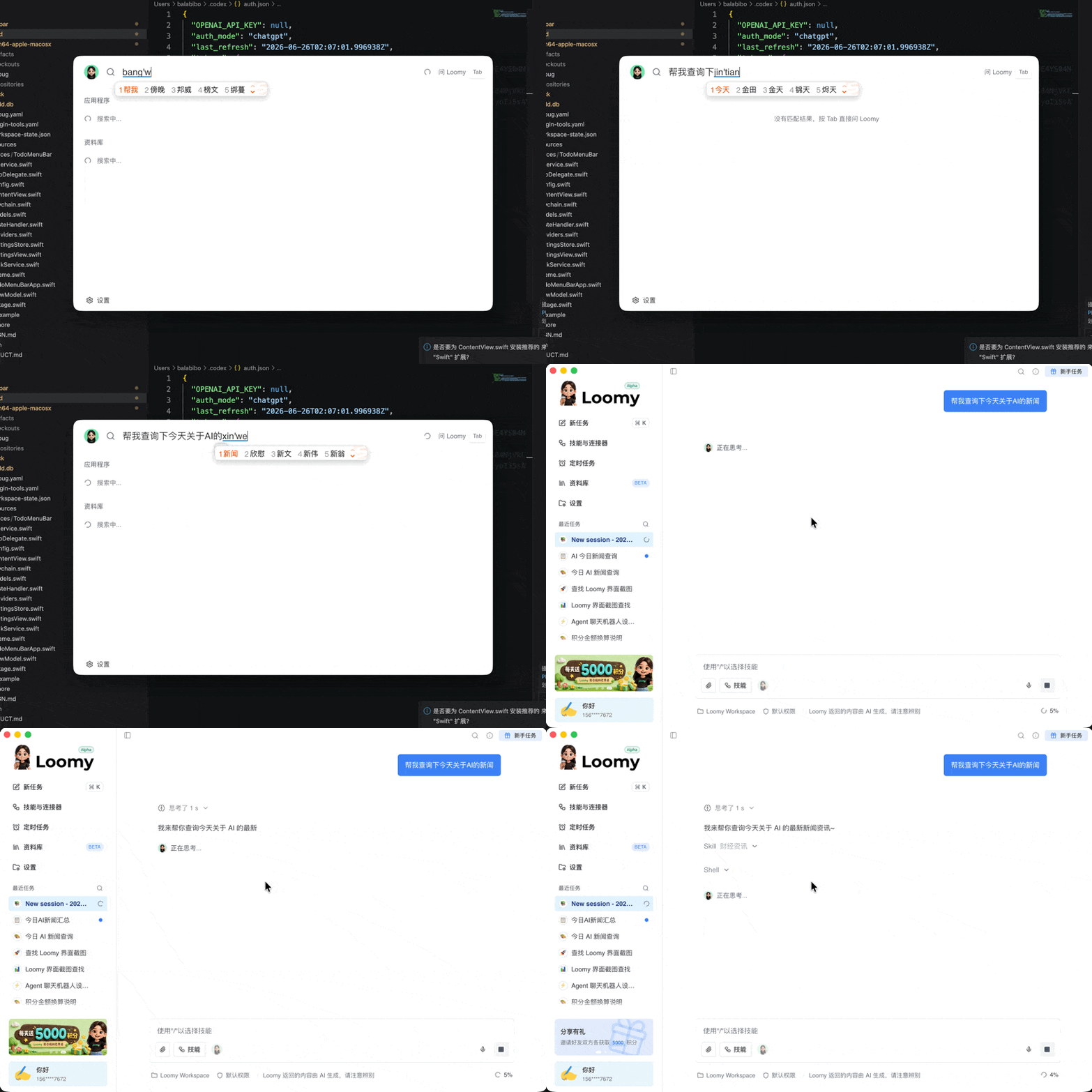
If you'd like Loomy to directly process a command—rather than just opening a result—press Tab in the input box to switch to "Ask Loomy" mode, submitting your request for AI handling. In the example below, when no ready-made result matches your input, the search box prompts you to press Tab to directly ask Loomy:
FAQ
Will Loomy upload my local files?
No. After authorization, all scanning, categorization, and indexing happens locally, and content is used only for on-device search.
Can I use the image search without Smart Vision enabled?
Yes. Without Smart Vision, Loomy will search by file name and basic info. Enabling Smart Vision allows AI to "understand" image contents for semantic search, which consumes points.
What if the Search Popup doesn't appear?
Go to "Settings → Account Info" and make sure the "Search Popup" toggle is enabled. If it's off, the ⌥ Space shortcut won't bring up the search box.